Events
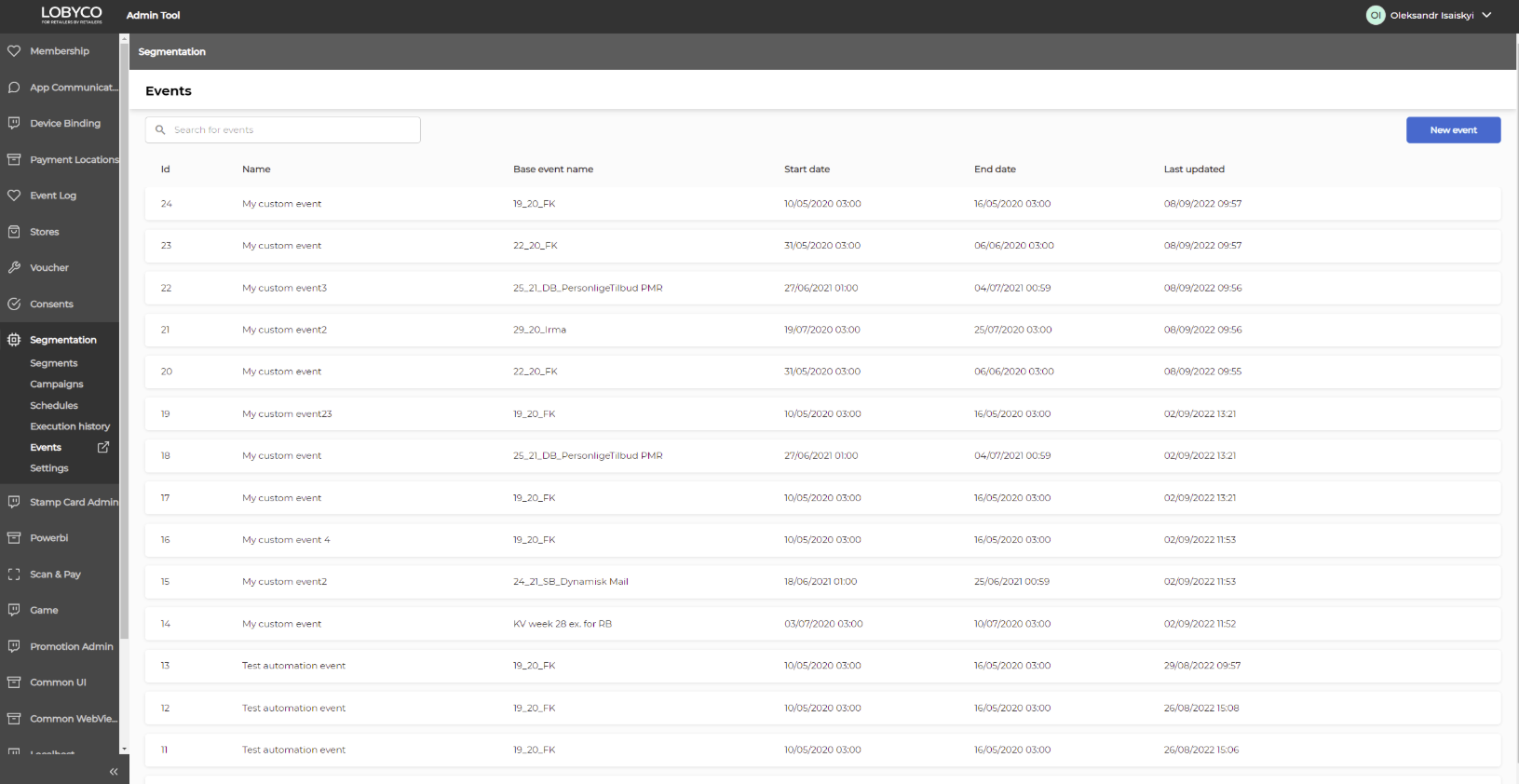
Events table
Events page allows to create, view and delete custom events. The event is a group of offers of specific type (e.g. gift, personal offer) that has unique id, name and date range during which event's offers are active and can be used by a member. In Orchestration all events that were not created in the tool are called Imported.
The custom event is the event that is created in the Orchestration tool by choosing imported event and adding some attribute-based filters on top of it. Using custom event user can extract only those offers from parent event which satisfy the criterias of custom event. Custom event should and could be related only to one parent event.
Events are displayed in a table that contains following columns:
- Id: unique identifier of the custom event
- Name: name of the custom event that was chosen by the user during custom event creation
- Base event name: name of the parent (imported) event
- Start date: date starting from which all offers of the custom event are active
- End date: date till which all offers of the custom event are active
- Last updated: date of the last update of custom event configuration
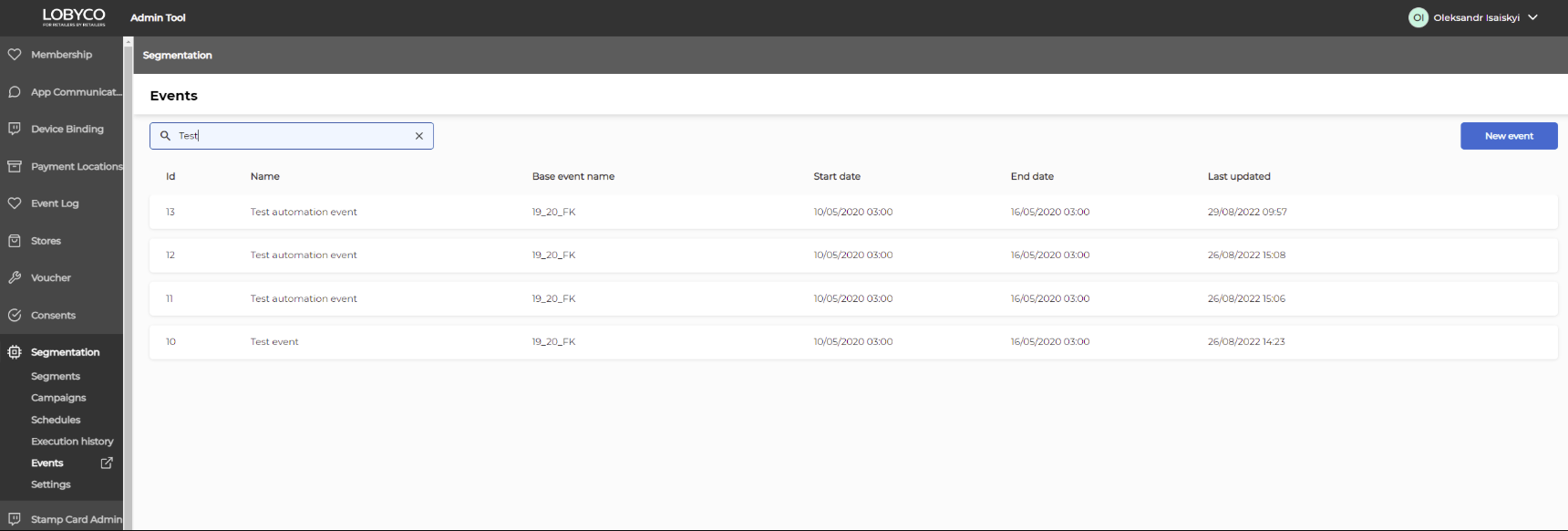
You can search custom events by typing custom event name into the 'Search for events' input.
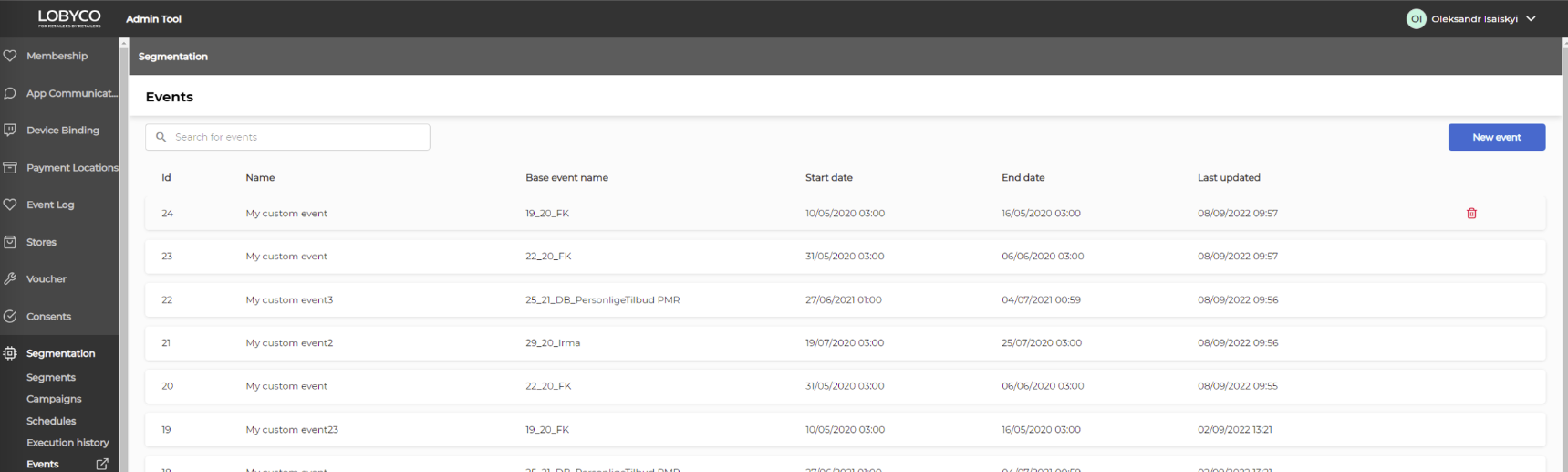
You can delete custom event by hovering mouse to the right of the chosen event from the list so that a 'bin' icon appear and available for click on it.
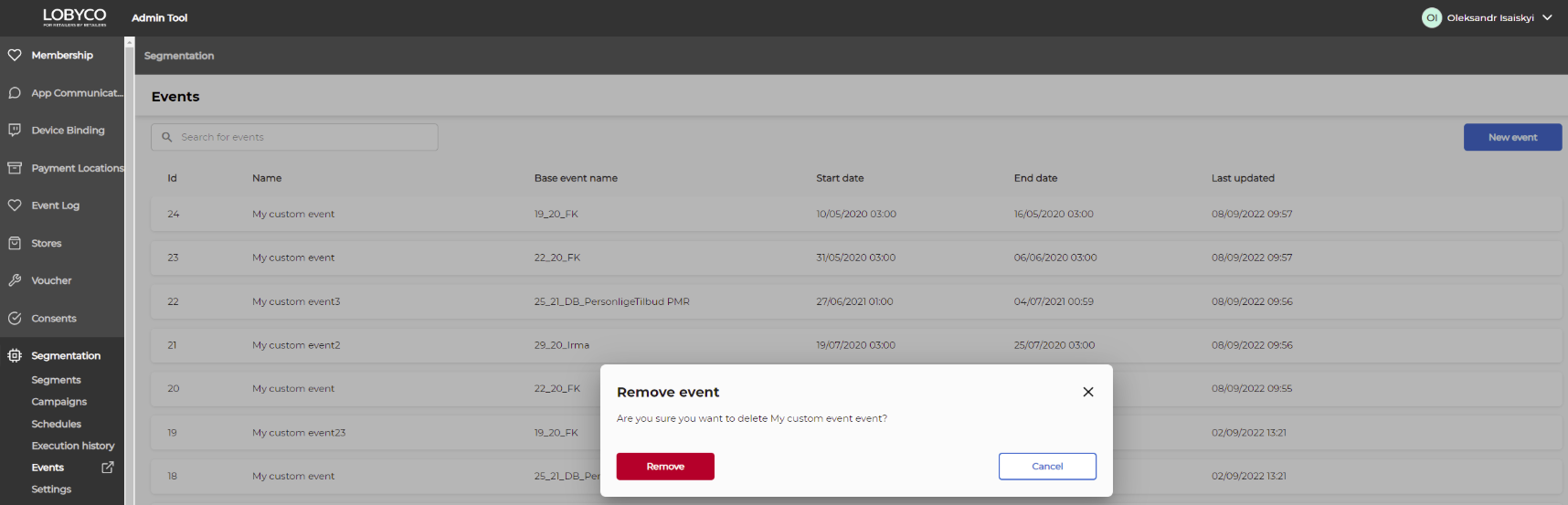
 Then press 'Remove' button from the appeared confirmation popup
Create custom event
You can create a custom event by clicking on the 'New event' blue button and adding configuration to appeared 'event builder' popup. See configuring custom event page for more details.
Configuring custom event
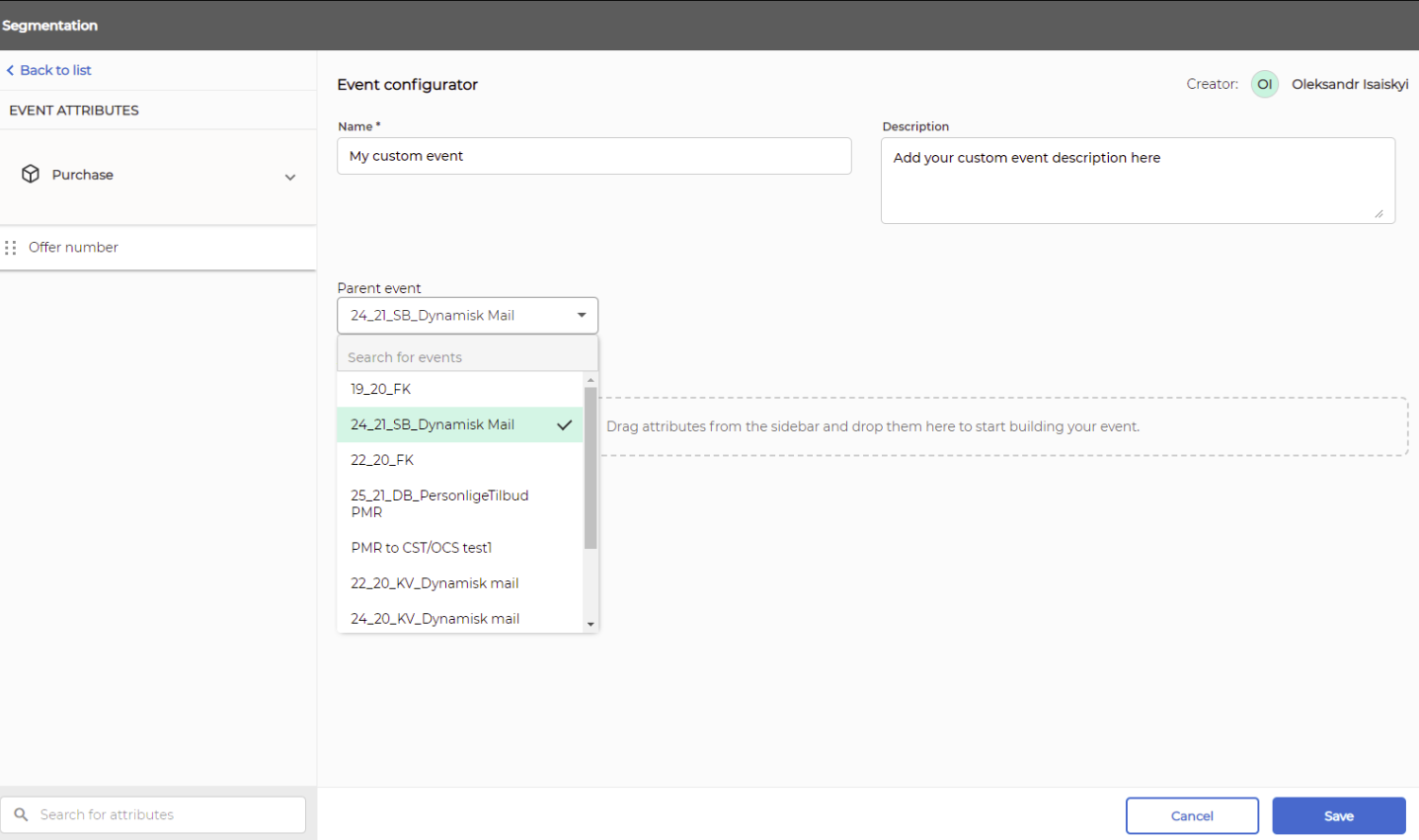
The custom event configurator allows you to configure your new custom event by specifying it's name, description, choosing base event and adding filters by using available attributes.
Each custom event should be based on the one of existing imported events which will be used as parent event:
You can add filter by doing drag-n-drop or double click on the attribute from the left and then specifying condition operator and value just as you do during segment configuration.
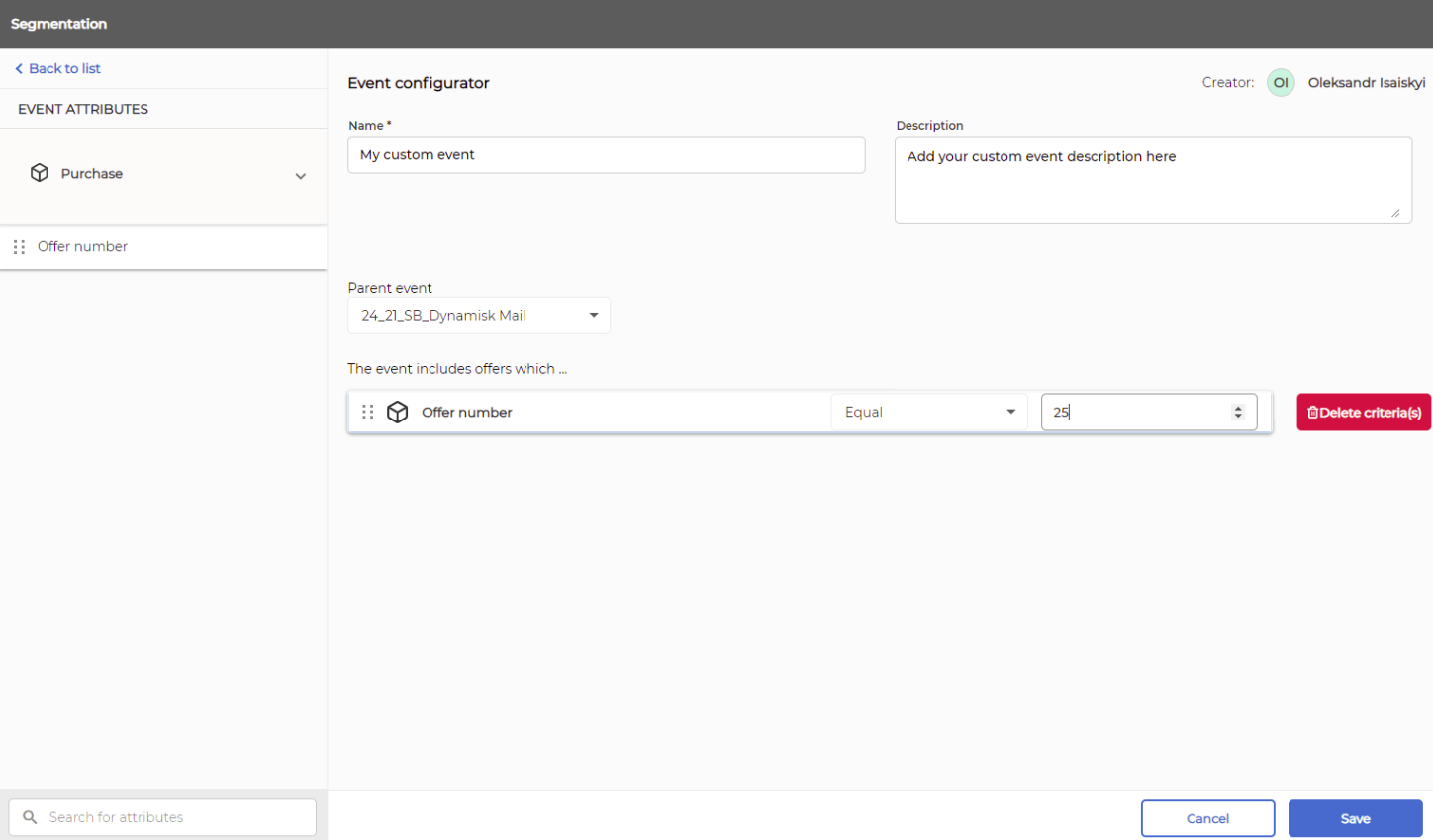
To save custom event click on the 'Save' blue button on the bottom right.