Campaign templates
Campaign templates let you reuse the structure of an existing campaign — its activities, their relative timing, and how they're linked — as the starting point for a new campaign. Saving a campaign as a template does not copy or duplicate anything: it's simply a flag you can turn on or off at any time.
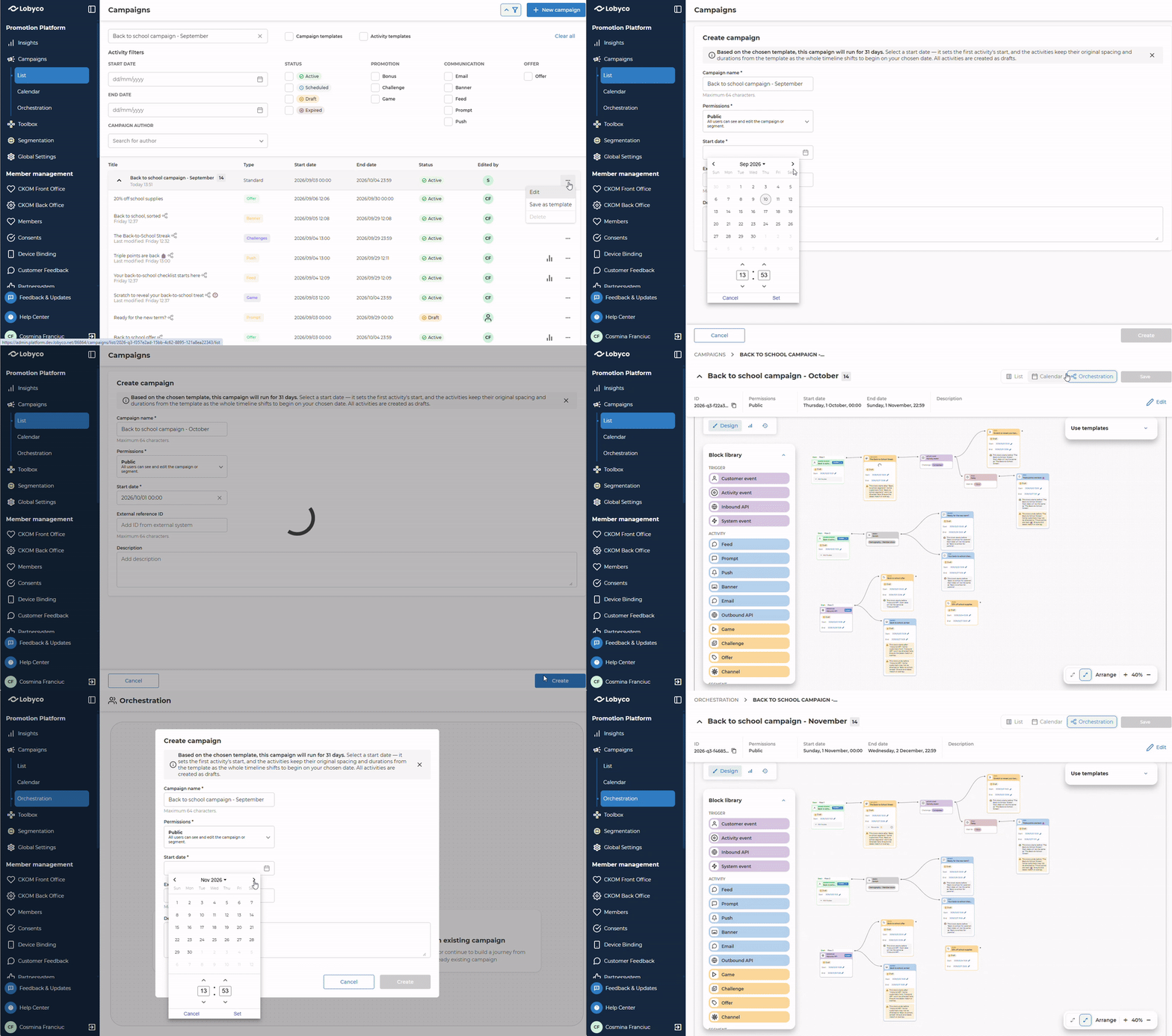
Save or remove a campaign as a template
Any campaign can be marked as a template, and unmarked again, without changing its data.
- Use the Save as template action on a campaign (from the campaign detail page or its context menu) to flag it as a template.
- Once flagged, the same action becomes Remove from templates, letting you unflag it again.
- Template campaigns show a visual badge in the campaign list so they're easy to spot.
- The campaign stays fully functional and editable regardless of its template status.
Create a campaign from a template
When you create a new campaign from a template, you only need to provide a start date — all other dates are calculated automatically from the template's structure.
- The earliest activity in the new campaign starts on the date you provide.
- Every other activity keeps the same offset and duration it had in the template, relative to that start date.
- The campaign end date is calculated to cover all activities in the new campaign.
- Auto-calculated dates can't be edited during creation — you can adjust them afterwards from the normal campaign edit flow.
- All activities created from a template are saved as drafts, so you can review and publish them when ready.
Good to know: If there's a gap between a template campaign's start date and its first activity, that gap is not carried over — the new campaign starts right on the earliest activity.
Example
A template campaign runs 1–10 May, with an Offer activity from 3–10 May (8 days) and a Feed activity from 7–9 May (starting 4 days after the Offer, lasting 3 days).
If you create a new campaign from this template starting 20 May: - the Offer runs 20–27 May (8 days, starting on the new campaign start date) - the Feed runs 24–26 May (4 days after the Offer start, 3 days long) - the campaign runs 20–27 May
Create an orchestration campaign from a template
You can also create an orchestration campaign from a template. A Create from template button is available on the orchestration canvas.
- You'll go through the same template selection and start date entry as for a standard campaign.
- The same date calculation rules apply to every block that carries dates, including Member Segment and Event blocks (Standard and Triggered).
- If the template has multiple flows, date offsets are calculated independently for each flow.
- The connections between blocks are recreated in the new campaign, preserving the flow layout of the template.
Activity links
Activities in a template campaign can reference each other — for example, a Game offering a linked Offer as a reward, or a Push notification deep-linking to a Feed item. What happens to these links depends on where the linked activity lives.
Within the same campaign
Linked activities are recreated so the new campaign's links point to its own new activities, not to the originals in the template: - Referenced activities (e.g. an Offer used as a reward) are created first. - Activities that reference them (e.g. the Game or Challenge) are created afterwards, linking to the new copies. - Deep-links from Feed, Push, Banner, or Prompt activities to a Game, Challenge, Offer, or Feed (Profi) activity are updated the same way. Deep links which do not point to an activity or external links are copied as-is.
Across different campaigns
If a template activity links to an activity in a different campaign, that link is not carried over to the new campaign: - The new activity is created without the reference. - For promotion activities, an error is shown on the activity asking you to add a link. - For communication activities, a warning is shown instead. - Either way, the campaign and its activities are still created as drafts — you just need to add the missing link before publishing.
Filter by campaign templates
A campaign templates only filter is available in the campaign list filter panel, alongside the existing activity templates filter. It can be combined with other filters (name, dates, status, etc.) and shows only campaigns flagged as templates.