Game design with multiple rewards
You can easily configure game designs to allocate multiple prizes. There are several configurations required for the game design so that winners are shown the actual prize from a pool of rewards.
In time, you can maintain a list of design templates for games with multiple rewards that have been configured with these steps.
1. Add a reward parameter in the Registration form
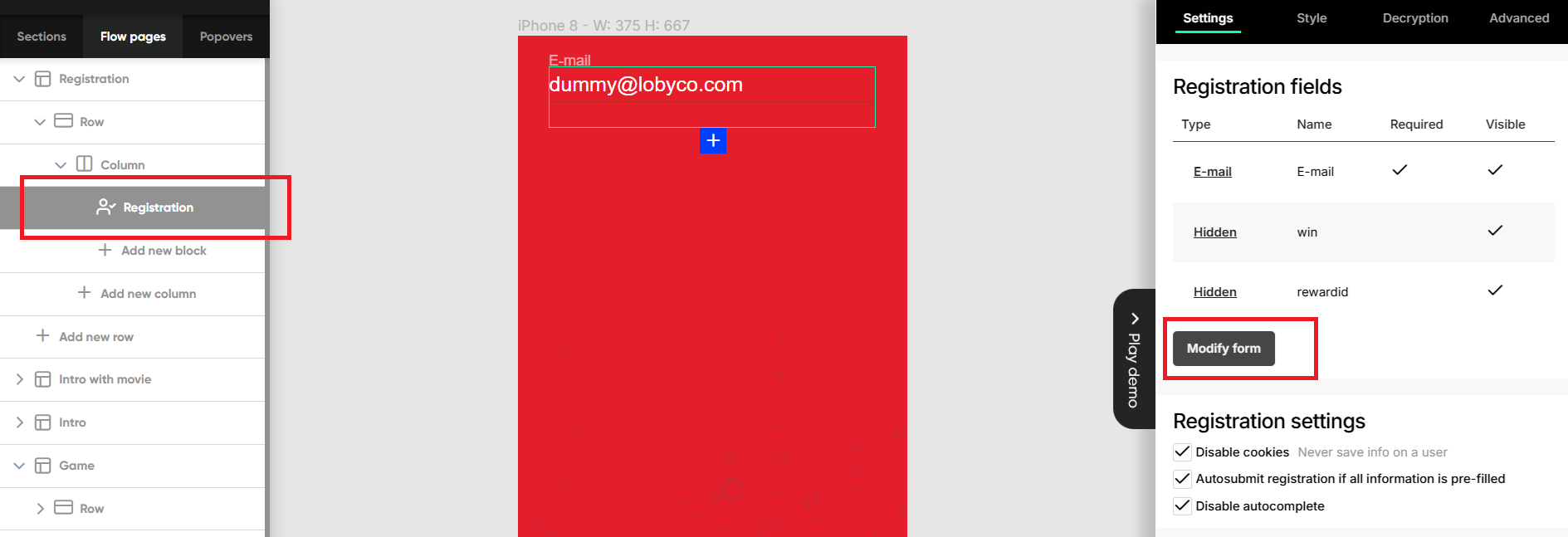
- Go to the Registration page (should be normally locked, you can unlock it by clicking the locket icon)
- Select the Registration element
- Click Modify on the right game menu.
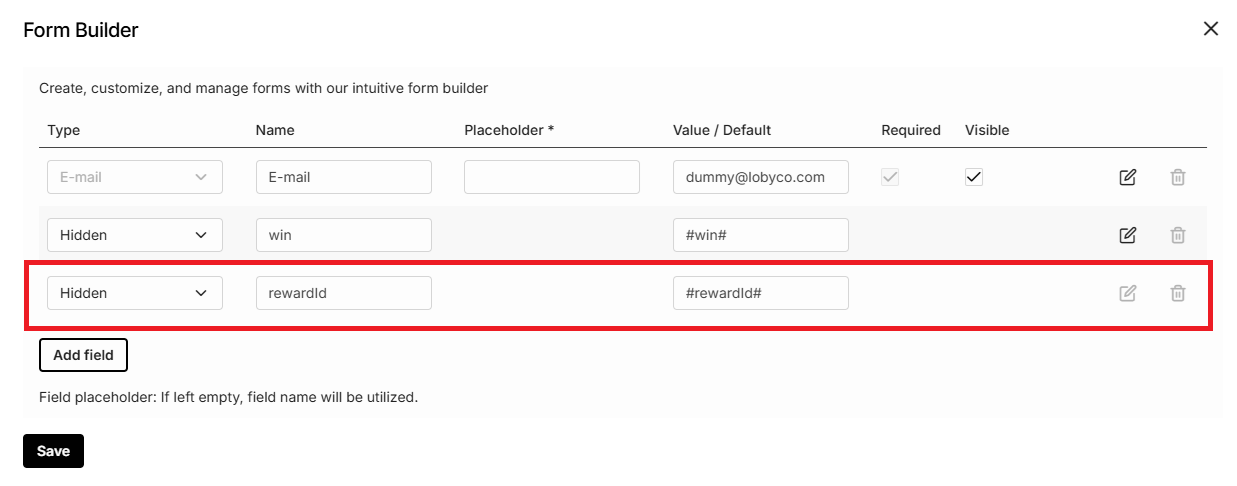
Add a new parameter in the registration form. This is used to show the correct win page related to the won reward.
- Type: Hidden
- Name: rewardId
- Value: #rewardId#
⚠️Parameters are case-sensitive. - Click Save and close the form
2. Game page shows all possible prizes
This is applicable only to luck game types, as knowledge and skill games do not require this configuration.
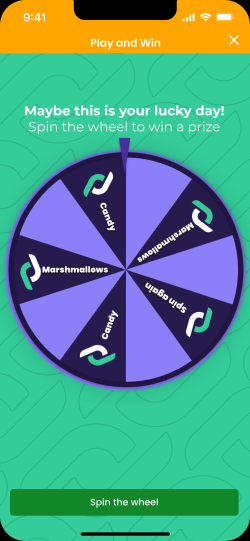
In single reward games, the Game page shows only one prize that can be won. In multiple rewards games, the Game page can be configured to show all possible prizes and allow the user to actually see (land on, reveal) the won prize.
Example: configure a Wheel of Fortune game that shows all possible prizes on the wheel, and the winner sees how the wheel lands on the actual prize.
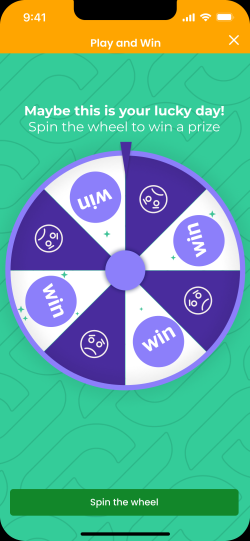
Hint: In the beginning, you can have a Game design to be generic and only show a win or lose state, and on the next Win Page, to show the actual prize. While it does not have the same impact, it’s easier to implement. Example: the spin the wheel shows only win or lose on the wheel, but not the actual prize(s).
Configuring the prizes to show on the Win page is done like this.
2.1. Click on the Prize settings in the lower right corner.
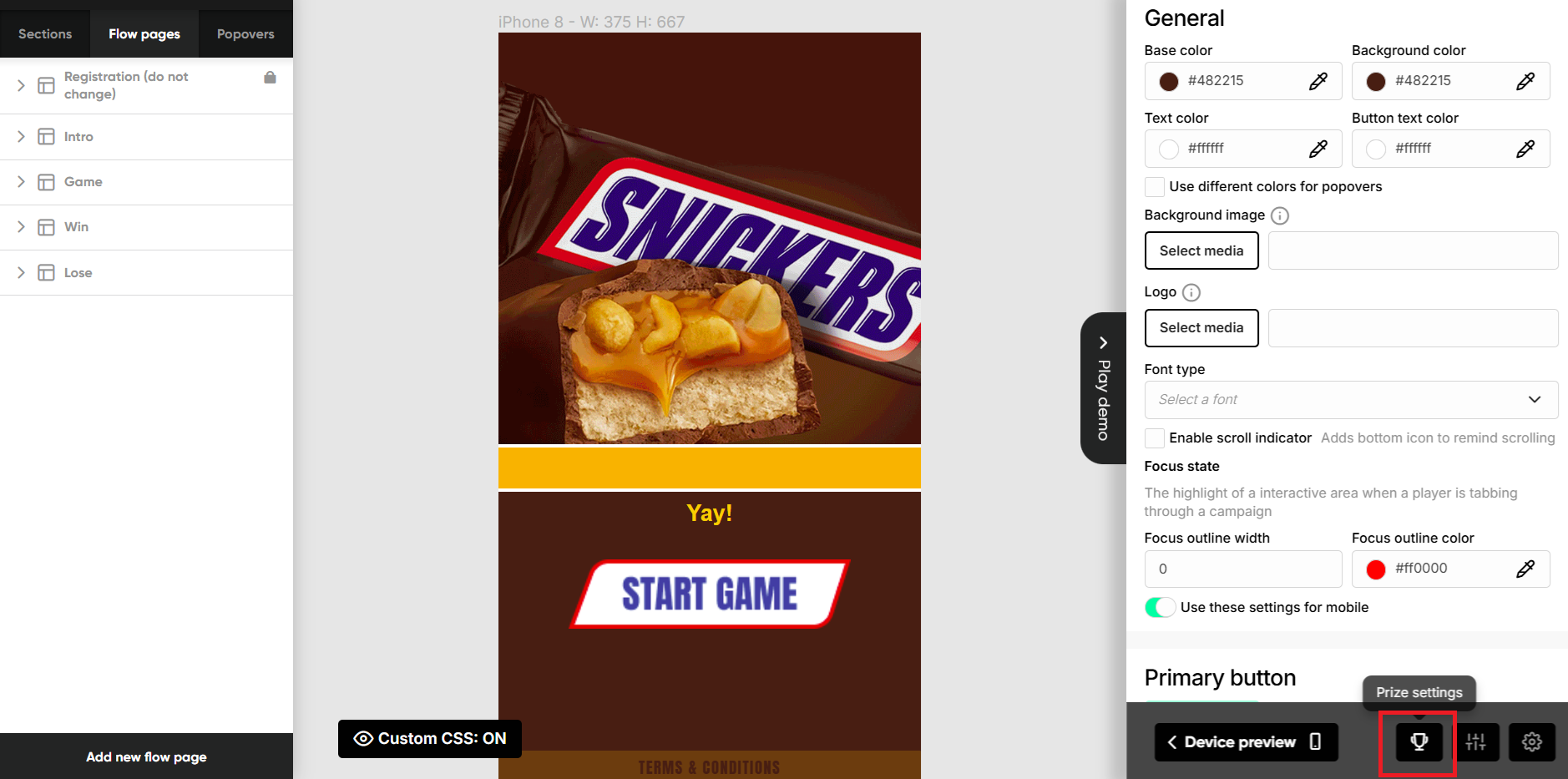
In the pop-up, the list of existing prizes is shown. By default, there should be only one prize if you started from a regular game design.
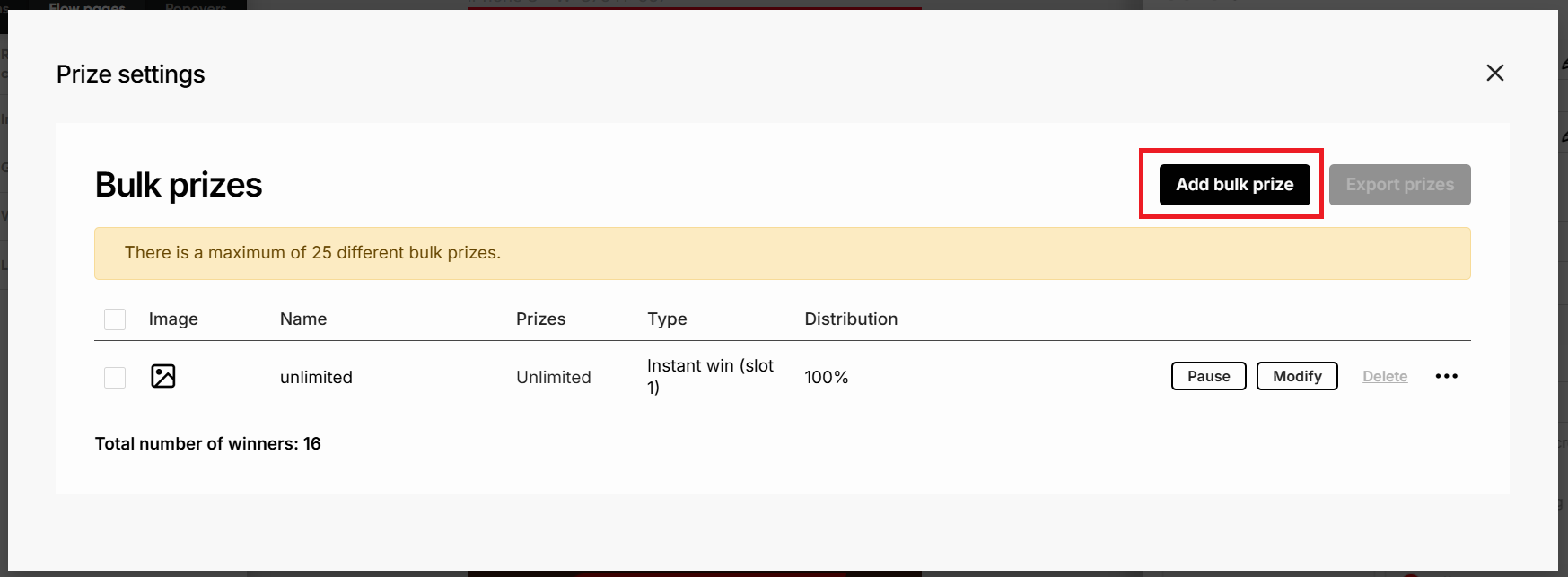
Press Add bulk prize to add a new prize.
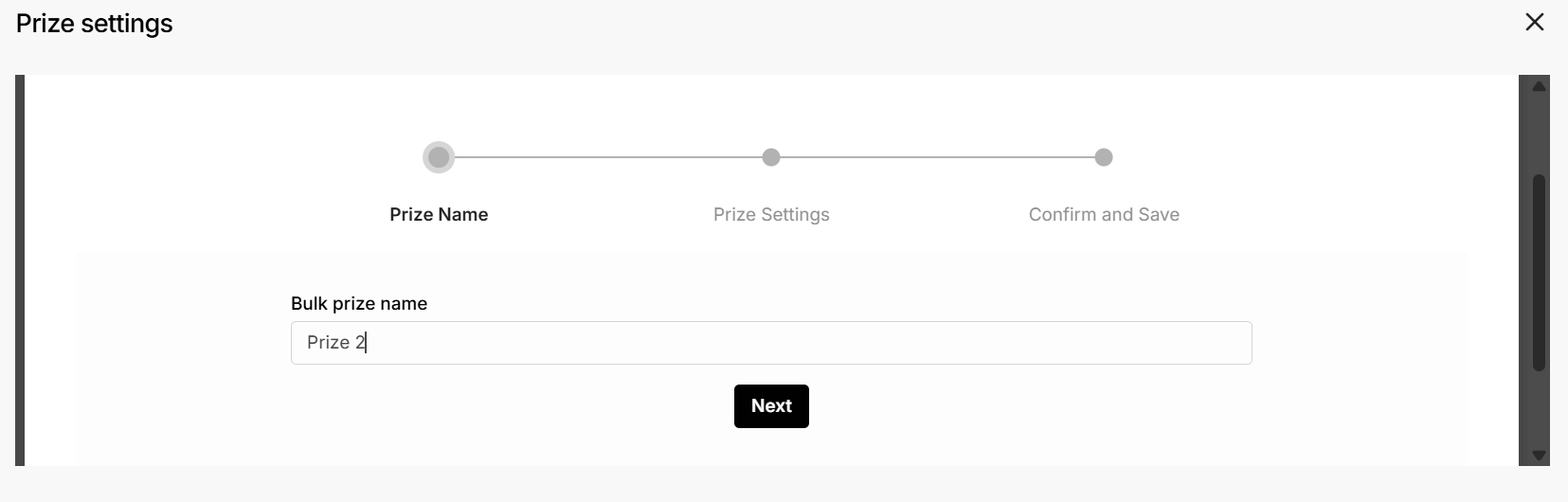
2.2. Add a Bulk prize name and press Next.
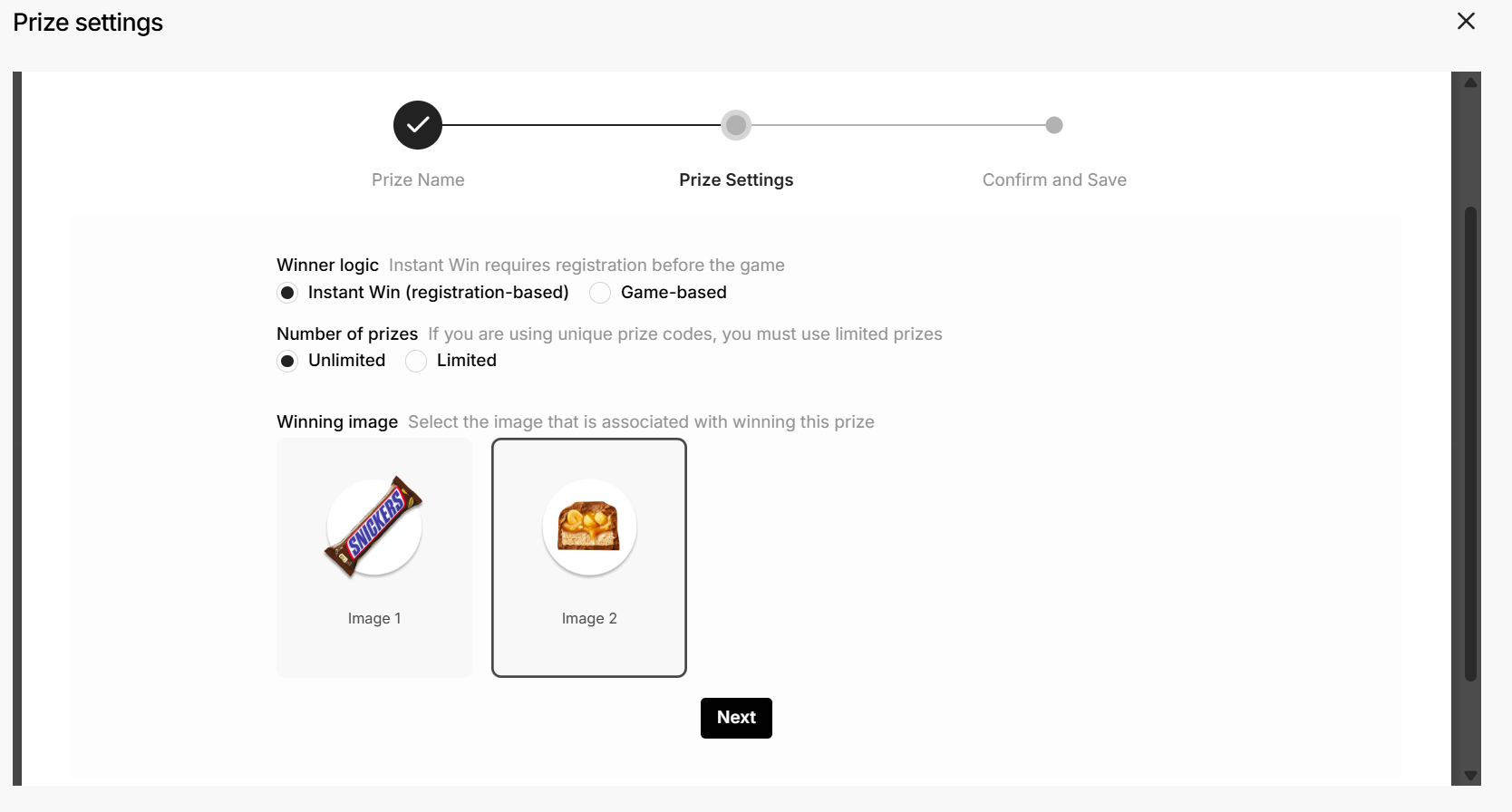
2.3. Select Instant Win and Unlimited number of prizes. Choose the image of the prize, which is configured in the Game settings.
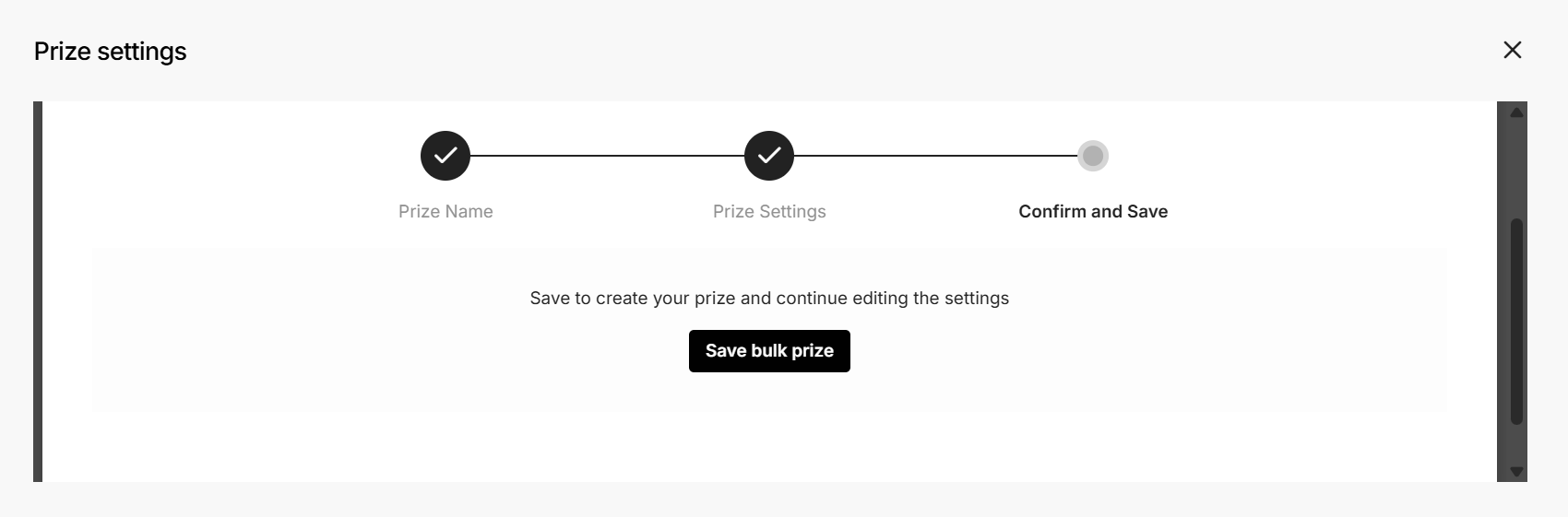
2.4. Press Save bulk prize to save the prize and open the detailed prize configuration.
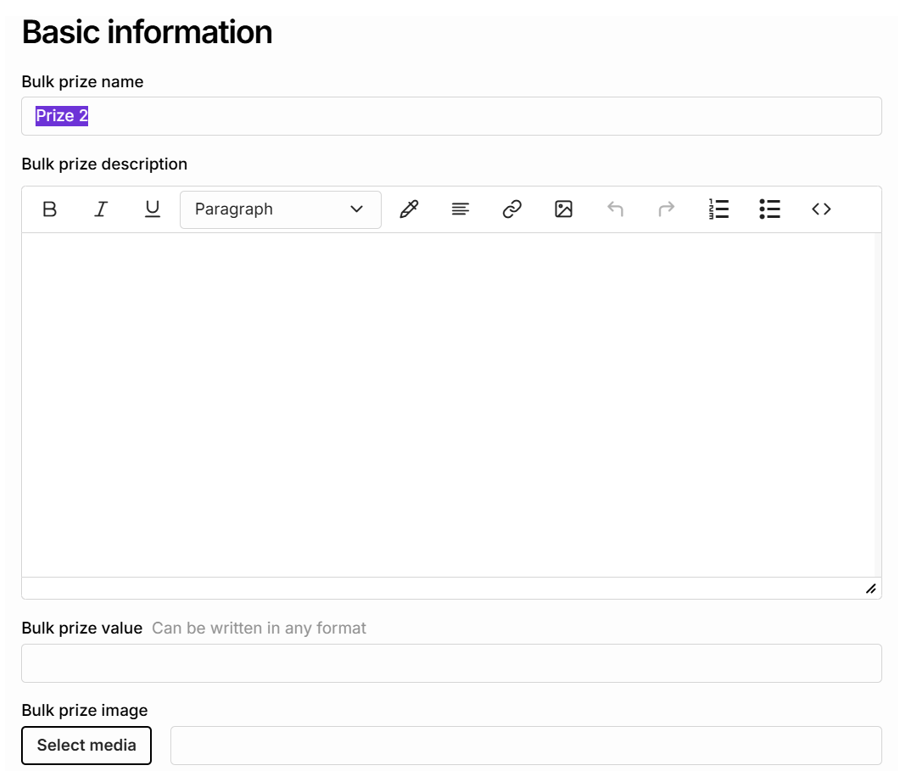
2.5. You can review the prize name, and add a description or an image
All these values can be later used on a winners page to dynamically show to winners the prize name and image.
Placeholders can be used throughout the game to show these values. For example, #bulk_prize_name# shows the prize name defined here. More details in section 3.xxxx
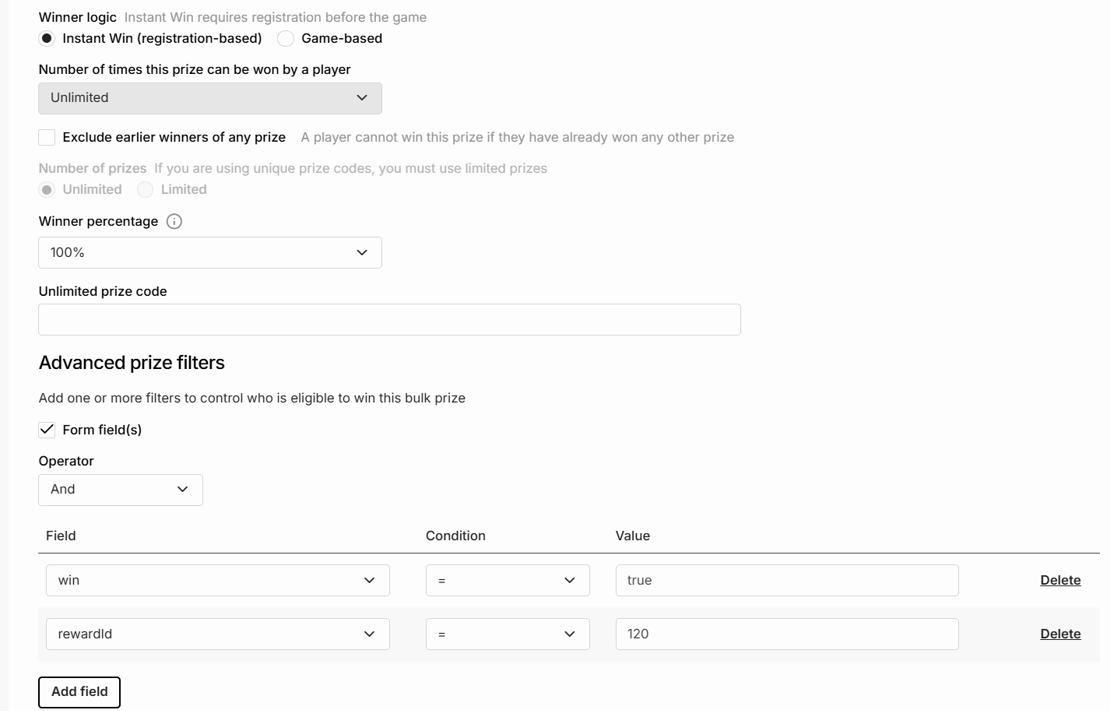
2.6. Setup win conditions as below. In general, the Lobyco Game Setttings from the Admin Portal defines the win logic, so gameplay win options should just allow maximum flexibility as below.
- Winner logic -> Instant Win
- Number of times this prize can be won by a player = Unlimited
- Exclude earlier winners of any prize – unchecked
- Winner percentage – 100%
Advanced filters contain
- Form field is checked
- Operator is And
- Two fields are generated
- Win = true
- rewardId = the ID reward of the reward in the Game Admin Portal
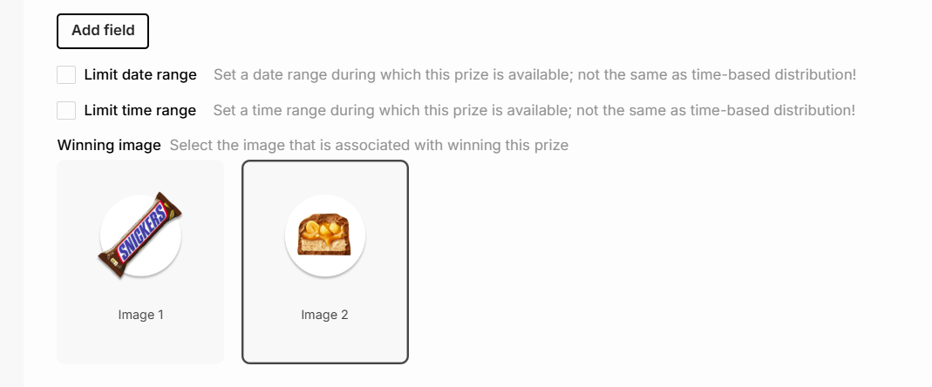
2.7. The winning image should be selected as the desired reward
3. Duplicate Win Pages
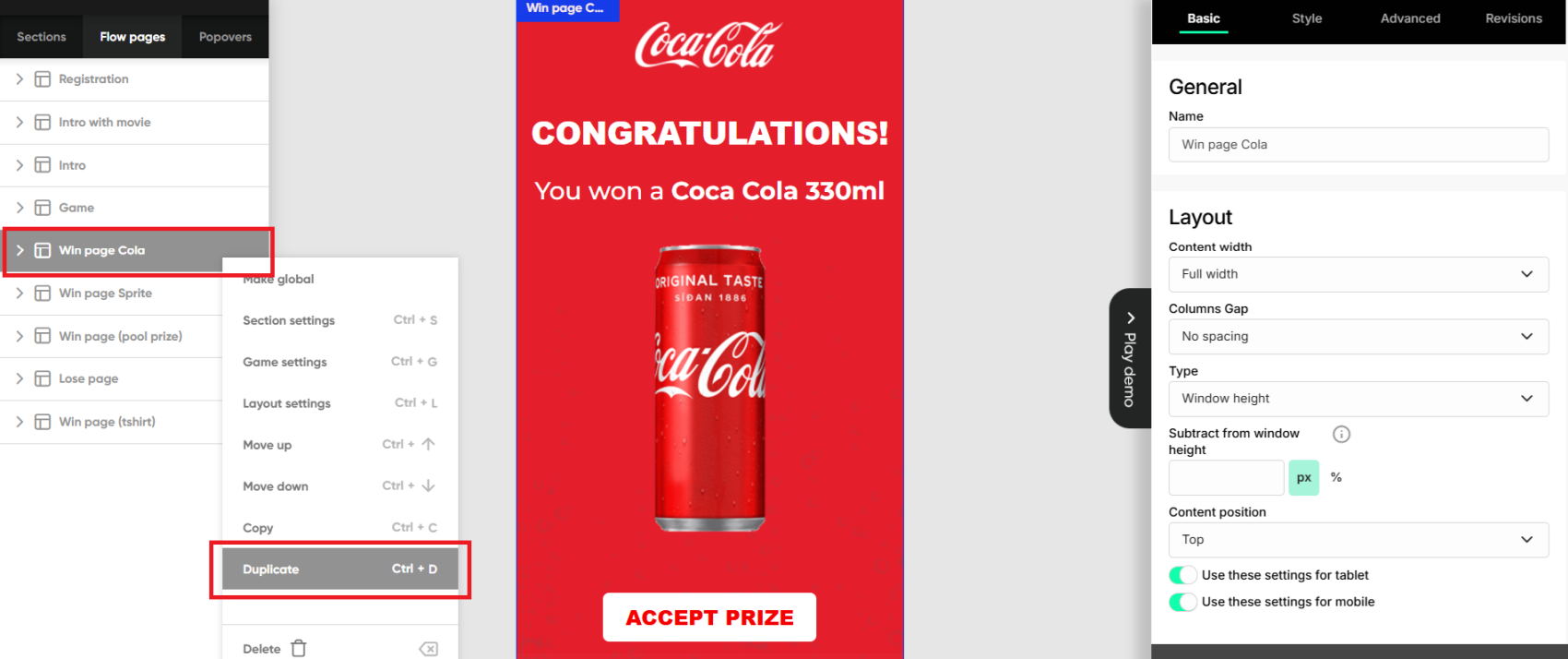
Create a Win Page for each reward.
- Select the Win Page
- Right-click and press Duplicate to create new reward pages
- Rename the new pages to reflect the reward
- Adapt each page to reflect the specific reward. For custom rewards (e.g., concert tickets) take into account that the user will not receive the reward in the App. Therefore Consider to have on those pages a clear description of how the winner gets his reward (e.g., delivery method, time to get the reward, etc.)
4. Win Pages visibility condition
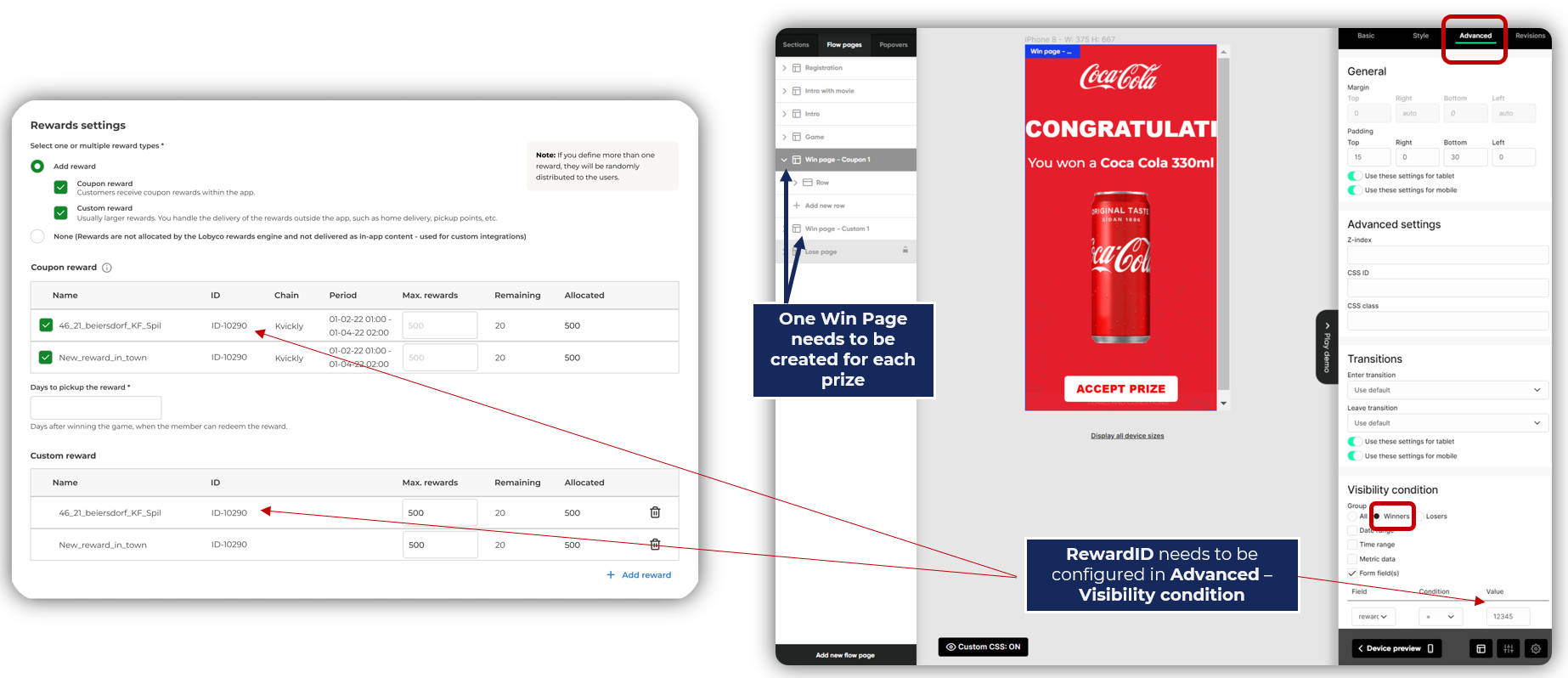
On each win page, you need to edit the visibility condition to match the reward ID from the game configuration.
- Go to the game and check the ID for the reward. This is allocated for all rewards after the game is saved.
- Select the Win page for that specific reward
- In the game menu (right side) go to the Advance tab
- Select Winners radio button in the Visibility Condition, if not already selected
- Check Form field(s) - a dropdown appears
- Select rewardId in Field, = in Condition, and input the rewardId from step 1 in Value.
Note that the parameters are case sensitive.
5. Other pages visibility conditions
Following the same steps to configure the visibility conditions, you can show additional pages to users who won specific rewards. For example, for custom reward winners you might want to show an additional page with more details about the reward and delivery process.