Bonus Activities Lifecycle
Tabs Overview
As shown in the interface:
-
Active: Currently running activities.
-
Scheduled: Activities set to start in the future.
-
Draft: Activities saved but not yet published.
-
Disabled: Activities manually disabled.
-
Expired: Activities whose end date has passed.
Creating a New Bonus
-
Use the Create new bonus button to create a new activity.
-
If all required fields are filled, the activity can be published immediately; otherwise, it will be saved as a draft.

1. Draft
- Creation:
A bonus activity can be created as a draft if the following minimum fields are provided:- Activity type
- Name
- Start date
- End date
- How to Save as Draft:
- Click the Save as draft button, or
- Click Create activity with missing required data (the system will automatically save as draft).
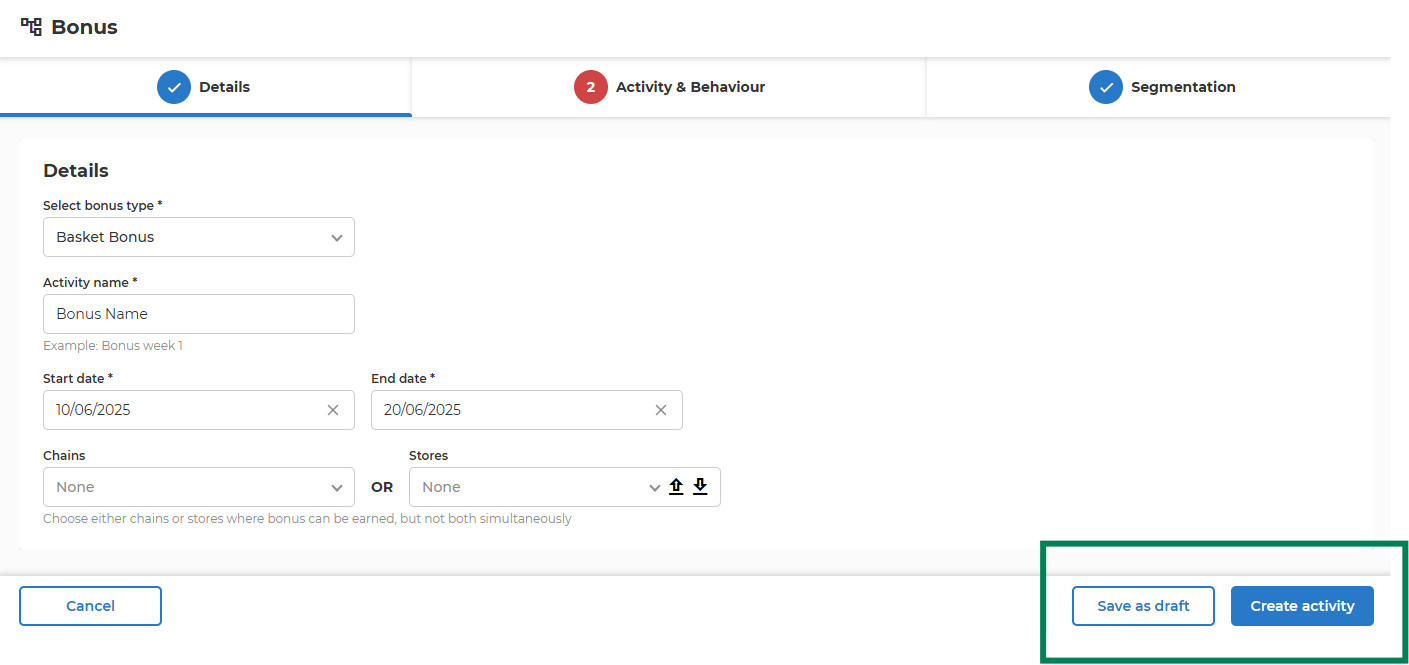
- Purpose:
Drafts allow you to set up and review activities before all required information is available. - Publish
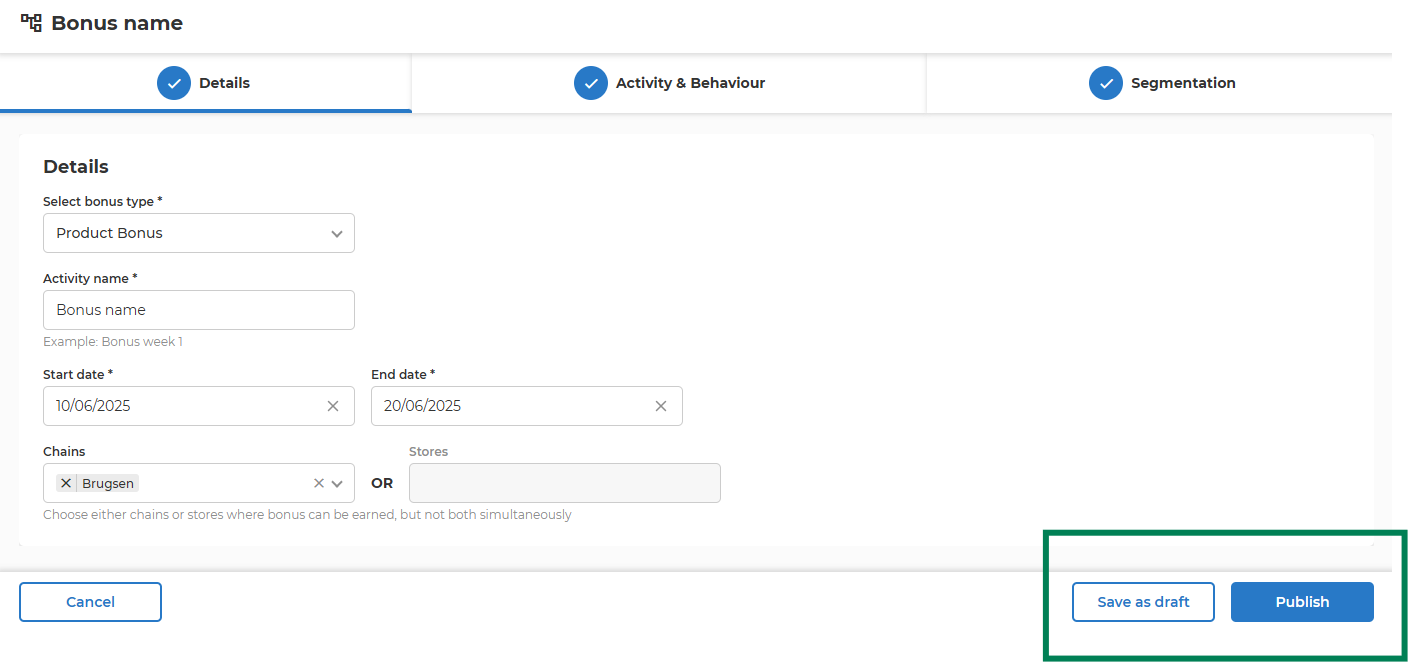
- A draft activity can be found under Draft tab
- when opened can be published when has all required fields completed, by pressing Publish button
- when opened can be updated again by pressing again Save as draft button
- A draft activity can be found under Draft tab
2. Active & Scheduled
- Requirements:
All required fields must be completed. -
How to Publish:
- Once all required data is provided, you can publish the activity.
-
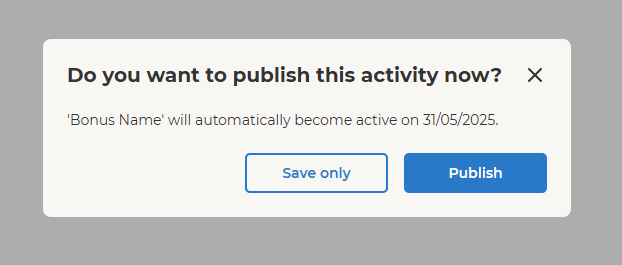
An activity can be directly published without being created as draft first by pressing Create Activity button. A pop-up will appear to confirm that the activity should be indeed published.
- If the current date is within the activity’s start and end dates
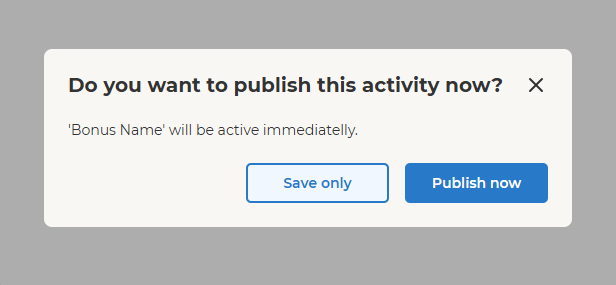
- If the start date is in the future
-
Status After Publishing:
- If the current date is within the activity’s start and end dates, the activity appears under the Active tab.
- If the start date is in the future, the activity appears under the Scheduled tab.
- Update active or scheduled activities
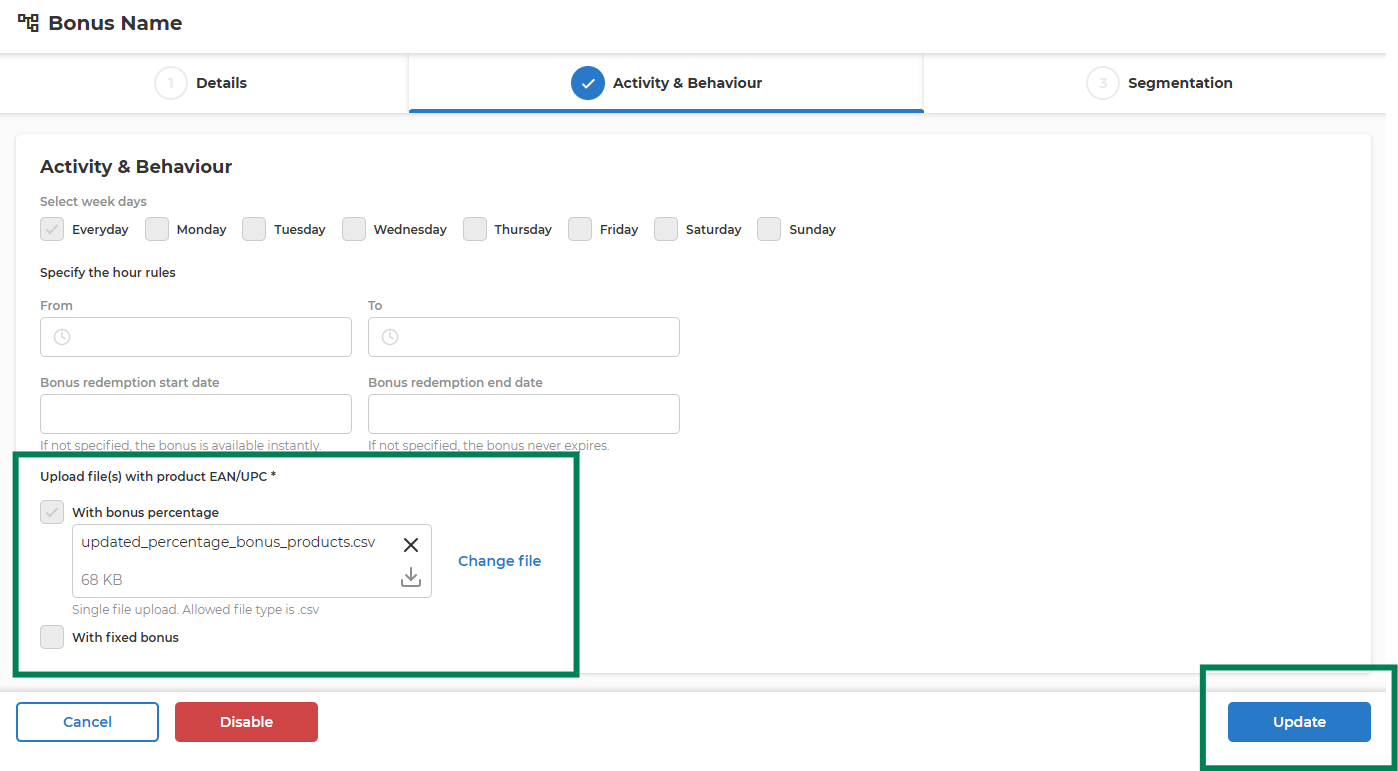
- Scheduled activities can be updated
- Depending on specific client configuration uploaded files for including/excluding products and categories can be updated for Active activities
5. Expired
- Definition:
Activities with both start and end dates in the past are Expired. - Visibility:
Expired activities are listed under the Expired tab.
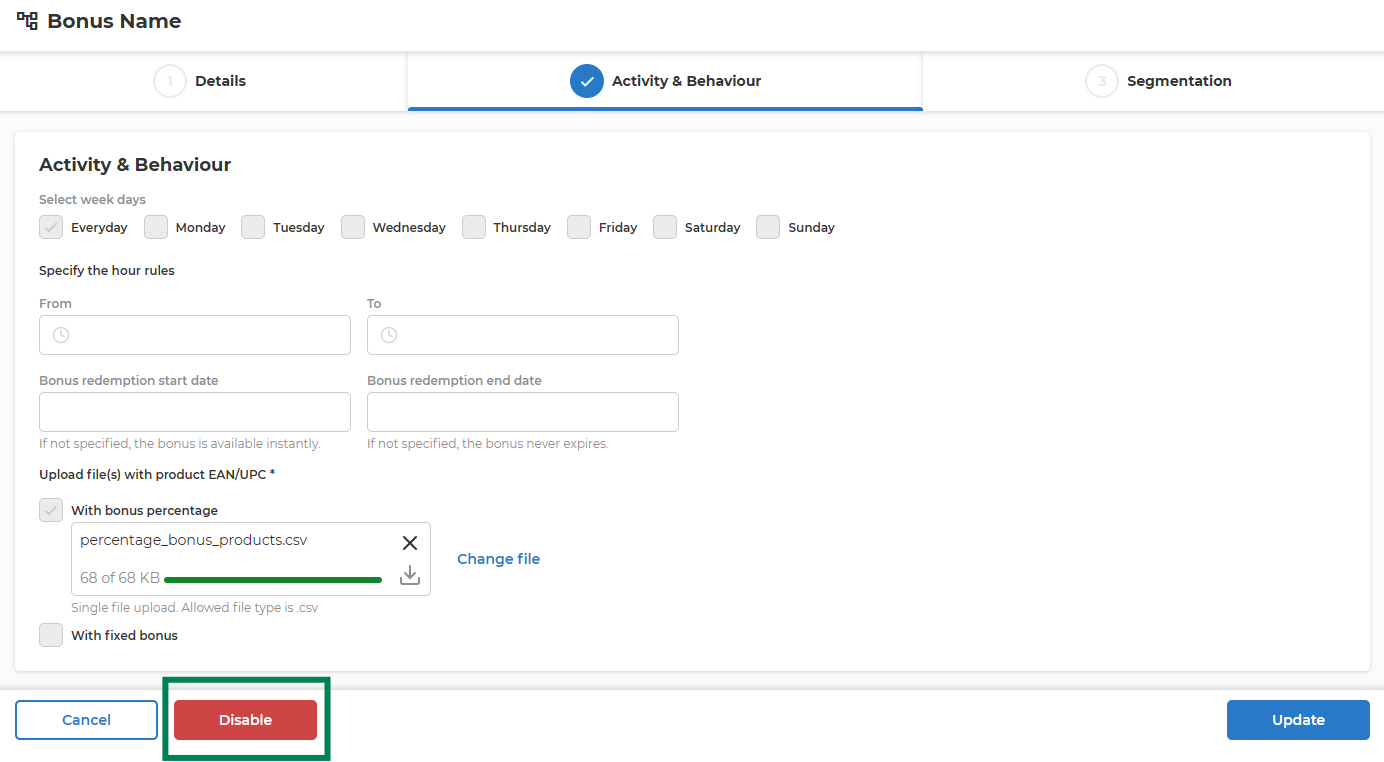
6. Disabled
- Definition:
Any activity (draft, scheduled, or active) can be Disabled by the user. - Effect:
Disabled activities are moved to the Disabled tab and are no longer active or scheduled.