Create and edit campaign with location
For some customers, there might be a need to have campaigns configured at the chain (banner) or store level, to manage promotional activities based on location easily. Read ahead on how this works.
Press New Campaign button on the Campaigns list to create a new campaign. This opens up a new page where you can input the campaign details.
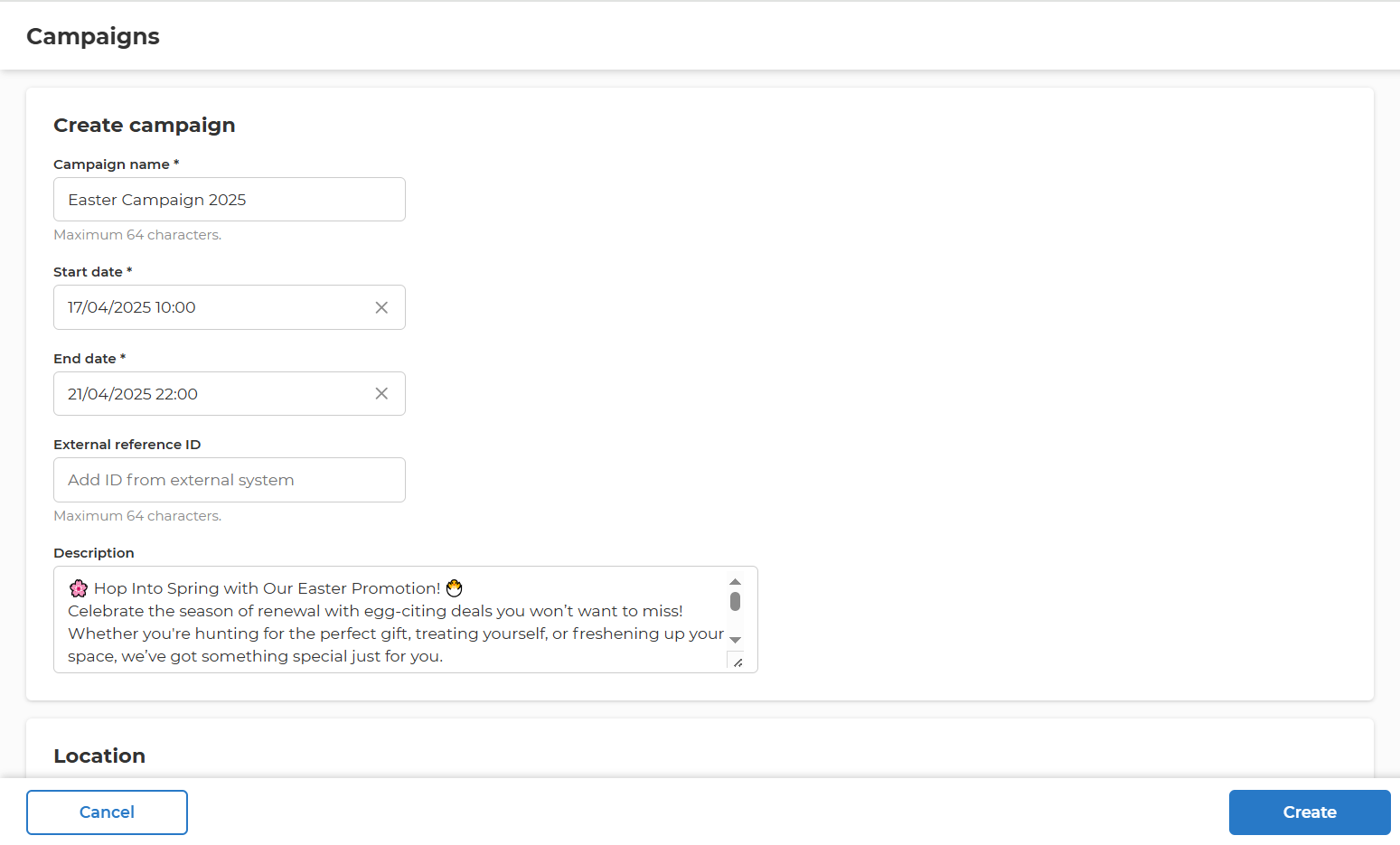
Campaign Name is used to identify and locate it in the Lobyco Portal. Unique names aren't required. Start date and End date determine the validity period of the campaign. * It's good practice to start at 00:01 and end at 23:59 to avoid confusion and track it in an easier way. * Even though the campaign end date supports past dates, we recommend not creating them with start times in the past. * All activities created in the campaign will have to be inside the start and end date of the campaign. Description is a field to allows to add more details about the campaign scope. Press Create button to save the campaign.
Select location
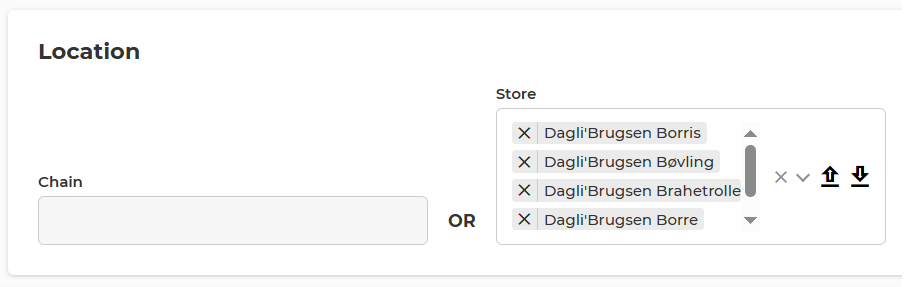
When creating a promotion campaign, selecting a location is required. There are two options available: Chain or Store.

- Locations are selected using a multi-select dropdown.
- Alternatively, a list of stores can be uploaded via a Segmentation CSV file.
- The Segmentation CSV file can be downloaded after selecting stores.
- The locations visible to a user depend on his role-based permissions. After authorization, an admin user can only see the chains and stores available according to his assigned department and permissions. Once a campaign is created, the selected location (chain or store) cannot be modified when editing the campaign.
Add activities in the campaign
Now that you have a campaign, you can add activities inside it.
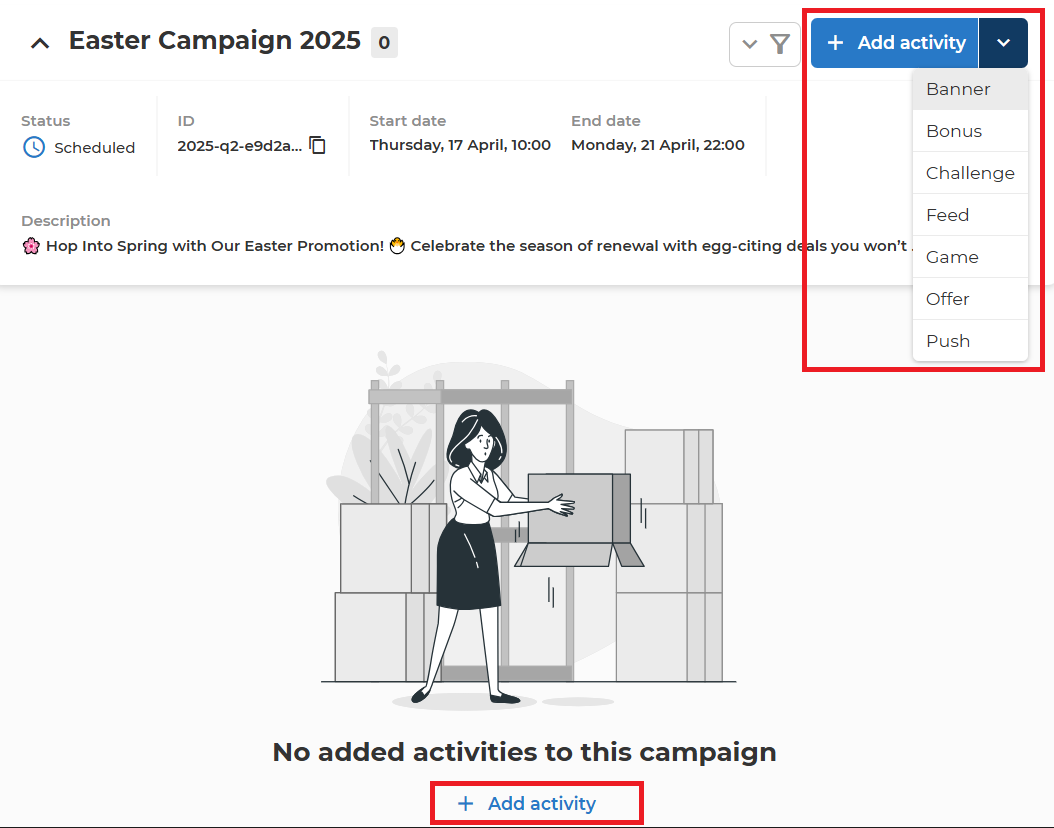
Press the Add activity button to open an activity selection page. Or press the right side arrow of the button to show the list of available activities and directly select an activity.
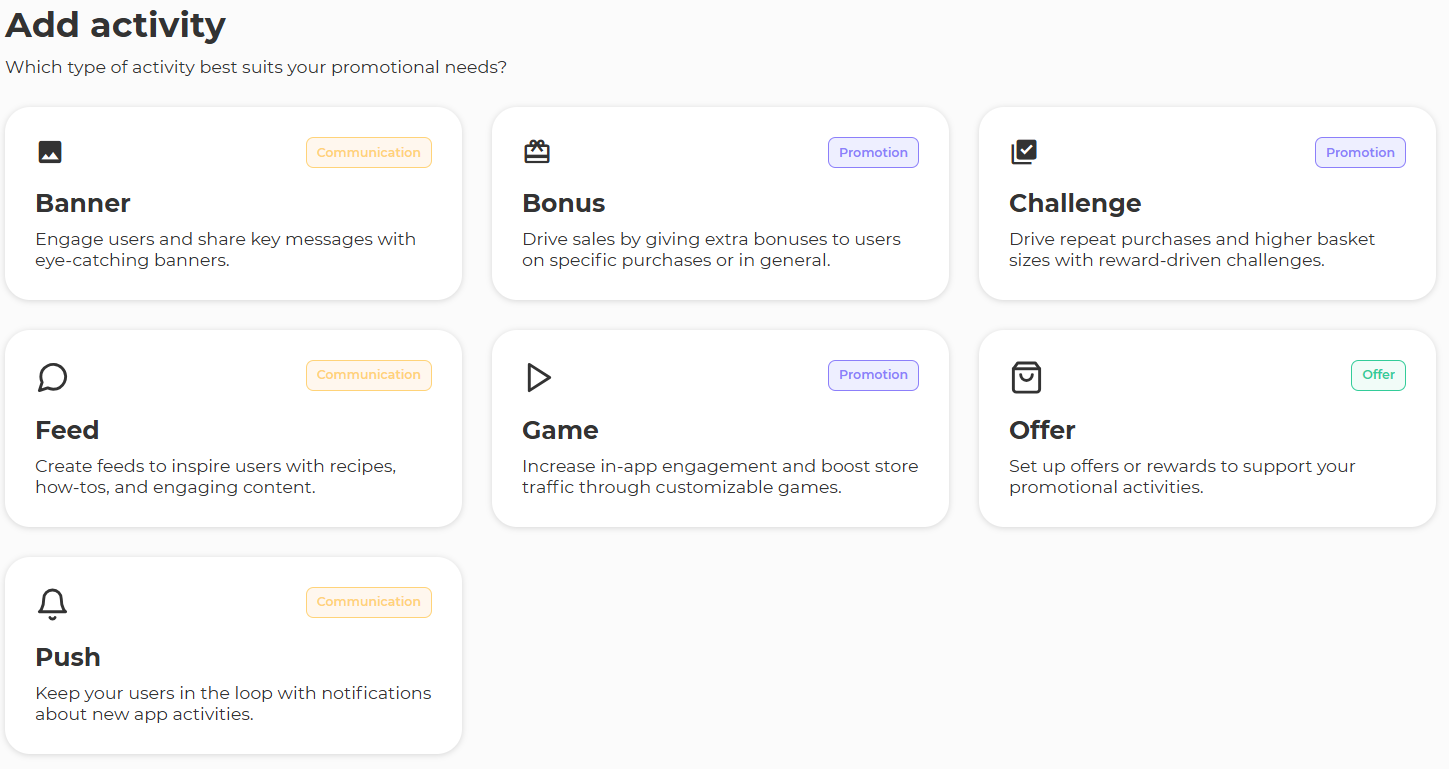
On the activity selection page, you can see the available activity types for you. Select the one that you would like to create.
Activity location inheritance
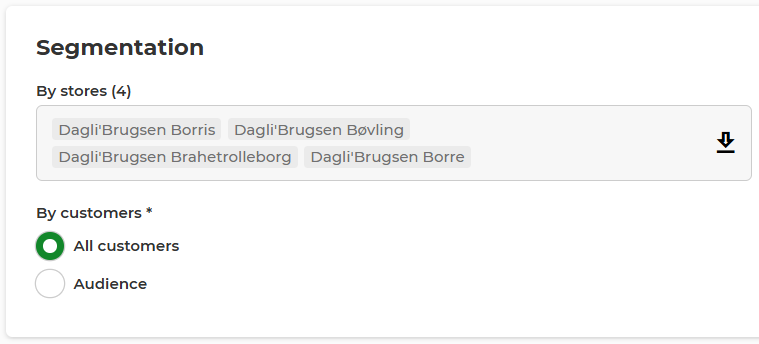
Most of promotion campaign activities such as banner, bonuse, challenge, feed, game and offer notifications automatically inherit the selected location from the campaign.
This means that the chosen chain or store data becomes a part of the activity’s segmentation.
Edit campaign
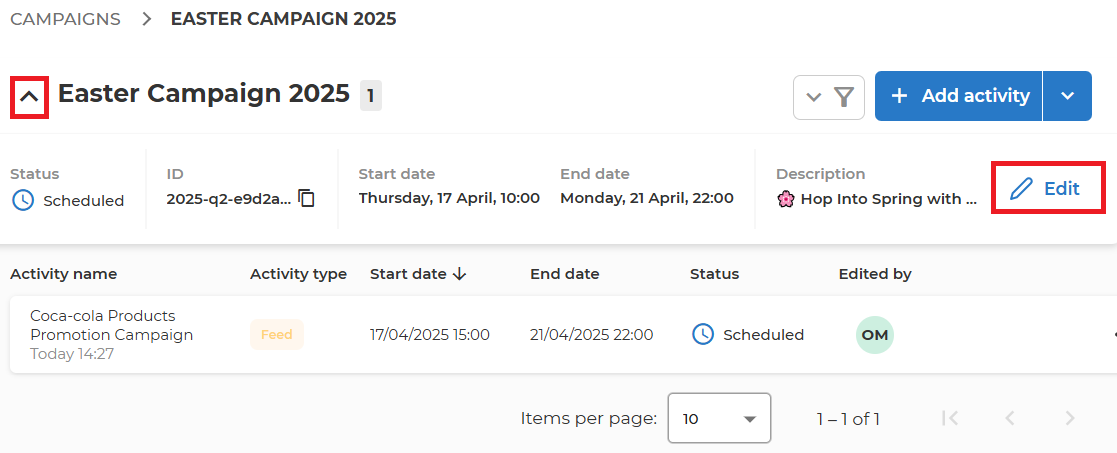
Press the arrow from the beginning of the campaign name to expand the Campaign details (validity, description, status, id). Click Edit button to open the edit mode.
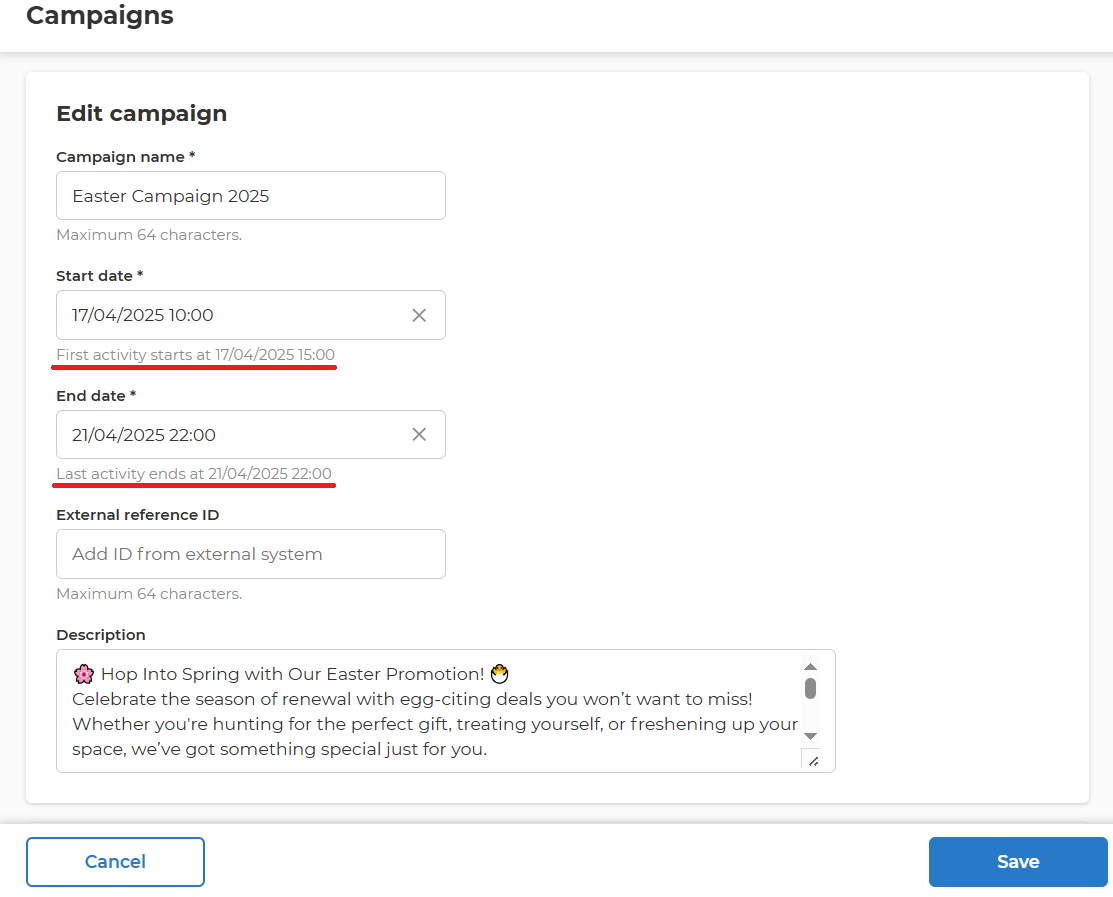
On the edit screen, you can change any of the campaign details. The start and end dates are limited to the activity start dates and end dates: first activity start date, last activity end date.
Click Save to submit changes and close the edit mode, or Cancel to discard.