Games Addons
Overview
Different addons can be inserted into the game pages. To do this click the Add new block or press from the Navigator or press the plus icon on the game designer.
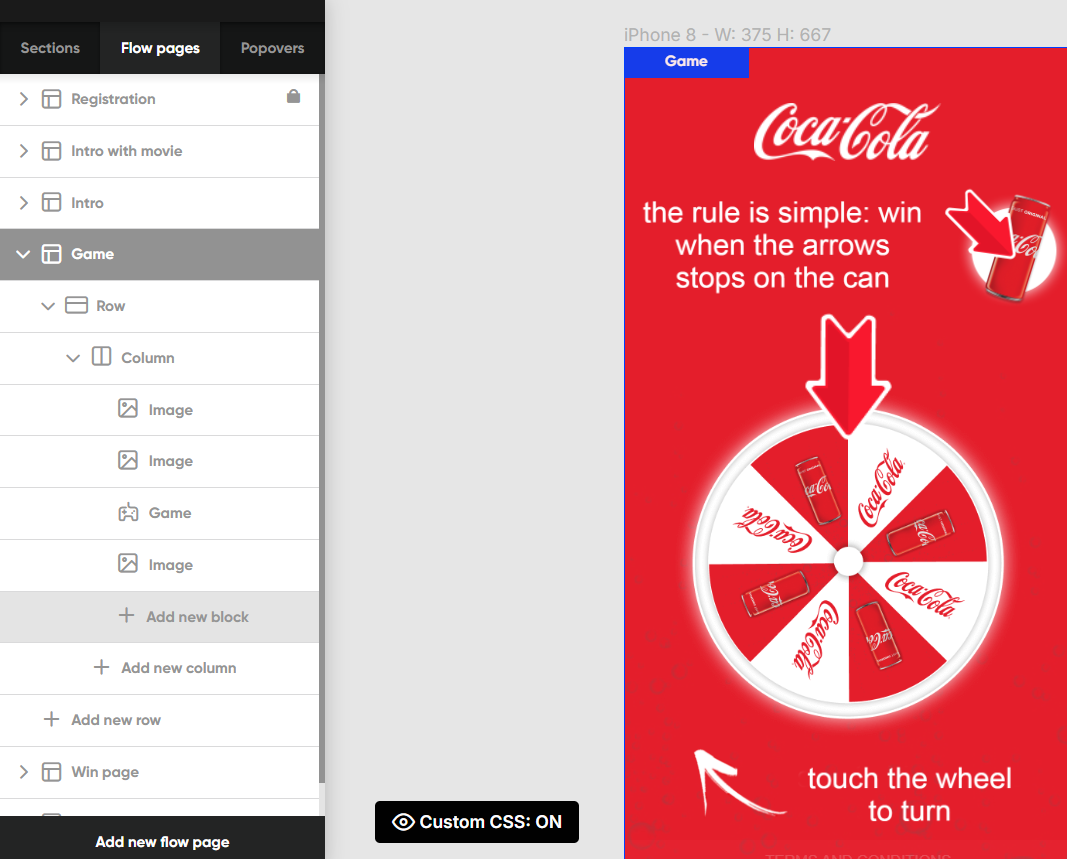
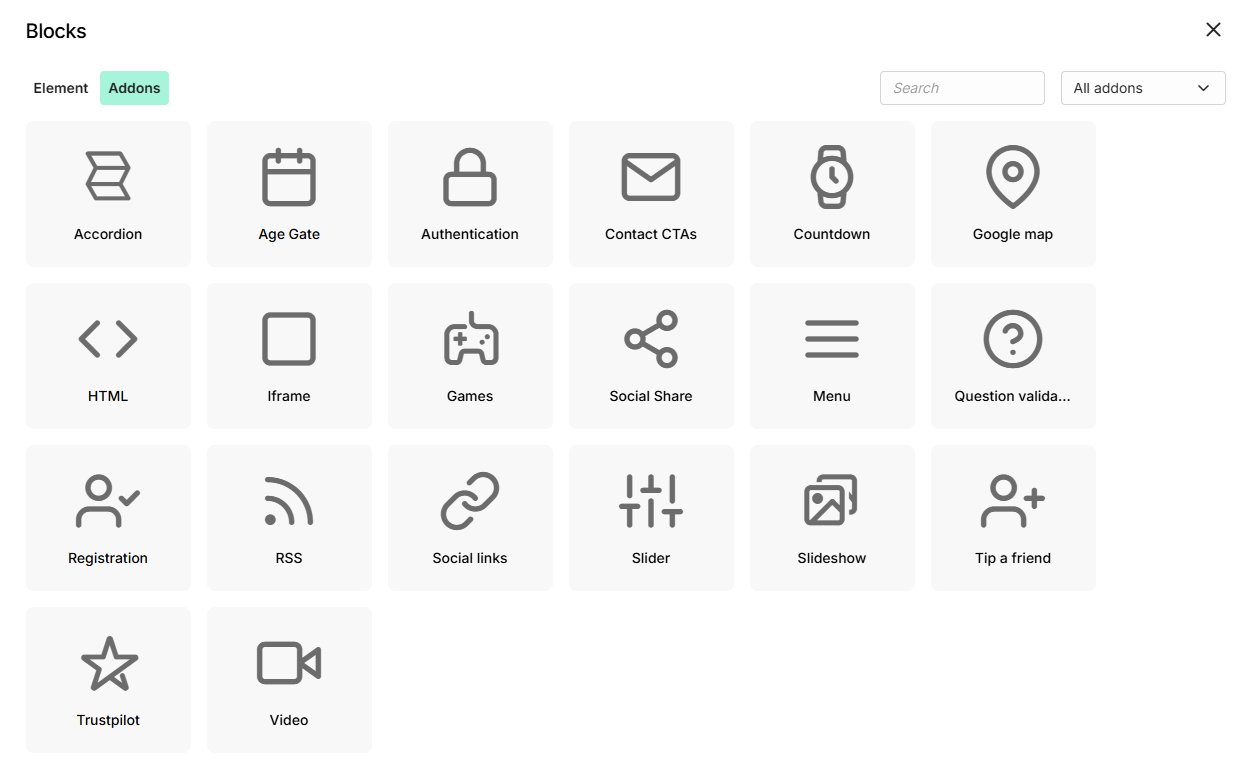
On the pop-up screen click on the Addons tab. By default, all addons are shown but you can filter by category.
Addon: Accordion
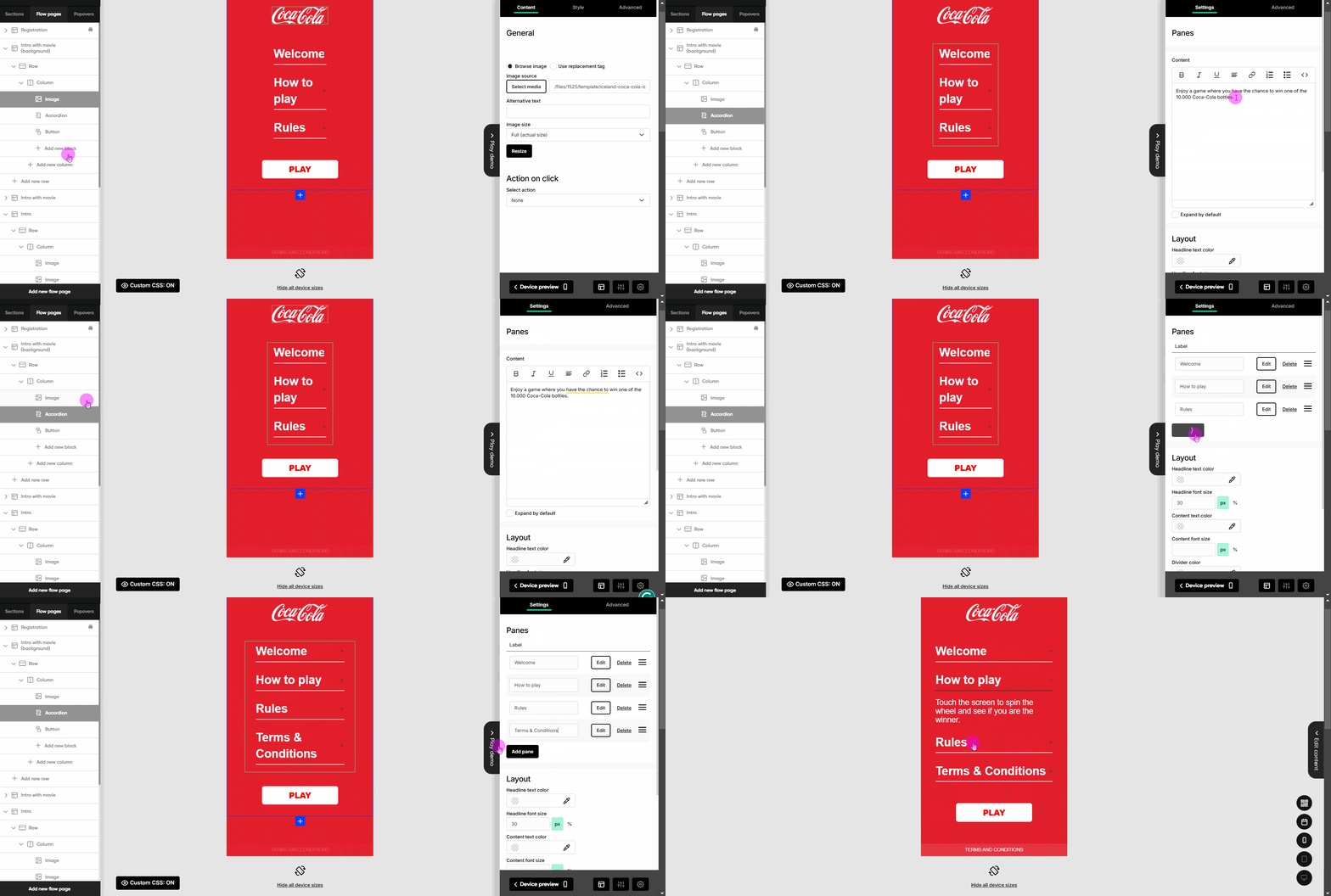
You can add several blocks of text that can be expanded and collapsed in an interactive way.
You can add multiple panes and configure the text to show when the user clicks each of them.
Addon: Age gate
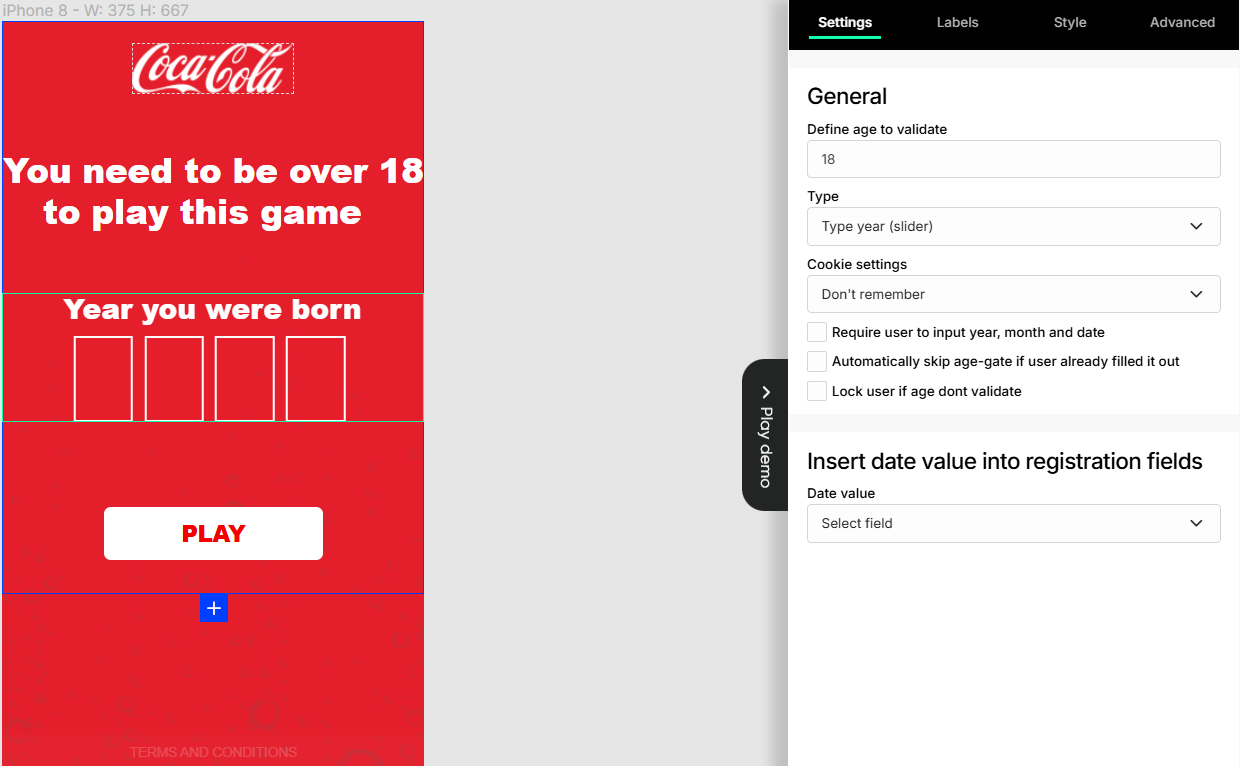
For games that require the user to confirm age (e.g., with alcohol prizes), you can have an additional Intro page to validate the age.
This can be done by inserting the Age Gate addon as a new block on that page.
From the Game Menu, the Age Gate looks and behavior can be configured in detail when it's selected. If the user does not meet the age limit, he will not be able to continue in the game flow.
Addon: HTML
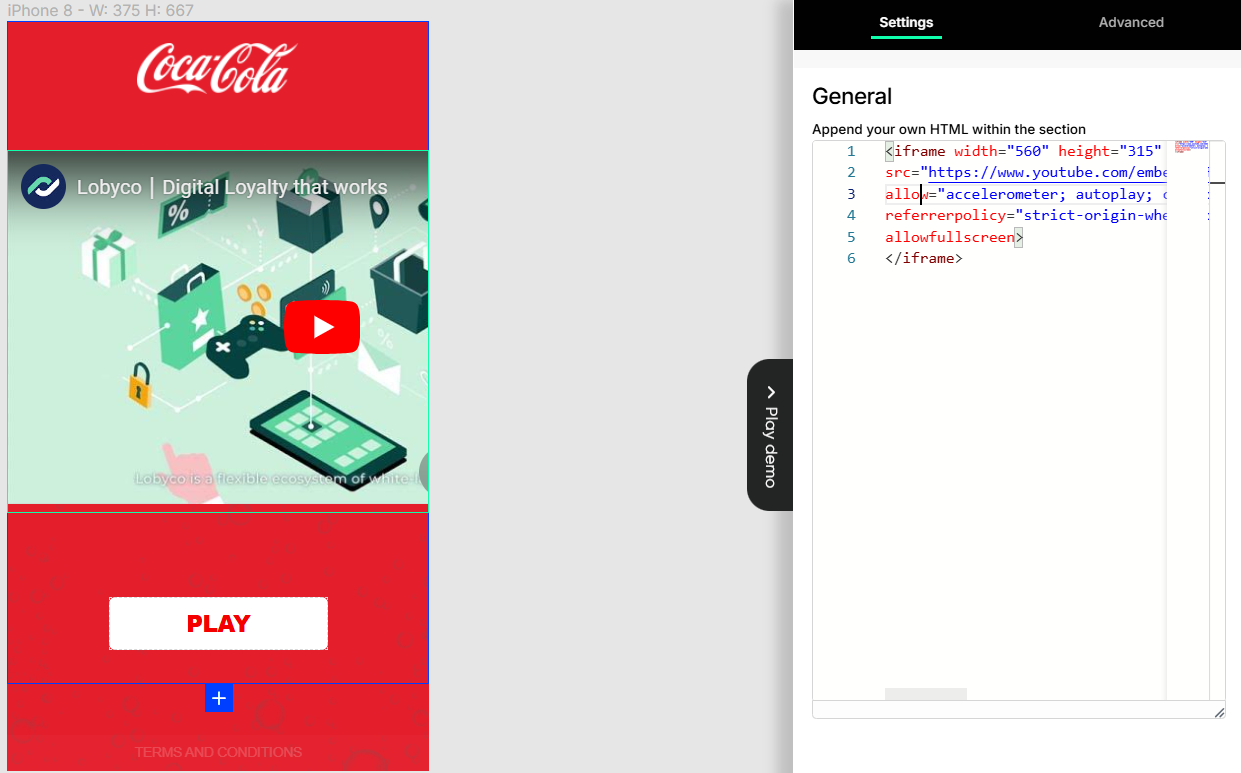
HTML addon allows you to embed a custom piece of HTML code in your game. This could be an iframe to include external content, maybe a well-formated HTML5 animation and effect, or others.
Take into account that using advanced HTML content could look differently on different Mobile Devices, so use it only if no default components are covering your needs.
Addon: Question validation
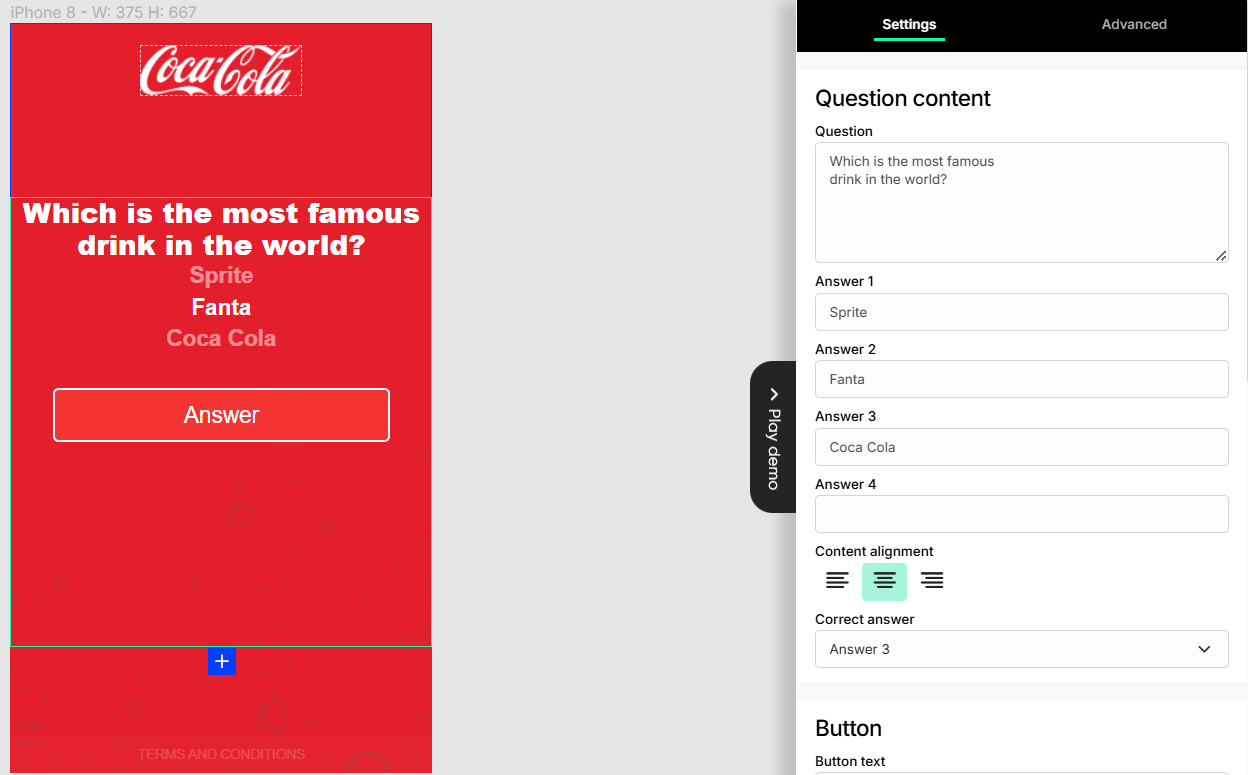
This element adds some additional interaction by asking the user a question at a point in the game flow. It can be an intro question to ease the user in the game and test his knowledge related to the brand or theme of the game.
The question can be configured to allow the user to continue in the game even if he doesn't answer correctly, so it does not create friction or become a churn point.
Addon: Slideshow
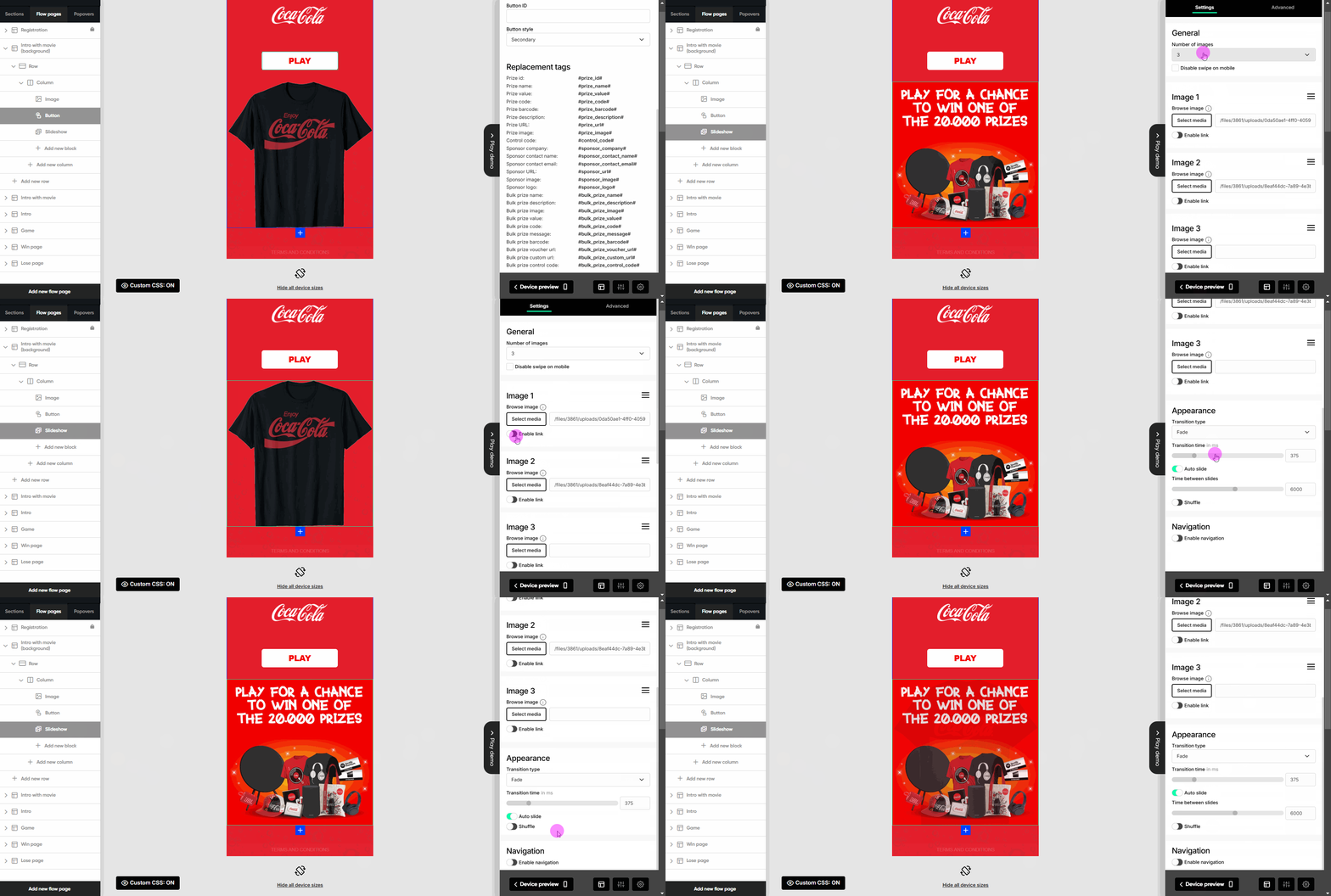
You can add several images into a slideshow that can be manually navigated by the user, or run on auto-slide.
You can add a maximum of 24 images. For each image you add a URL to open when the user clicks on the image - can be a game page or an external URL.
You can enable auto-slide, change the transition effect, and set shuffle the images.
Addon: Video
You can add a video to your campaign in several ways. The most common are to add the video as a background or to use this video addon.
Read everything you need to know in the dedicated Videos section.