Campaign execution and scheduling
Version note: This page describes scheduling per flow, available in the current version of the platform. If your environment hasn't been updated yet, there will be no changes in the way you work with scheduling your campaigns. Some views described here may differ until the update reaches you. Your existing campaigns keep running unchanged — after the update, opening one shows it in the new flow layout. Please consult your Lobyco contact to discuss upgrading.
Schedule individual flows within a single campaign, so each part of your marketing runs on its own timing. A campaign can hold several flows side by side — start one today and another next week, all in the same campaign, without splitting it into separate ones. A flow is two or more connected blocks on the Orchestration canvas (for example, a Member segment connected to a Game). A single, unconnected block is a standalone activity, not a flow.
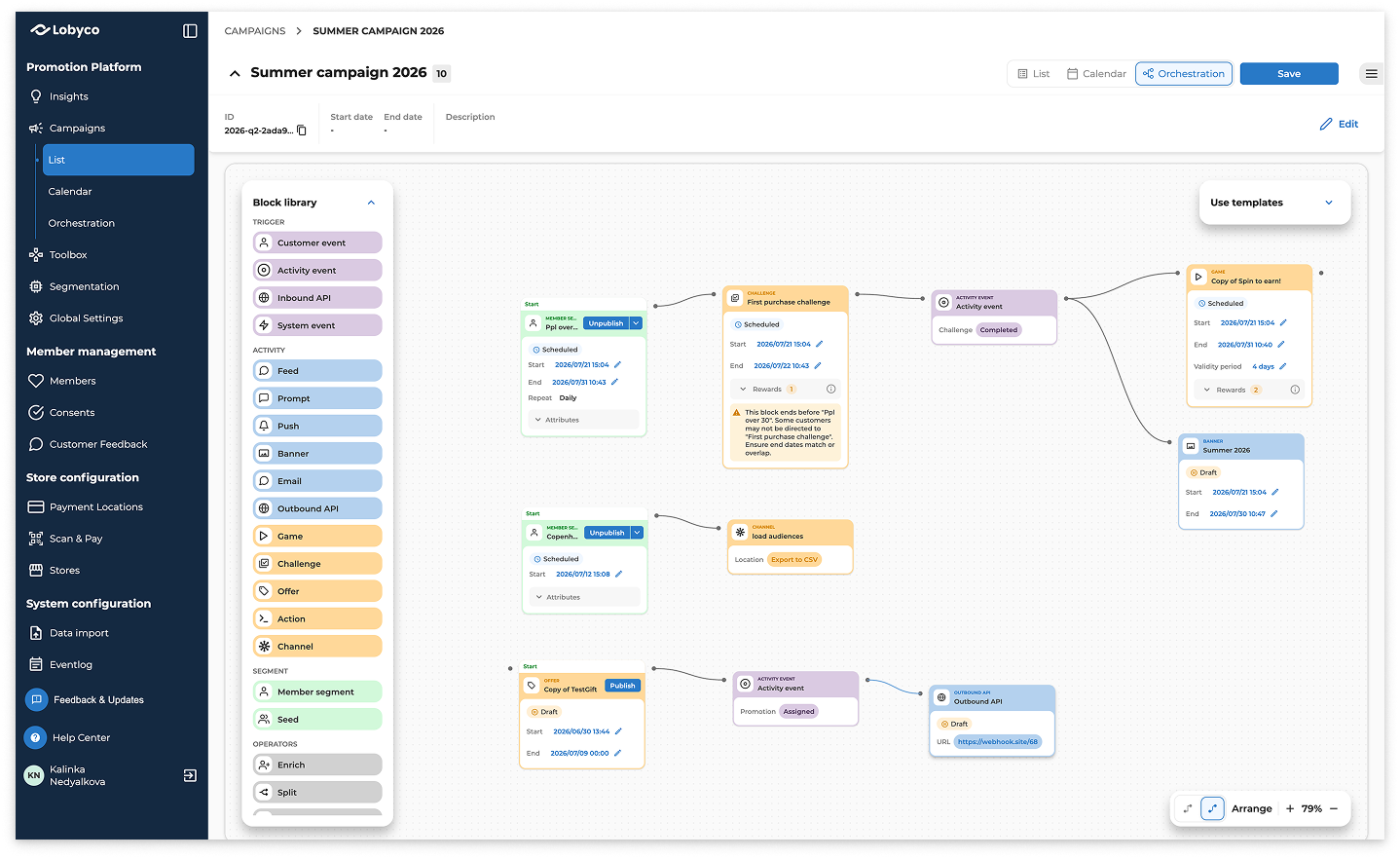
Understand the flow starter
A flow is controlled from its flow starter: the leftmost block, with nothing connected to its left. It shows an actions bar for that flow.
- Every starter offers Publish / Unpublish quick actions.
- Flows that start with Segmentation blocks (Member segment or Seed) also offer Execute, Count, and Simulate actions.
Note: Operator blocks — Combine, Intersect, Exclude, Enrich, and Split — can't start a flow.
Execution methods - how to start a flow
A flow can be started in one of three ways:
- Run manually - flows starting with segmentation blocks can be run manually on demand via the Execute, Count, and Simulate actions.
- Scheduled - run the flow at a scheduled time once or on a recurring basis. This applies when starting with Segmentation and Activity blocks.
- Event-based - run the flow when a specific event occurs. This applies when starting flow with event triggers such as Customer event and Inbound API.
Note: Which methods are available depends on the block that starts the flow (see Scheduling a flow). Event-based triggering depends on which events are available in your environment and may be released incrementally.
Run Manually once - the different execution types
When you run manually a flow starting with segmentation blocks, the following execution types are available:
- Execute — runs the flow fully and allocates activities as configured.
- Count — calculates segmentation and operator blocks results without allocating activities or delivering further the content into the flow.
- Simulate — in between Count and Execute, the Simulate option is available only when Personal Offers feature is present and used to deliver the members extracted from segmentation for simulation and stock prediction purposes, but skips running the Personal Offer blocks or any other activity related blocks.
Scheduled flows
Based on the starter block, the following schedules are allowed:
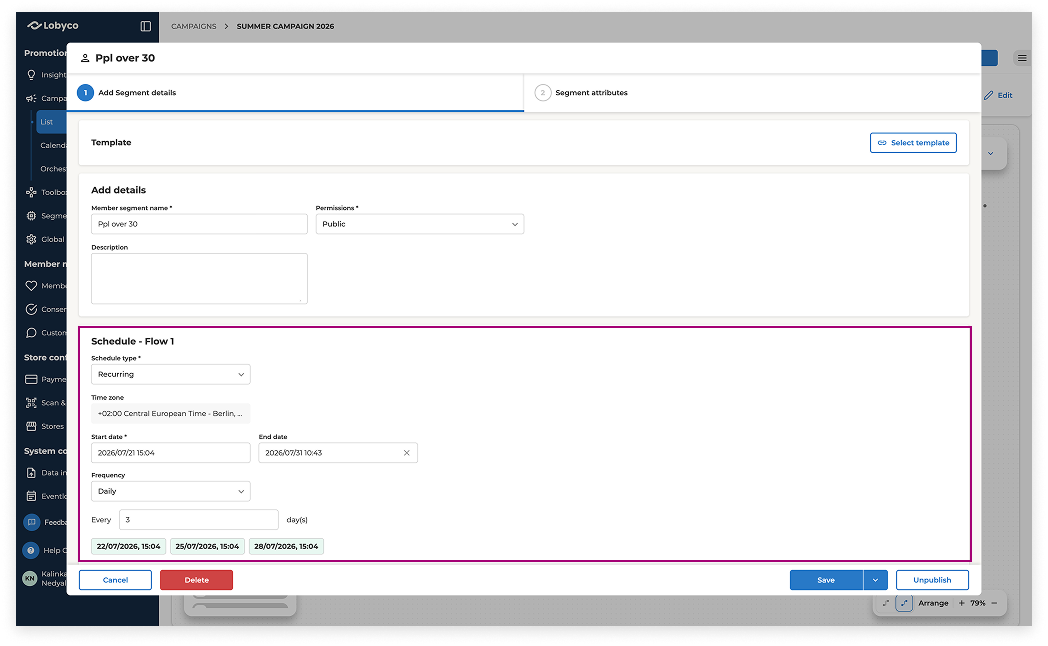
- Member segment / Seed — schedule one-time, or schedule recurring (daily, weekly, monthly, or custom). These are the only starters that create a recurring schedule.
- Activity (Game, Feed, Offer…) — is scheduled to run one time, on the activity's own start and end dates.
To create a recurring schedule:
- Open a Member segment or Seed block.
- Select recurring from the schedule type dropdown.
- Choose a Frequency — one-time, or recurring (daily, weekly, monthly, or a custom interval).
- Set a Start date.
- Add an End date to stop runs on a set date, or leave it unset to keep the schedule open-ended.
- Review Next runs to preview upcoming run times.
- Save the block.
One schedule per flow
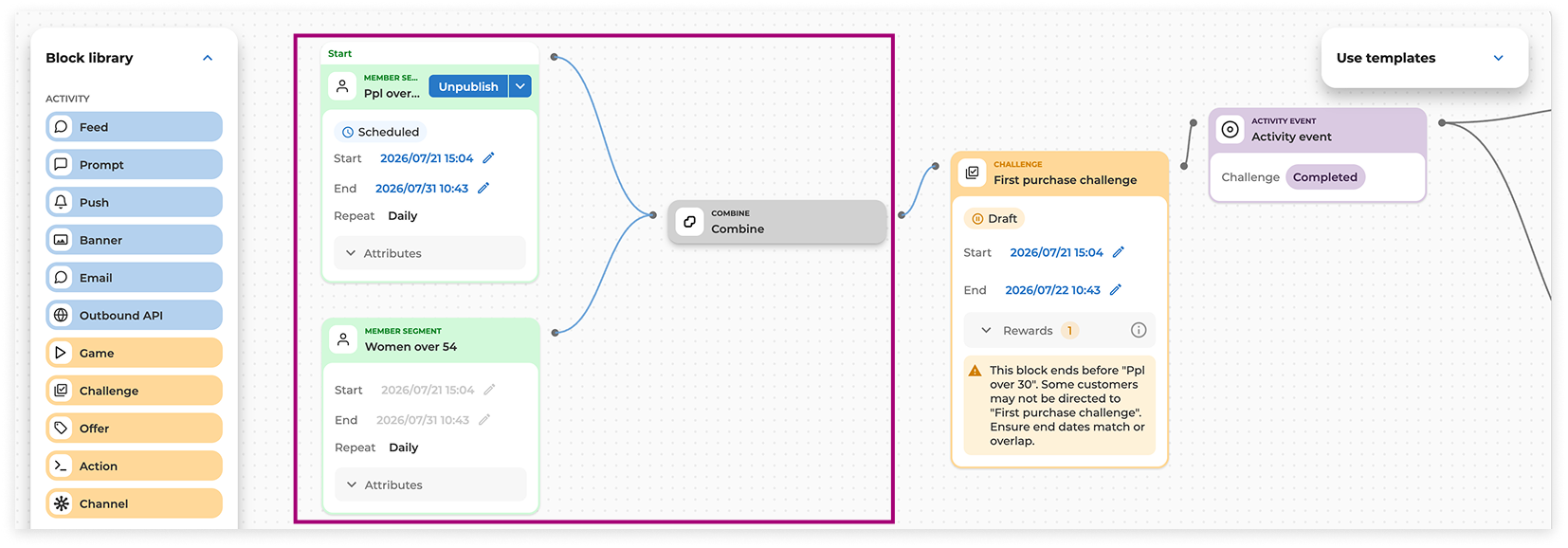
A flow has at most one schedule. When several Member segment / Seed blocks are combined by an operator block, they share one schedule — controlled by the block created first, with the rest following the same dates.
To unlink a block, remove its connections. If the block is active or scheduled, unpublish it first before you can unlink it from the flow.
Note: A newly added Member segment / Seed starter begins in draft state and will not run unless you manually run it or you activate it (via the Publish action), so an unfinished flow cannot go live by accident.
Publish or unpublish the flow starter
The flow starter presents a quick Publish/ Unpublish action directly on the canvas, to make it easier to start / stop the entry of members into the flow.
- Publish activates the flow starter and allows members to enter the flow within the dates specified.
- Unpublish stops the flow starter from engaging new customers and pushing them downstream.
Note: Stopping a flow starter does not withdraw members already sent forward in the flow — for example, onto an activity. To stop a downstream activity, unpublish it.
Check date warnings
The canvas checks that block dates line up and shows warnings when they don't. Warnings never block saving or running, and never change your dates.
Each block is checked against the previous block's dates plus its own validity period (how long an activity stays visible to a customer after allocation):
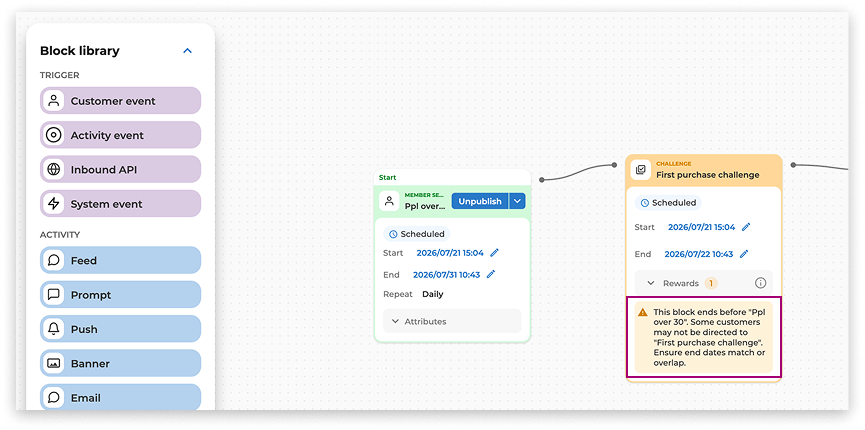
- Starts late — warning
- Starts early — info
- Ends early — warning
- Validity gap — warning
- All good — no message
Track your runs
Runs and scheduled runs are listed below the canvas, grouped per flow. From there you can review upcoming and past runs, see status and timing, and inspect results. Each run creates its own execution-history entry.
Choose the right approach
- When testing flows starting with segmentation, just before you'd be comfortable to make it Live, you may run flows manually via Count/ Simulate/ Execute.
- To engage customers once, you may schedule flows to run one-time at a specific time.
- To run always-on customer journeys, you may set up an event-based flow, a one-time flow with activities that allow multiple runs (e.g. Challenges), or a flow running on a recurring schedule.
Next steps
- Orchestration canvas — build and manage campaign logic visually
- Campaign blocks overview — what each block does