Create gameplay
Create a new gameplay
Click Create new to open the Wizard for the specific game type.
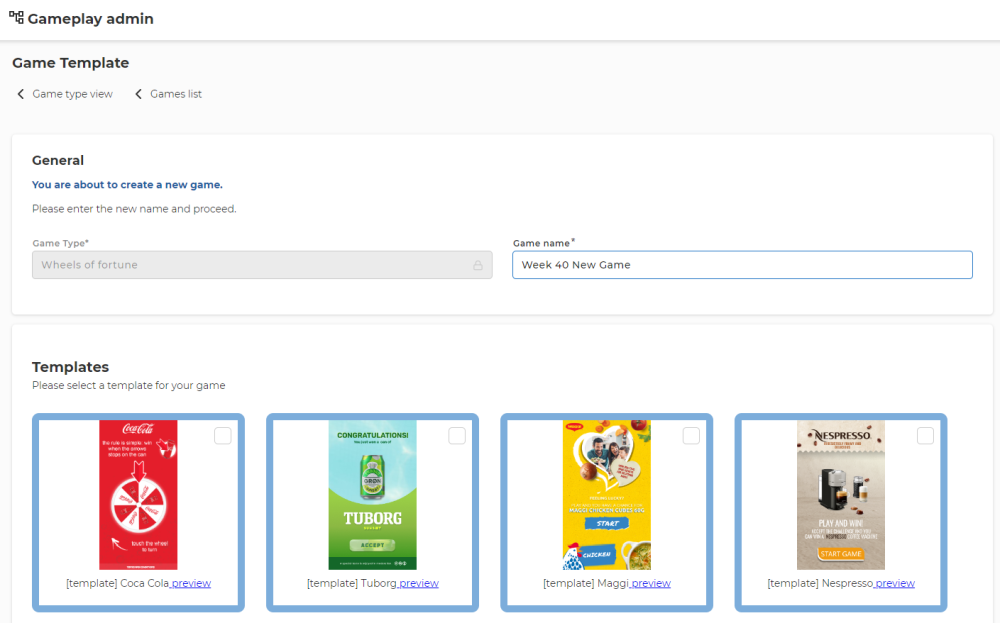
- Name the game you are creating.
- Select the template you want to base your new game on.
- Click Save to continue the gameplay customization.
A new page appears to continue the configuration of the gameplay.
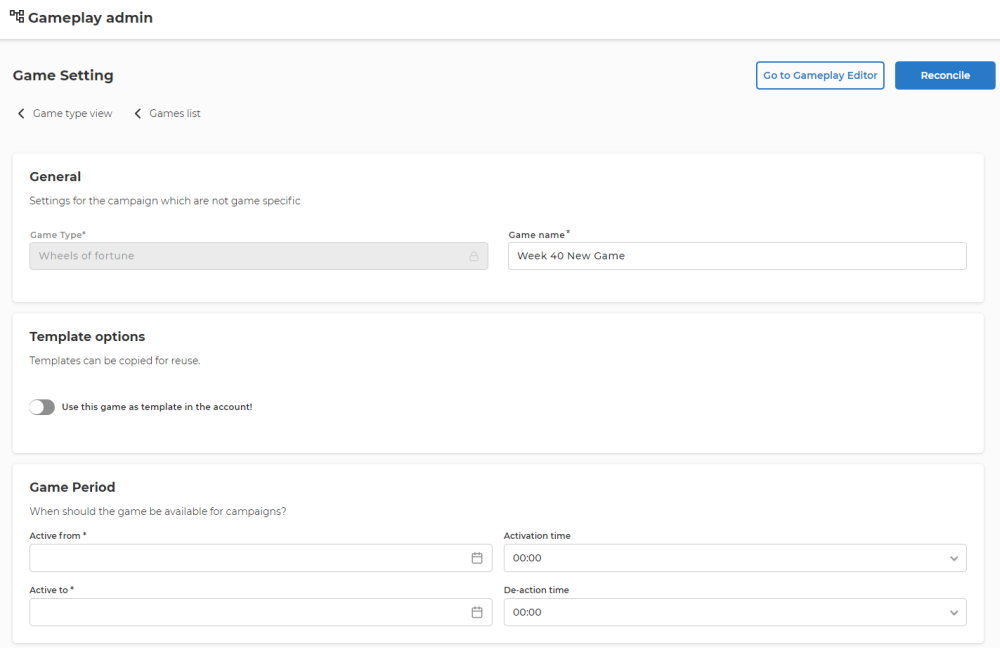
- Optional: Select if the new game should be a 'new template'. If you decide to save it as a template, you can upload a picture for visual identification of the template later on.
- Define the game period - must be equal to or longer than the game activity period that you would like to use. There is no problem in creating a long-running campaign (e.g., 1 year) that you can easily reuse for a later game activity for the same product.
- Click Save to create the new game.
- Press Activate Game to activate the game.
Create gameplay from a template (or existing game)
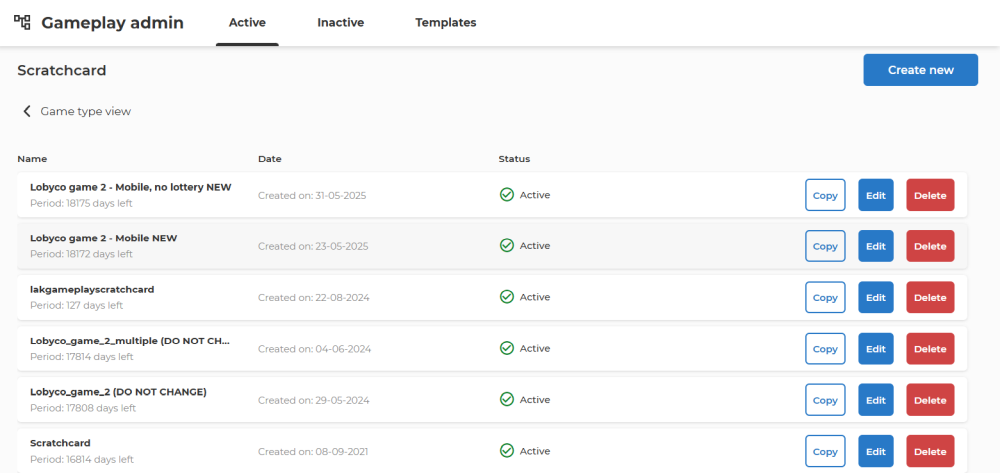
- Navigate to the Templates list of the game type.
- Identify the template you want to use and click Copy.
- Name the game and click Save to open the Manage Game Settings for the game.
- Follow the steps in Create New Game to proceed.
The game will either appear in the Active, Inactive or Templates List, depending on the dates selected – and the template flag.
Any Gameplay can be flagged as a template or removed from templates and be regular gameplay.