Multiplier Bonus Activity
The Multiplier Bonus Activity enables retailers to increase the Base Earn that users receive by applying a multiplier to the existing Base Earn percentage for a specified period. This activity is ideal for boosting customer engagement and incentivizing purchases during promotional windows.
To enable this feature, a base earn configuration is required. The excluded product list configured for base earn applies also for Multiplier Bonus and cannot be changed separately.
Key Features
- Bonus Multiplier: Apply a configurable multiplier to the Base Earn percentage, increasing the bonus granted on eligible purchases.
- Scheduled Activities: Set specific start and end dates for the multiplier to be active, allowing for time-limited promotions.
- Time-Based Availability: Define activity availability by selecting specific weekdays and time slots.
- Targeted Applicability: Activities can be universal or limited to specific member segments, stores or chains
Use Cases
-
Increasing Bonus During Promotional Periods
Objective: Encourage higher spending during special events or sales.
Action: Schedule a Multiplier Bonus Activity with a higher multiplier (e.g., 3x) for a set period. During this time, targeted customers receive a bonus that is three times the usual Base Earn percentage on eligible products. -
Standard Bonus Outside Activity Period
Objective: Maintain regular reward levels outside promotional windows.
Action: When the activity is not active, customers continue to receive the standard Base Earn percentage (e.g., 1%) on eligible purchases.
Example: * If the Base Earn is set at 1%, and a Multiplier Bonus activity with a 3x multiplier is active, targeted customers will receive a 3% bonus (3 × 1%) during the activity period. * Outside the activity period, the bonus reverts to the standard 1%.
1. Bonus Details
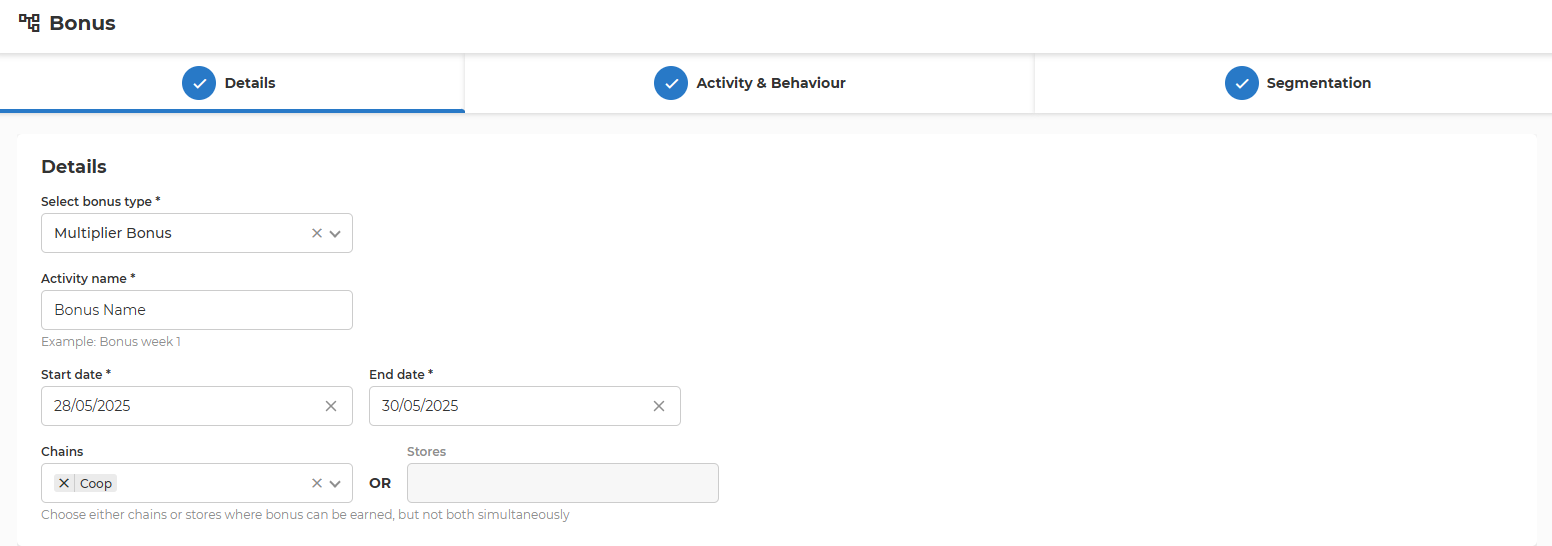
- Select bonus type
- Choose the type of bonus for the activity. In this case, select "Multiplier Bonus".
- Activity name
- Enter the name of the bonus activity.
- Maximum size: 128 characters
- Start date
- Specify when the bonus activity should begin.
- The activity will begin at 00:00 on the specified date
- End date
- Specify when the bonus activity should end.
- The activity will remain active throughout the selected end date and will end at 23:59:59.999.
- End date cannot be in the past and should be after Start date
- Chain IDs or Store IDs
- Select where the offer is valid, either in chains or stores.
- Chains and stores cannot be selected simultaneously. If you choose one or more chains, the store selector will automatically be disabled, and vice versa.
- Press the up arrow from the store field to upload a store list. The file needs to be in CSV format, with one store ID per line.
- Once one or more stores are selected, press the down arrow to download the list of selected stores in CSV format.
2. Activity & Behaviour
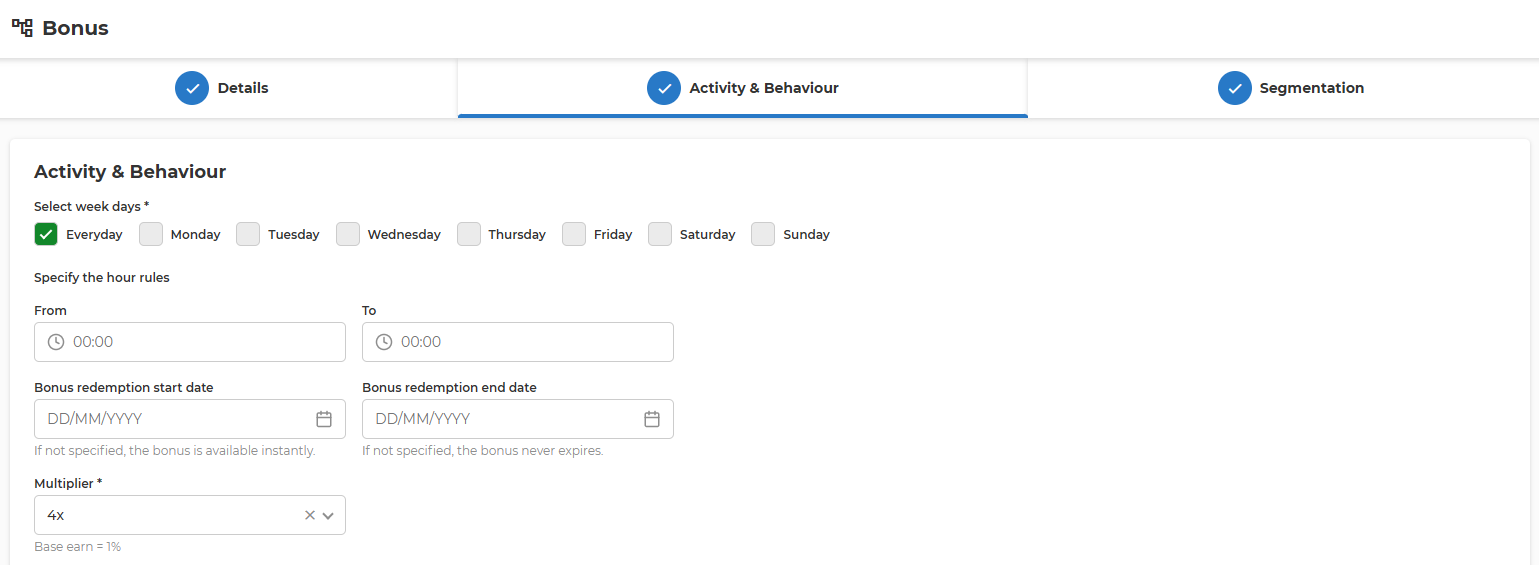
- Select week days
- Choose the days of the week when the bonus activity is active
- Specify the hour rules
- Set the start time for the bonus activity on the selected days.
- Set the end time for the bonus activity on the selected days.
- If both times are set to
00:00, the bonus is valid for the entire day.
-
Bonus redemption start date
- Specify the date when the bonus can start being redeemed.
- Bonus redemption will begin at 00:00 on the specified date
- If left empty, the bonus is available for redemption immediately after it is earned.
-
Bonus redemption end date
- Specify the date after which the bonus can no longer be redeemed.
- Bonus redemption will remain active throughout the selected end date and will end at 23:59:59.999.
- If left empty, the bonus does not expire and can be redeemed indefinitely.
- Multiplier
- Select from a predefined list of multipliers
- Base earn will be multiplied by the selected value
- In this example the new base earn will be 4 x 0.75 = 3.
3. Segmentation
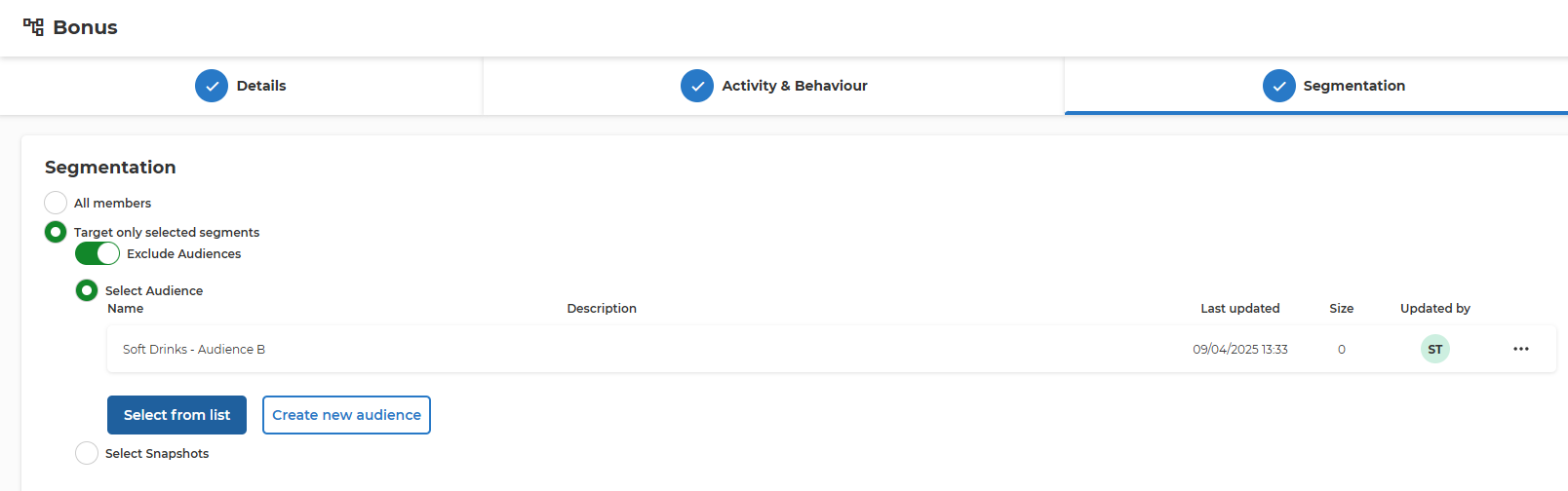
- All members
- Apply the bonus activity to all members.
- Target only selected segments
- Apply the bonus activity to specific audience segments.
- When this option is chosen, additional settings appear to define the targeted audience.
- Exclude Audiences
- Choose whether to exclude or include the selected audiences in the activity.
- If enabled, excluded audiences will not be eligible for the bonus.
- Select Audience Name
- Some customers have integration with Audience Service that allows the management of Member Segments in one centralized place and reuse throughout the other promotion and communication sections.
- Specify the audience segment to target.
- Select from list
- Select from list of predefined segments brings up a pop-up where all predefined audiences are listed. Based on the name and description the needed Audience can be selected as a target for this bonus activity.
- Create new audience
- Create a new audience segment if the desired segment does not already exist.
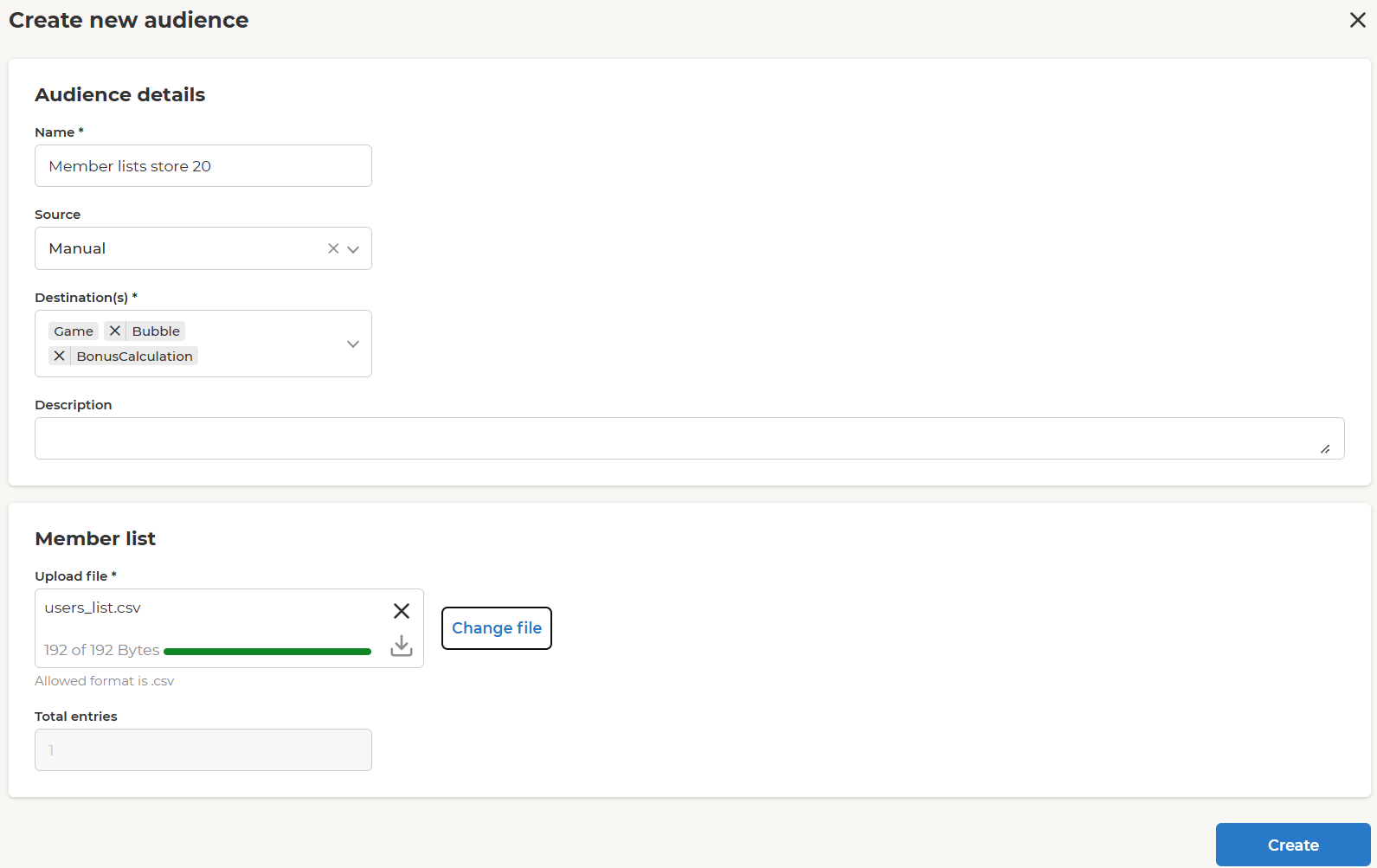
- Name – use a representative name.
- Destination(s) – select where this list of members will be available for selection. Can be only Bonus activities or throughout other activities (e.g. Challenge, Feed, Notifications, etc.).
- Description – longer text field that allows detailed description.
-
Upload file - the list of member IDs should be uploaded in a CSV with one member ID per line.
-
Select Snapshots
- Target specific snapshots of audience data.
Prioritization and Overlap Rules
- When more then one multiplier activity is active for the same segment, only the activity with the highest multiplier is applied