Add videos as backgrounds or addons
You can add a video to your campaign in several ways. The most common is to add the video as a background or to use the video addon.
You need to host your video elsewhere and embed it into your campaign.
Video Background
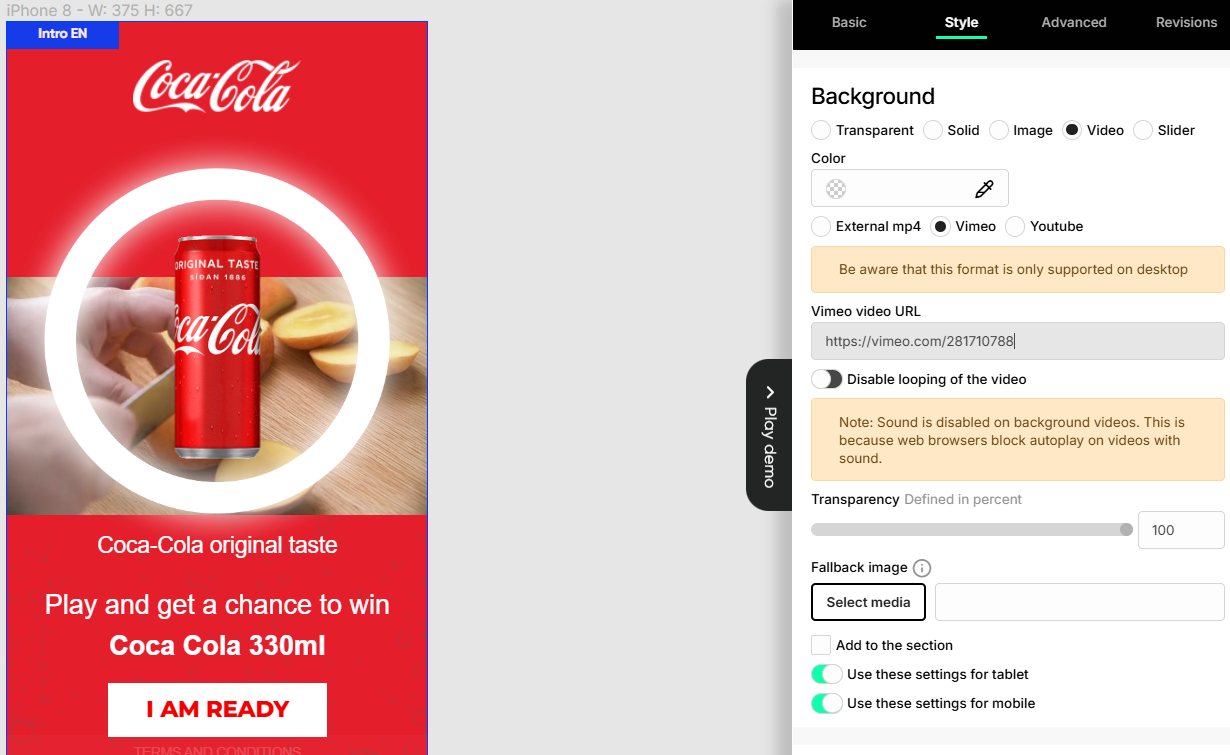
To add a video as a background, select the element in the navigator (usually the game flow section) and edit the background under the Style tab.
YouTube and Vimeo videos
You can add a link to a YouTube or Vimeo video, but you have to toggle off Disable looping of the video. Otherwise, the video will just stop after the first run, and the Vimeo or Youtube controls will be shown, like the next video or suggested videos.
Youtube Shorts are not supported right now, but you can use the HTML Addon to embed a Shorts video.
Externally hosted videos
You can also use a link to an externally hosted mp4 file. Here you can make the video not loop, if needed, by selecting Disable looping of the video. The video will stay on the last frame, without any other controls appearing for the user.
You can use it for testing a temporary file upload site like https://uguu.se/.
This could be something you have in your own CMS system, but you can also get a link to the mp4 file if you have a Vimeo Pro account.
See how to get the link in this guide: https://vimeo.zendesk.com/hc/en-us/articles/224823567-Direct-links-to-video-files.
Background video settings
By default, the video will loop continuously. You can disable this if you only want the video to play once.
Note that background videos cannot have sound, as this will block the autoplay functionality. You don't have to do anything — sound will automatically be disabled on your background videos.
Fallback image
We suggest you upload a fallback image in case your video fails to play.
Video Addon
You can add the video addon to a section or flow page.
Because the video addon includes player controls, you can use the YouTube or Vimeo link on mobile. You can also use an external mp4 if you want.
Using YouTube or Vimeo
Copy the URL straight from the browser. Don’t use the share link or the embed code.
- A YouTube URL should look like this:
https://www.youtube.com/watch?v=-HtWavRpVzDQ, not like this:https://youtu.be/HtWavRpVzDQ - A Vimeo URL should look like this:
https://vimeo.com/783455051
Using an external mp4
For the video to display, the URL needs to start with https:// and should include the mp4 file.
In most cases, that means the URL should look like this: https://cdn.zappy.app/123.mp4
not like this: https://www.pexels.com/video/set-of-dominoes-1793414/
Video addon settings
You can enable sound automatically or you can enable autoplay. You cannot have both settings turned on at the same time.
We recommend you enable sound by default but not autoplay. This lets the user click to start the video.
If your video doesn't already have controls (play, pause, full screen, volume), you can add these under the addon's settings. Most videos from YouTube and Vimeo will already have controls.
Also in your YouTube and Vimeo settings, you can control what happens when the video ends (loop, blank screen, other recommended videos), but if you are using an mp4 file, you can enable looping in the video addon. Otherwise, when the video ends, there will be a blank screen.
Video size
The video addon by default displays the video as 400px wide and 250px tall. You can adjust these settings to increase the video's display size or fit its aspect ratio.
Ideally, you will use a custom mobile format game that can blend well with a background color or texture that fully covers the screen.