Banner lifecycle
Banner activity has different states depending on the information and date times provided:
-
Active: Banner activity that are currently live in the app.
-
Scheduled: Banner activity that are scheduled for the future. A scheduled banner will automatically be published when the defined activity period starts. When a scheduled banner are published, it will move to Published tab.
-
Draft: Banner activity that are still work in progress. Draft activities will remain as drafts until admin user decide to schedule or publish the banner.
-
Expired: Banner activities that have past the validity date set. When a published banner expires, it will move to Expired tab.
1. Draft
- Create a draft:
- Requirements: a banner activity can be created as a draft if the following minimum fields are provided:
- Name
- Placement
- How to save a draft:
- Click the
Save as draftbutton. The button will be available after the minimum fields are provided. - Until all required information is provided
Save as draftandCancelare the only options
- Click the
- Requirements: a banner activity can be created as a draft if the following minimum fields are provided:
- Publish a draft:
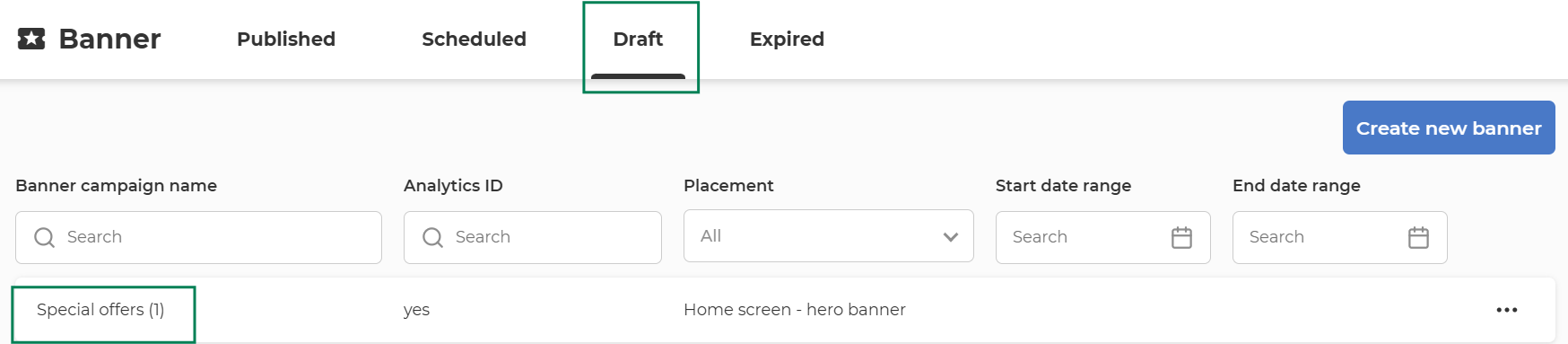
- A draft activity can be found under Draft tab
- A draft can be published when has all required fields completed and all inputs valid
- A draft is published after pressing
ScheduleorPublishbutton depending on the start date. If the start date is in the future, the banner activity will be scheduled, otherwise will be directly published.- A draft can be updated by pressing again Save as draft button
- Delete Draft
- Delete draft by opening the draft banner and pressing
Deletebutton or by opening the menu on the banner line and selecting Delete
- Delete draft by opening the draft banner and pressing
-
Duplicate Draft
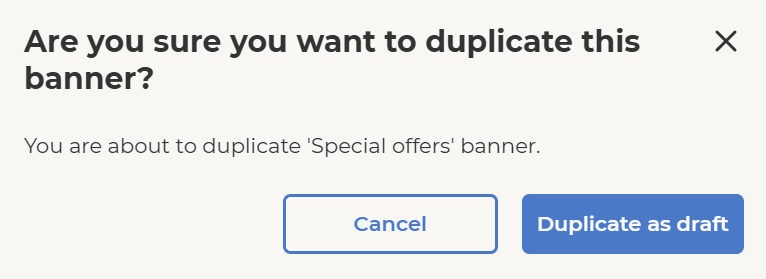
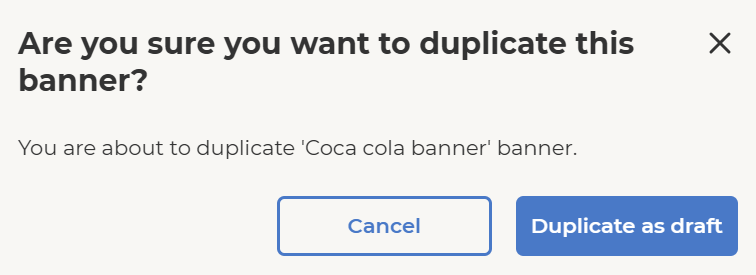
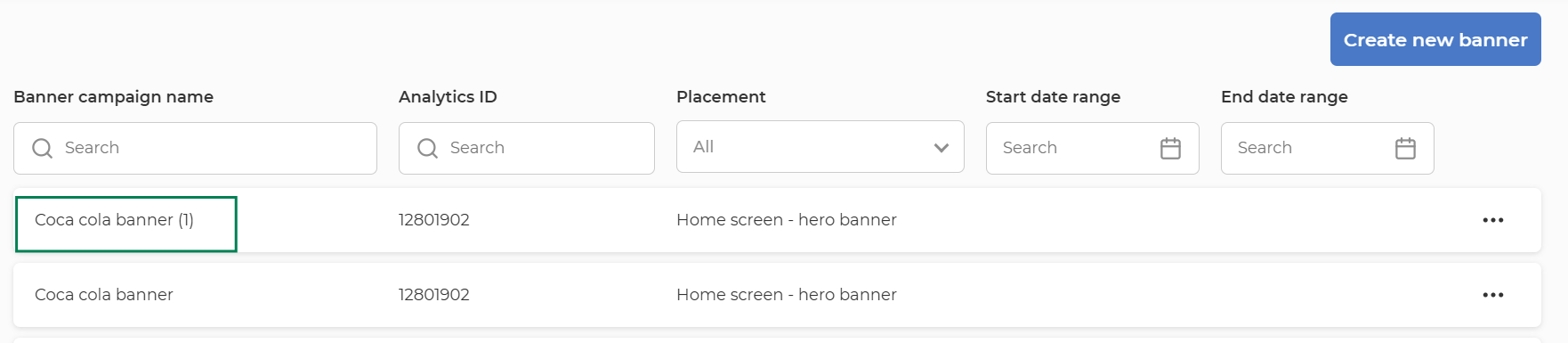
- Duplicate draft by opening the menu on the banner line and selecting Duplicate Draft

2. Scheduled
-
Requirements: All required fields must be completed.
-
Once all required data is provided, the banner activity can be scheduled.
- A banner activity can be directly scheduled without being created as draft first by pressing
Schedulebutton. A pop-up will appear to confirm that the activity should be indeed scheduled with the starting date time configured.
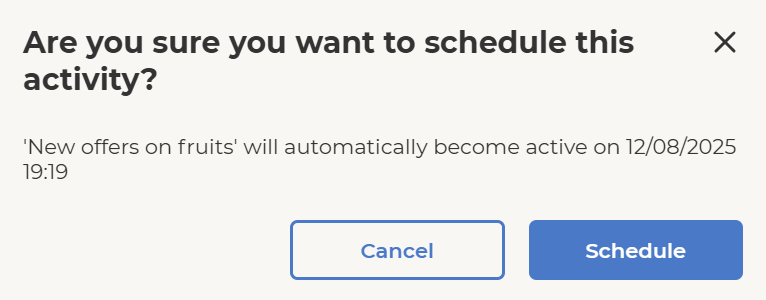
- A scheduled banner can be updated (except placement options) or changed to draft state.
- When the availability period is reached, the banner goes to active state.
- A banner activity can be directly scheduled without being created as draft first by pressing
3. Active
-
Requirements: All required fields must be completed.
-
Once all required data is provided, the banner activity can be published.
- A banner activity can be directly published without being created as draft first by pressing
Sendbutton. A pop-up will appear to confirm that the notifications should be indeed sent.
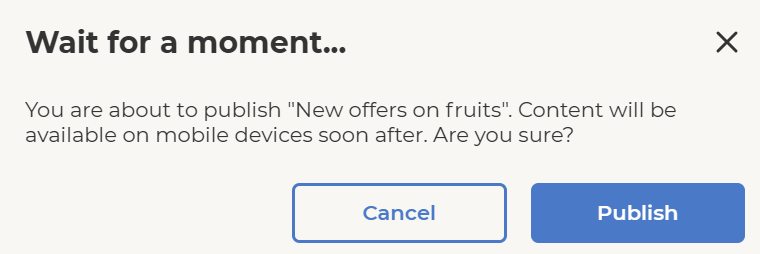
- A banner activity can be directly published without being created as draft first by pressing
-
For an active banner the user can update all values except placement option and start date
- Updating an active banner means that all members which were previously targeted trough audience or orchestration segmentation block, will see in mobile app the updated version of the banner.
4. Expired
-
Duplicate as draft