Feeds lifecycle
A feed activity can have different states depending on where it is in its life cycle:
-
Active: Feed activities that are currently live in the app.
-
Scheduled: Feed activities set to start in the future.
-
Draft: Feed activities saved but not yet published or scheduled.
-
Expired: Feed activities whose end date has passed.
1. Draft
- Create a draft:
- Requirements: a feed activity can be created as a draft if the following minimum fields are provided:
- Name
- Feed type
- Title
- How to Save as Draft:
- Click the
Save as draftbutton. The button will be available after the minimum fields are provided. - Until all required information is provided
Save as draftandCancelare the only options
- Click the
- Publish
- A draft activity can be found under Draft tab
- a draft can be published when has all required fields completed and all inputs valid
- a draft is published after pressing
ScheduleorPublishbutton depending on the start date. If the start date is in the future, the feed will be scheduled, otherwise will be directly published. - a draft can be updated by pressing again Save as draft button
- A draft activity can be found under Draft tab
-
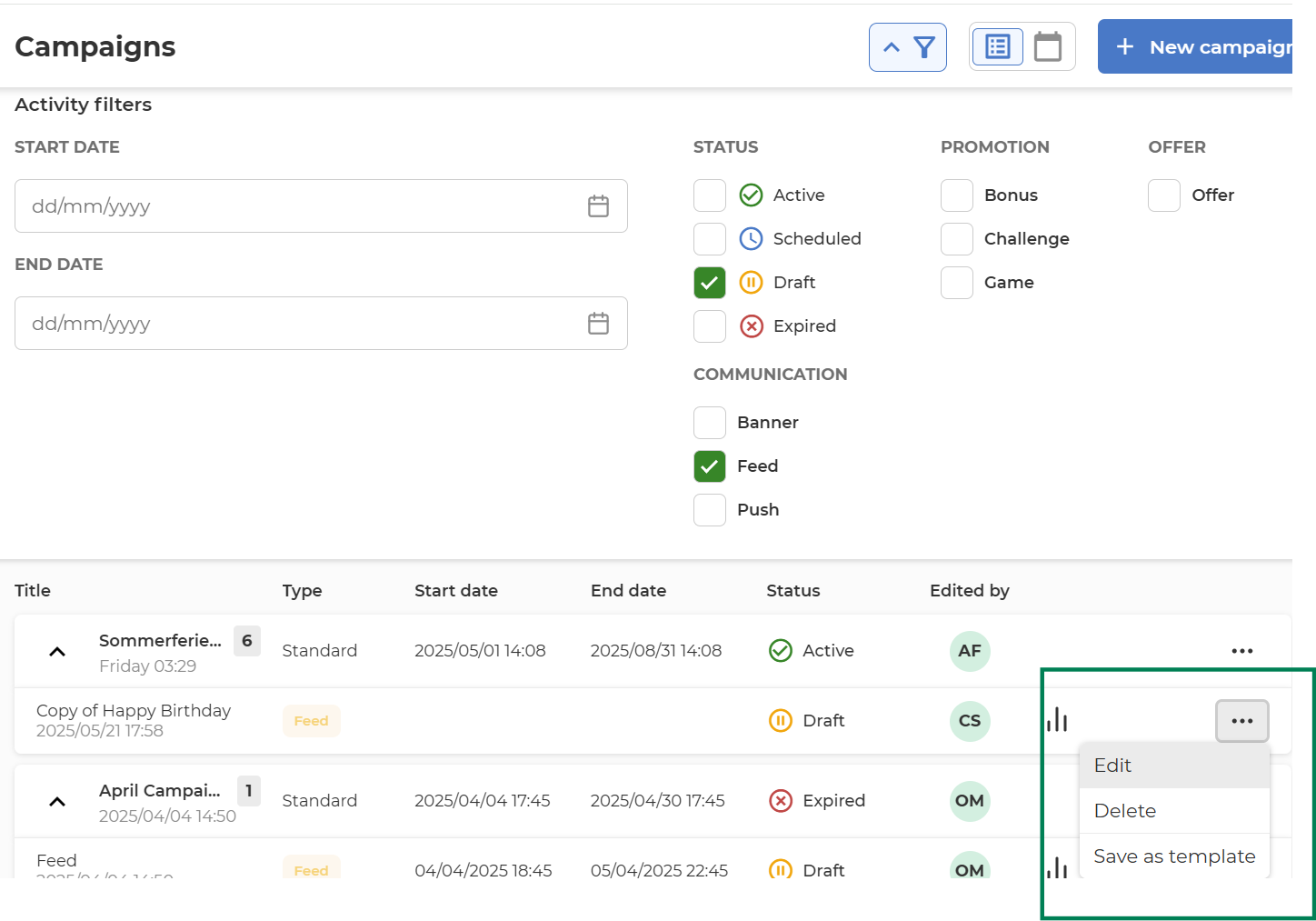
Delete, Edit or Save as template
- Delete, Edit or Save as template a draft by choosing a option from the menu on each draft activity
-
Purpose: Drafts allow you to set up and review activities before all required information is available.
2. Scheduled
- Requirements: All required fields must be completed.
-
Once all required data is provided, the feed activity can be scheduled.
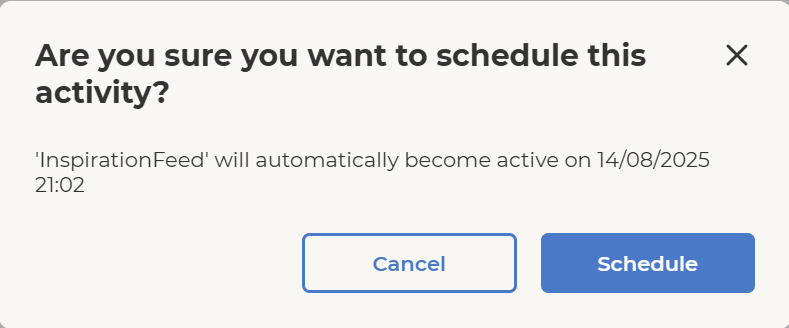
- A feed activity can be directly scheduled without being created as draft first by pressing
Schedulebutton. A pop-up will appear to confirm that the activity should be indeed scheduled with the starting date time configured.
- A scheduled feed can be updated or changed to draft state.
- When the availability period is reached, the feed goes to active state.
- A feed activity can be directly scheduled without being created as draft first by pressing
3. Active
- Requirements: All required fields must be completed.
-
Once all required data is provided, the feed activity can be published.
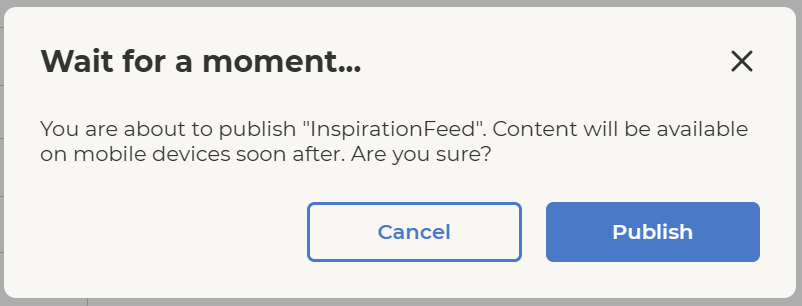
- A feed activity can be directly published without being created as draft first by pressing
Publishbutton. A pop-up will appear to confirm that the activity should be indeed published.
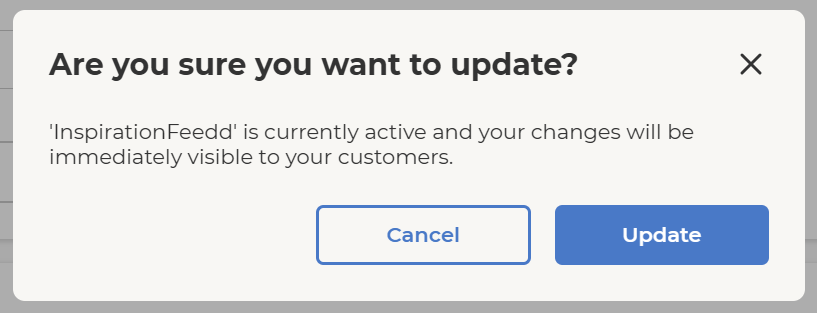
- Feed details, content type and content can be updated or the active feed can be changed to draft state, but cannot be directly deleted
- Updating an active feed means that all members which were previously targeted trough audience or orchestration segmentation block, will see in the mobile app the updated version of the feed.
- A feed activity can be directly published without being created as draft first by pressing