Campaigns
Search campaign
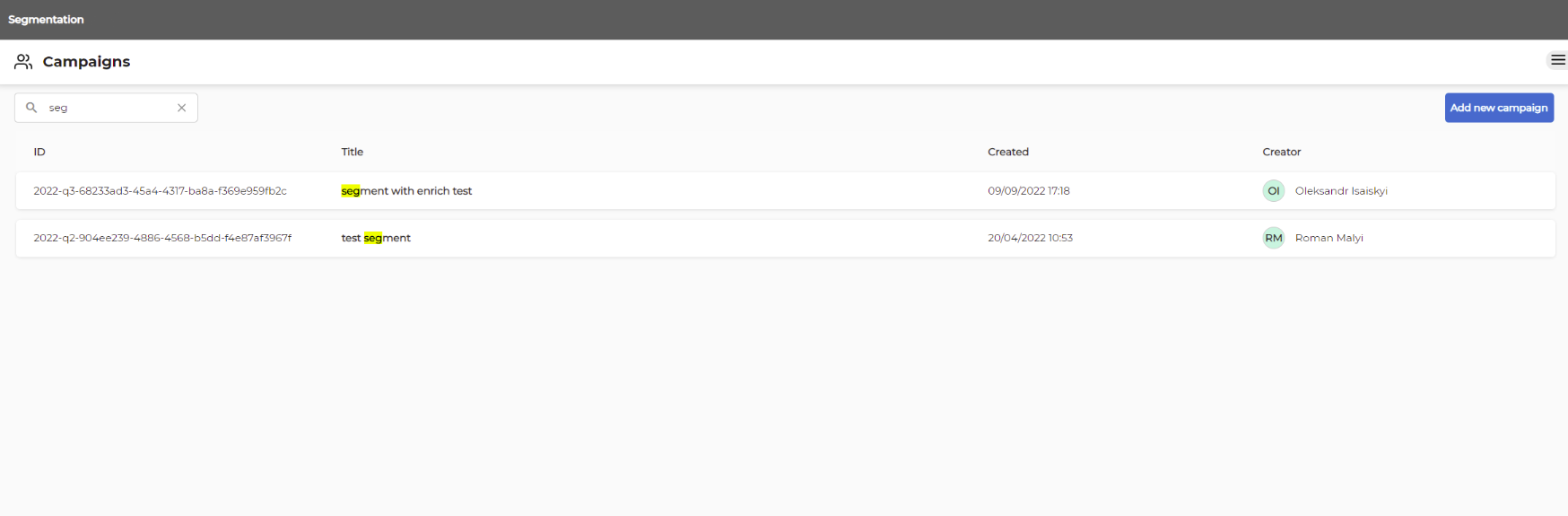
You can search campaigns by typing name of the campaign into the "Search for campaign" search box.
Campaigns list
The Campaigns page (accessible by "Campaigns" menu item from the left "Segmentation" menu) displays all campaigns (that you have access to) in a table format. Permissions settings apply, so another user’s campaign marked as Private will not appear.
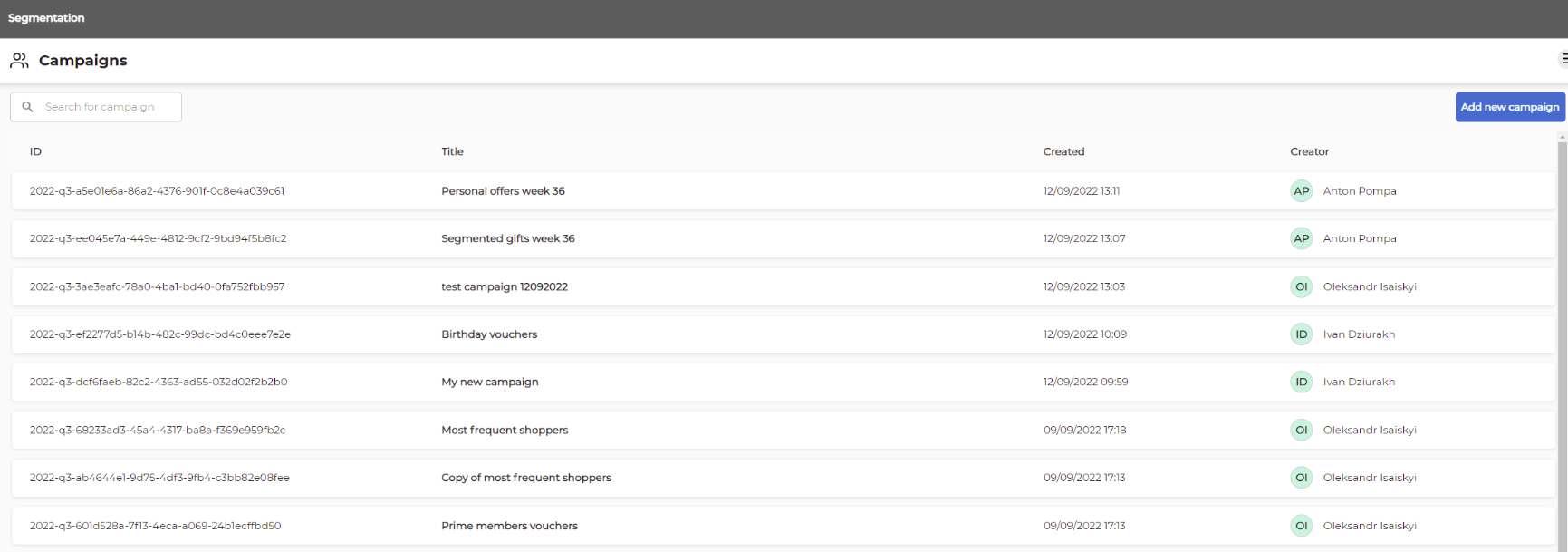
The campaign table shows the following information:
- ID: Identifier of the campaign.
- Title: Descriptive name of the campaign defined by the owner.
- Created: Date and time when the campaign was created.
- Creator: Initials and name of the user who created the campaign.
These are the basic functions you can do with a campaign:
- Open: When clicking any campaign from the list it will open for you to see the campaign details.
- Edit: You can edit the campaigns if you have proper access to the campaign.
- Delete: If you have access to a campaign, then you can delete the campaign by clicking the delete icon on the right and confirming the action.
Add new campaign
For creation of new campaign press the "Add new campaign" button on top of the Campaign table. After creation of new campaign you need to configure it by adding blocks from the canvas toolboxes to main canvas and then connect the blocks.
Campaign details
When you open a campaign (by clicking on any campaign from the list) or when you create a new campaign then a detailed view will open with the canvas in the center. Here you see all the building blocks for the campaign.
Sidebar of available executions
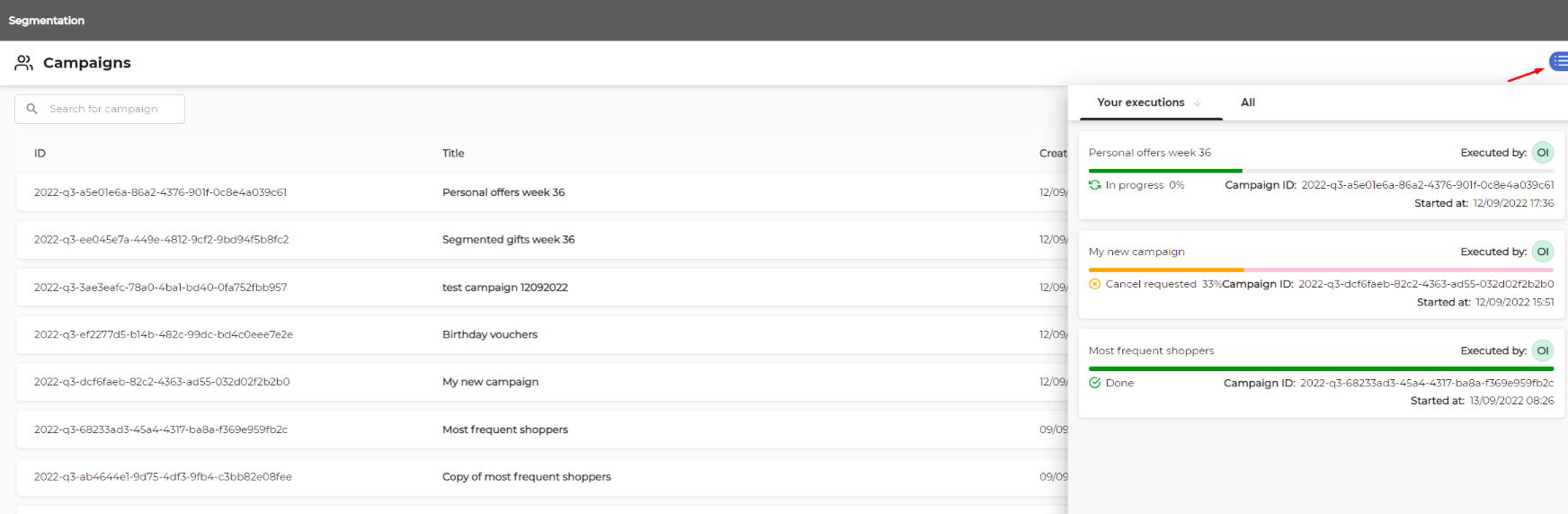
If you click on the grey burger icon (icon with three horizontal lines) on the top right corner of the window the executions sidebar will appear. It has two tabs:
- Your executions: Shows all executions of campaigns which you have created.
- All: Shows all executions of campaigns which you have access to.