Trigger personalized prompt
Orchestration-Based Prompt Flow
A typical prompt flow includes: 1. Member Segment – Defines which members should see the prompt
- Prompt Activity – Prompt message displayed in the mobile app
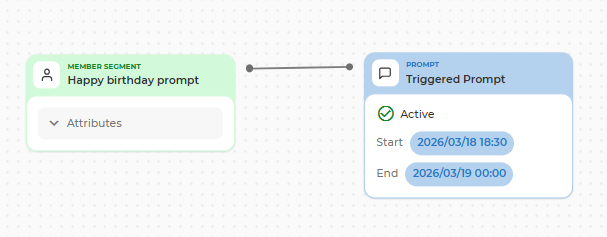
Step 1: Define the Member Segment
-
Drag a Member Segment block onto the canvas
-
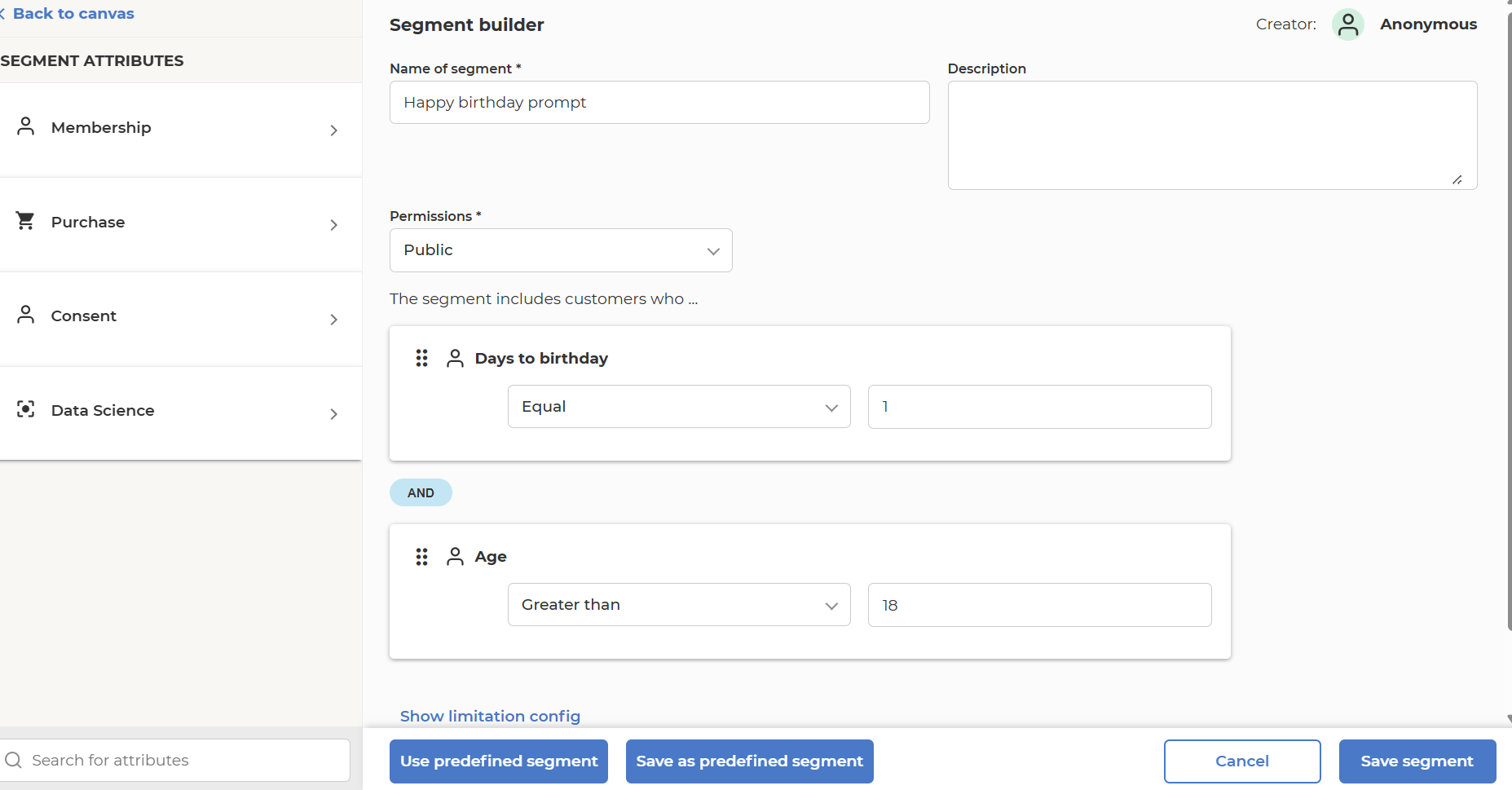
Choose attributes and conditions to target members who should receive the prompt in the mobile app
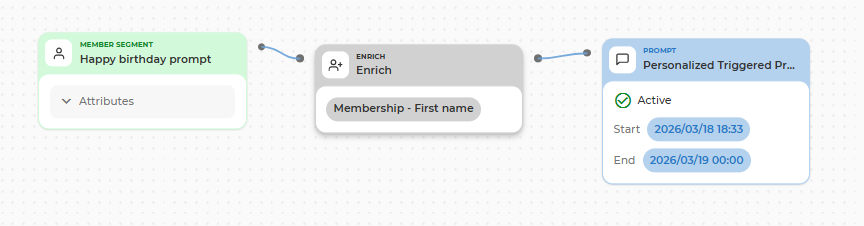
Step 2: Enrich Member segments with personalization attributes for personalized prompts
-
Drag a Enrich block onto the canvas
-
Choose personalization attributes
Step 3: Add Prompt Activity
-
Connect a Prompt block directly to the Member Segment
-
Double-click the Prompt activity block to start configuration
-
Configure the prompt content (e.g. title, message, CTA buttons) that will be shown in the mobile app
-
Write
{to choose personalization attributes previously selected in the Enrich block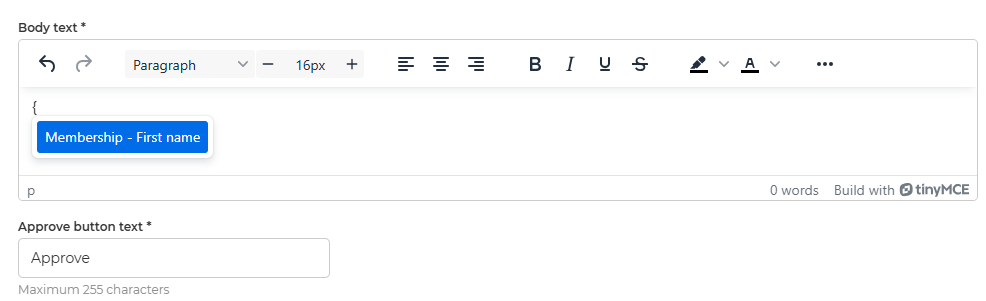
Configure Prompt Activity Details
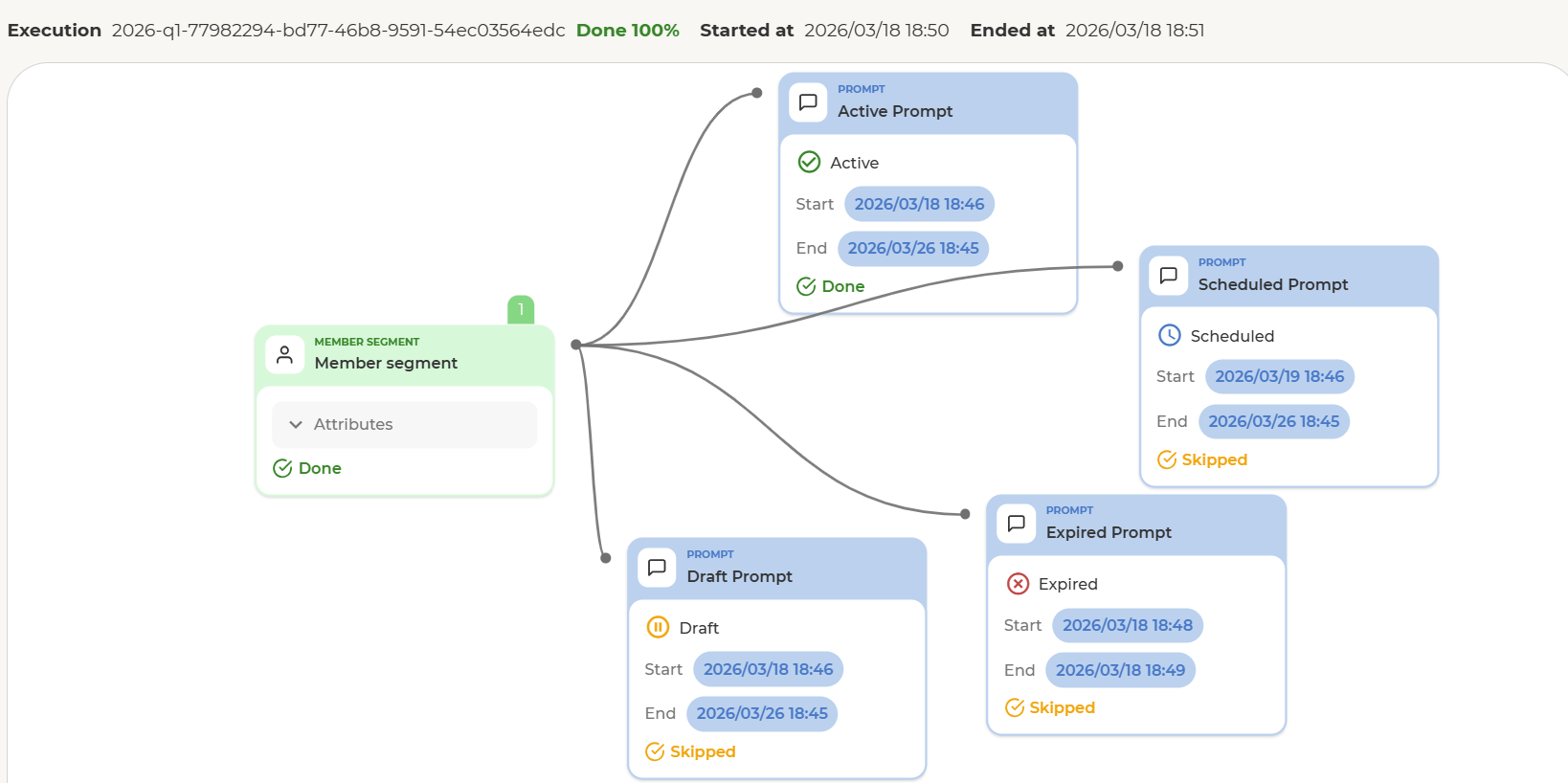
The execution of a Prompt activity depends on three conditions:
-
The configured Start and End dates
-
The execution time of the orchestration flow
-
The publication status of the Prompt activity
Execution rules
-
Execution occurs only if all of the following are true:
-
The Prompt activity is published (not saved as draft)
-
The execution time falls within the configured Start–End date interval
-
Behavior by Scenario
-
Start and End dates are in the future
-
The Prompt activity will be skipped until the execution time reaches the configured Start date
-
Once the execution time enters the Start–End interval, the Prompt activity becomes eligible for execution
-
-
Start and End dates are in the past
- The Prompt activity will be skipped, as the execution time is already outside the allowed date range
-
Execution time is within the Start–End date interval
-
If the Prompt activity is published, the prompt will be displayed to qualifying members
-
If the Prompt activity is saved as draft, the step will be skipped
-
Important Notes
-
Start and End dates act as a hard visibility window for the prompt
-
Publishing the Prompt activity is mandatory — draft activities are always skipped
Prompt Re-allocation Behavior
-
A member can only have one active instance of the same prompt in the mobile app at a time
-
If a member has already received the prompt during a previous execution and the member did not interact with the prompt the system will not create a duplicate prompt. If the prompt activity contains personalization data, the prompt displayed in the app will reflect the personalization values from the most recent execution.
-
If a member has already receive the prompt during a previous execution and interacted with the prompt the member will receive a new instance of the prompt in a subsequent execution, provided they are still included in the target segment.
-
This ensures a clean user experience and prevents duplicate prompts from appearing