Inbound API block
The Inbound API block lets external systems start a campaign flow for a specific customer in real time. When a CDP, CRM, POS, or any other client system calls the block's unique URL, that customer enters the flow — so a journey can begin in Nexus the moment something happens outside it.
It is the inbound counterpart to the Outbound API block: where Outbound API sends data out of Nexus, Inbound API lets external systems trigger flows into Nexus. The Inbound API block is a starting block — it begins a flow, like a Customer event block.
What can I do with Inbound API?
Use the Inbound API block when an external system should decide when a customer enters a campaign flow.
Examples
- A CDP detects a behaviour and calls the URL to drop the customer into a flow that assigns a Gift offer.
- A CRM triggers a win-back journey for a specific customer in real time.
- A POS or client system pushes a customer into a flow right after an in-store action.
What this enables
- Start flows from outside Nexus, per customer, in real time.
- React to external events with activities — Challenges, Offers, Games, Push and others.
- Run several independent entry points in one flow, each with its own URL.
A simple flow example
External system → Inbound API → Activities
How to use Inbound API in a campaign
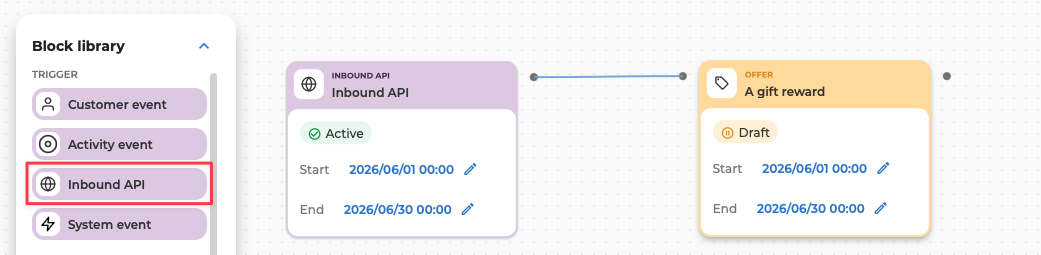
Step 1: Add the Inbound API block
- Open your campaign in Orchestration view.
- Drag the Inbound API block from the toolbox onto the canvas. It is a starting block, so it does not need a preceding block.
- Connect it to the activity that should run when a customer is pushed into the flow (e.g. an Offer, Challenge or Game).
Step 2: Add the details
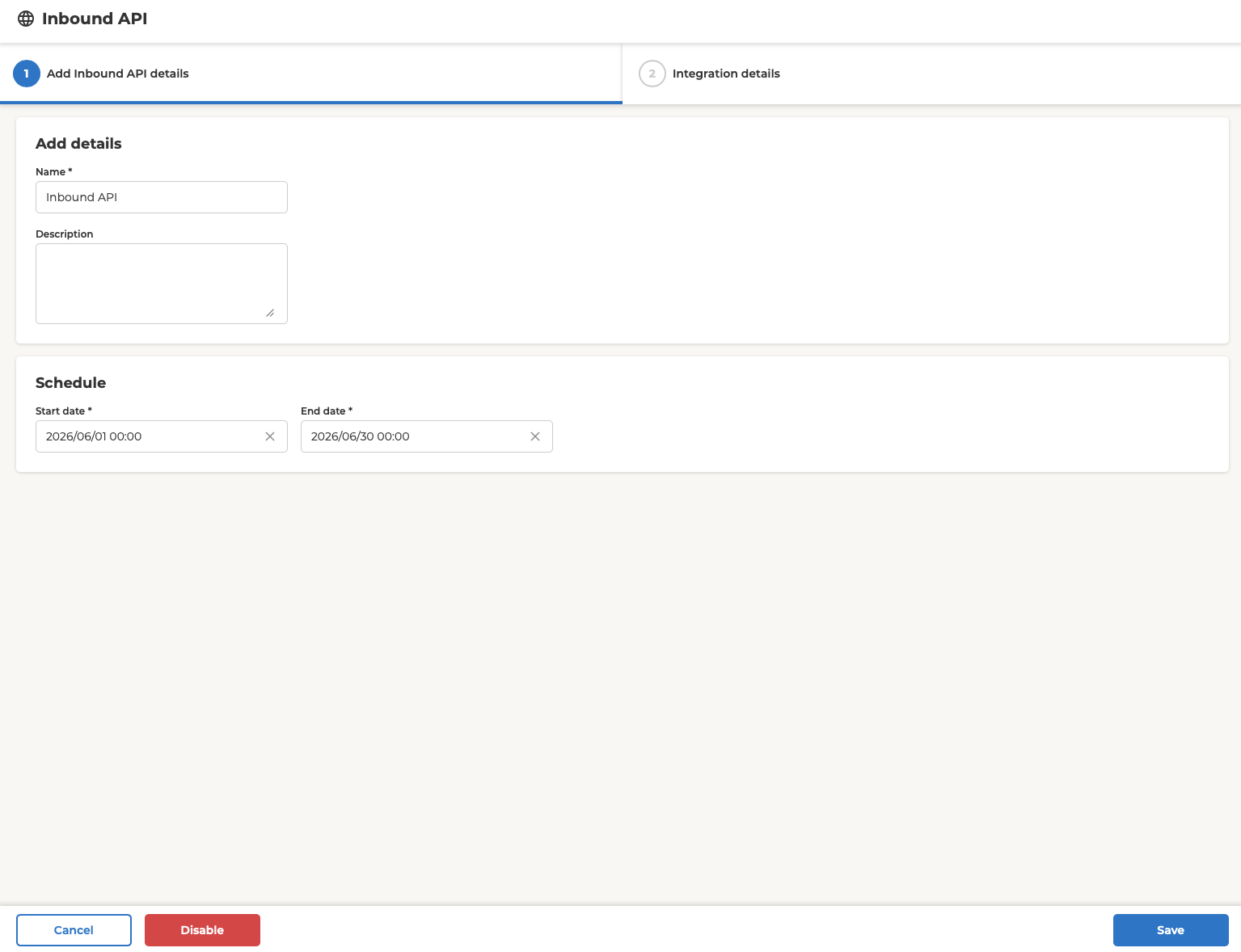
Double-click the block to open its configuration. Setup has two steps — the second step unlocks once you save the first.
On Add Inbound API details, fill in:
- Name (required) — a label for the block, visible on the canvas. Choose something descriptive (e.g.
Bloomreach – Gift trigger). - Description (optional) — a short note on what the block is for.
- Start date (required) — when the endpoint becomes active. Calls before this are rejected.
- End date (required) — when the endpoint stops accepting calls. Calls after this are rejected.
Step 3: Get the integration details
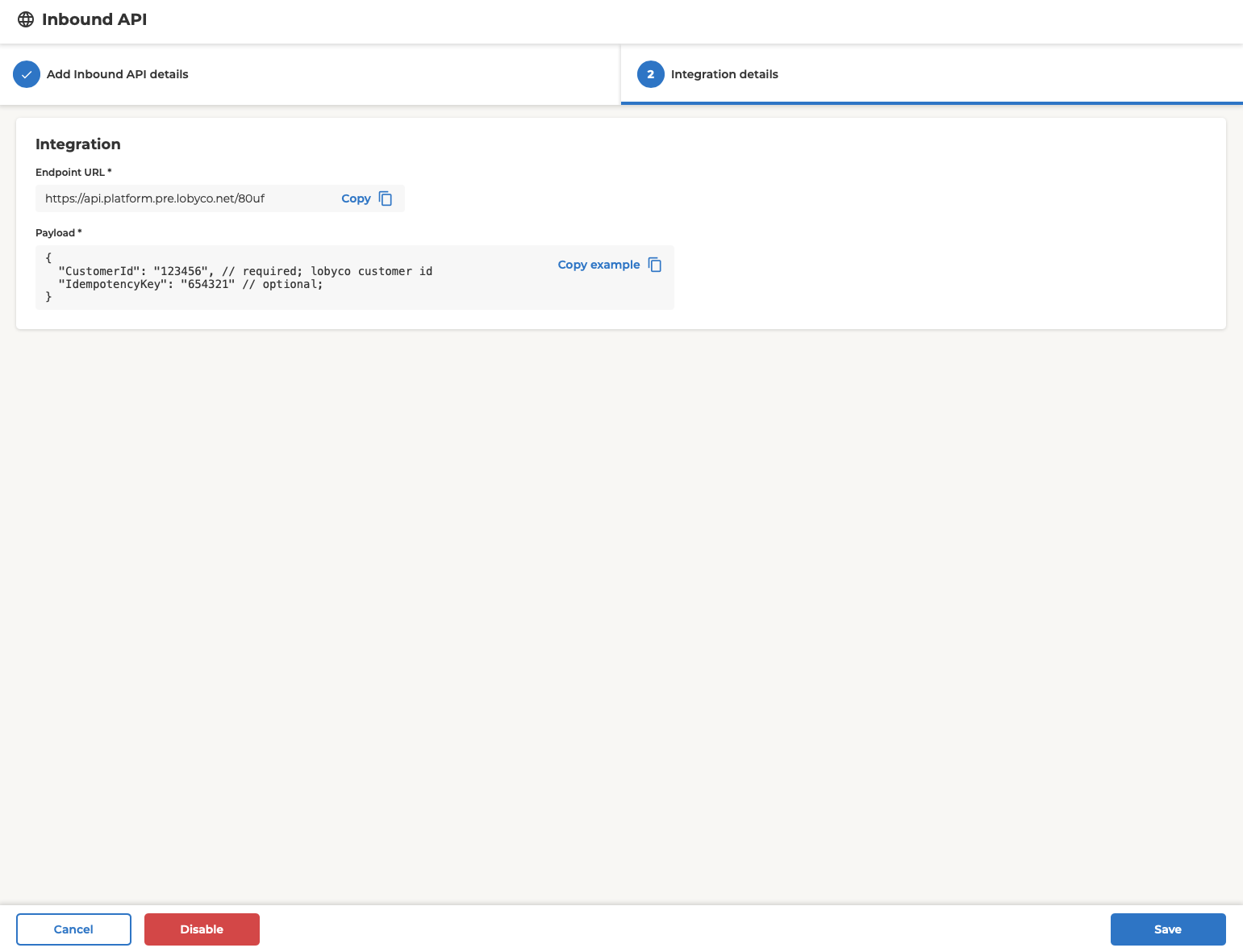
Open the Integration details step. Here you'll find everything the external system needs:
- Endpoint URL — the unique, copyable address for this block (e.g.
https://api.platform.<environment>.lobyco.net/inbound/Hjp9). Use Copy to share it with the team configuring the external system. - Payload — a copyable example of the request body. Use Copy example to grab it.
⚠️ NOTE: this is an example response. The real data body should be handled by external CDP.
Each block has its own URL, so a single flow can have several Inbound API blocks, each targeted independently. The URL stays the same across flow versions, so you don't need to reconfigure external systems when you edit and republish the flow.
Step 4: Save and publish
- Save as draft keeps your configuration without activating the endpoint. While a block is a draft, external calls are rejected.
- Publish activates the block. From then on, valid calls within the schedule window start the flow for the customer in the request.
Calling the endpoint
This section is for the integration team configuring the external system. Once the block is published and within its schedule window, the external system triggers the flow with a single HTTP request.
Method & URL
POST https://api.platform.<environment>.lobyco.net/inbound/{id}
Headers
API-KEY: <your-api-key>
Content-Type: application/json
The API key is provided by Lobyco (one key per environment). See Authorization.
Body
{
  "CustomerId": "123456",
  "IdempotencyKey": "order-2026-0001"
}
- CustomerId (required) — the Lobyco customer ID to push into the flow.
- IdempotencyKey (optional) — a unique value that guards against duplicate calls. See Idempotency.
Response
A successful call returns 202 Accepted with a requestId you can use to trace the execution. The flow then runs for that customer.
Idempotency
If you include an IdempotencyKey, a repeated call with the same key (for the same block) within 24 hours is silently ignored and returns the original requestId — so a retry or accidental double-send won't trigger the flow twice. Calls without an IdempotencyKey are always processed.
Response & error codes
| Code | Meaning |
|---|---|
| 202 Accepted | Request accepted; the flow is scheduled for the customer. Returns a requestId. |
| 400 Bad Request | The block is not published (still a draft), or the request is malformed. |
| 401 Unauthorized | The API key is missing or invalid. |
| 404 Not Found | No published block matches this URL. |
| 422 Unprocessable Entity | Validation failed — e.g. the call is outside the Start/End window, or a required field is missing. |
| 429 Too Many Requests | Too many requests in a short time; slow down and retry later. |
Retries are the caller's responsibility.
Authorization
Calls are authorized with an API key sent in the API-KEY header.
- One API key is provisioned per environment by Lobyco.
- The same key works for all Inbound API blocks in that environment.
- Need a key, or need one rotated? Contact your Lobyco representative.
Self-service API key management is planned for a later iteration.
Limitations
- One customer per call. Each request triggers the flow for a single
CustomerId; batch calls are not supported yet. - No extra payload data. Only
CustomerIdand the optionalIdempotencyKeyare used; additional properties are ignored for now. - The CustomerId is not validated against the customer base in this version — make sure the external system sends valid Lobyco customer IDs.
- One global API key per environment, provisioned by Lobyco. Self-service key management and detailed request logs are planned for later.
- Calls only succeed when the block is published and the current time is within the Start/End window.
Good practices
- Use clear, descriptive block names (e.g.
Bloomreach_Gift_Trigger) so the source system is obvious on the canvas. - Set a Start and End date that matches the campaign period; the endpoint stops accepting calls outside it.
- Send an IdempotencyKey from the external system to avoid duplicate triggers on retries.
- Share the Endpoint URL and API key with your integration team through a secure channel.
- Test against Pre-production before going live in Production.