The Email Editor is a visual, drag-and-drop editor used to create responsive email layouts without writing code. Content is assembled using predefined blocks, layout rows, and global design settings.
Canvas
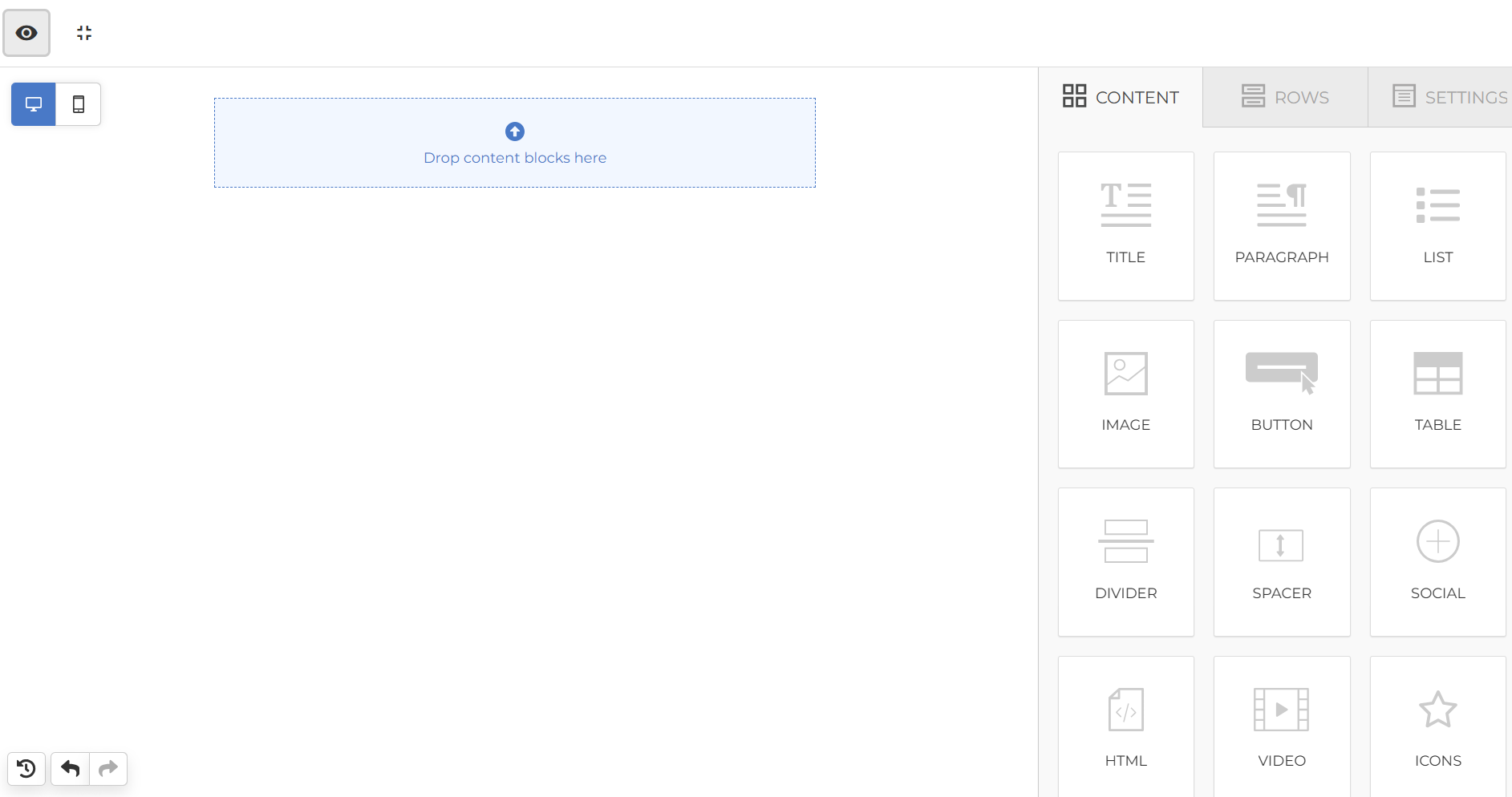
The Canvas is the central working area where the email layout is created and edited.
-
Displays the live structure of the email
-
Supports drag-and-drop placement of rows and content blocks
-
Allows reordering of elements using move controls
-
Provides immediate visual feedback for layout and styling changes
All content added to the email is rendered directly in the Canvas.
Content Blocks
Content blocks are functional elements used to compose the email. Blocks are added from the Content panel and placed inside rows on the Canvas.
| Block | Category | Purpose | Configurable Options |
|---|---|---|---|
| Title | Text | Headings and section titles | Heading level (H1–H3), font family, font size, font weight, text color, link color, alignment, line height, letter spacing, text direction, padding |
| Paragraph | Text | Body text content | Font family, font size, font weight, text color, link color, alignment, line height, paragraph spacing, letter spacing, text direction, padding |
| Text | Text | Simple text content | Font family, font size, font weight, text color, link color, alignment, line height, text direction, padding |
| List | Text | Ordered or unordered lists | List type, list style, font family, font size, text color, alignment, line height, item spacing, nested indentation, text direction, padding |
| Table | Text | Structured tabular content | Rows and columns, cell formatting, borders, background colors, text formatting, padding |
| Image | Media | Visual content | Image source, alignment, auto width, mobile behavior, alt text, image title, rounded corners, link, padding. Maximum size allowed for uploading an image is 1MB. Uploading images over the size limit will be signaled by a pop error. |
| Video | Media | Embedded video link | Video URL, title, padding |
| Icons | Media | Decorative or informational icons | Icon selection, size, color, alignment, spacing, padding |
| Button | Action | Call-to-action element | Button text, link, font family, font size, text color, background color, border style, border radius, alignment, padding |
| Menu | Navigation | Navigation links | Menu items, layout (horizontal/vertical), font settings, text color, alignment, spacing, padding |
| Social | Navigation | Social media links | Social networks, icon styles collection, spacing, padding |
| Divider | Layout | Section separation | Line style, width, color, alignment, padding |
| Spacer | Layout | Vertical spacing | Height |
| HTML | Advanced | Custom HTML content | HTML input |
Rows
Rows define the structural layout of the email and act as containers for content blocks.
Empty Rows
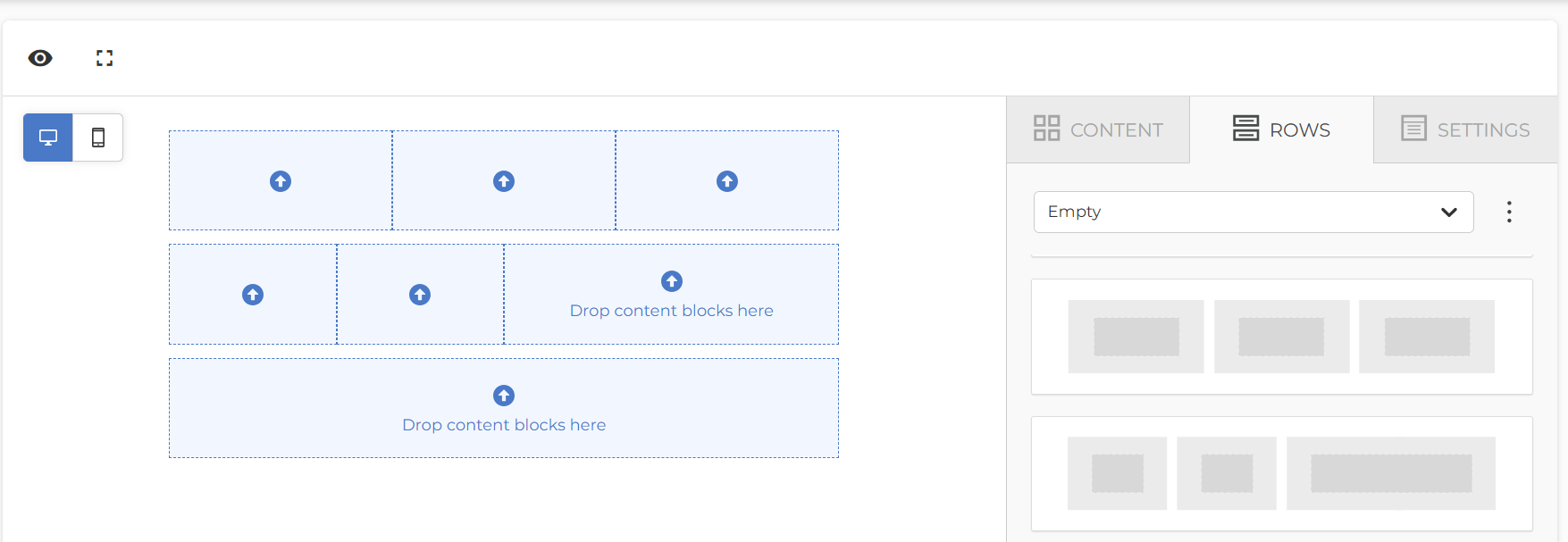
Empty rows provide basic layout templates.
-
Single-column layouts
-
Multi-column layouts (two, three, or more columns)
-
Column width variations
Empty rows are used to define new layout sections.
Saved Rows
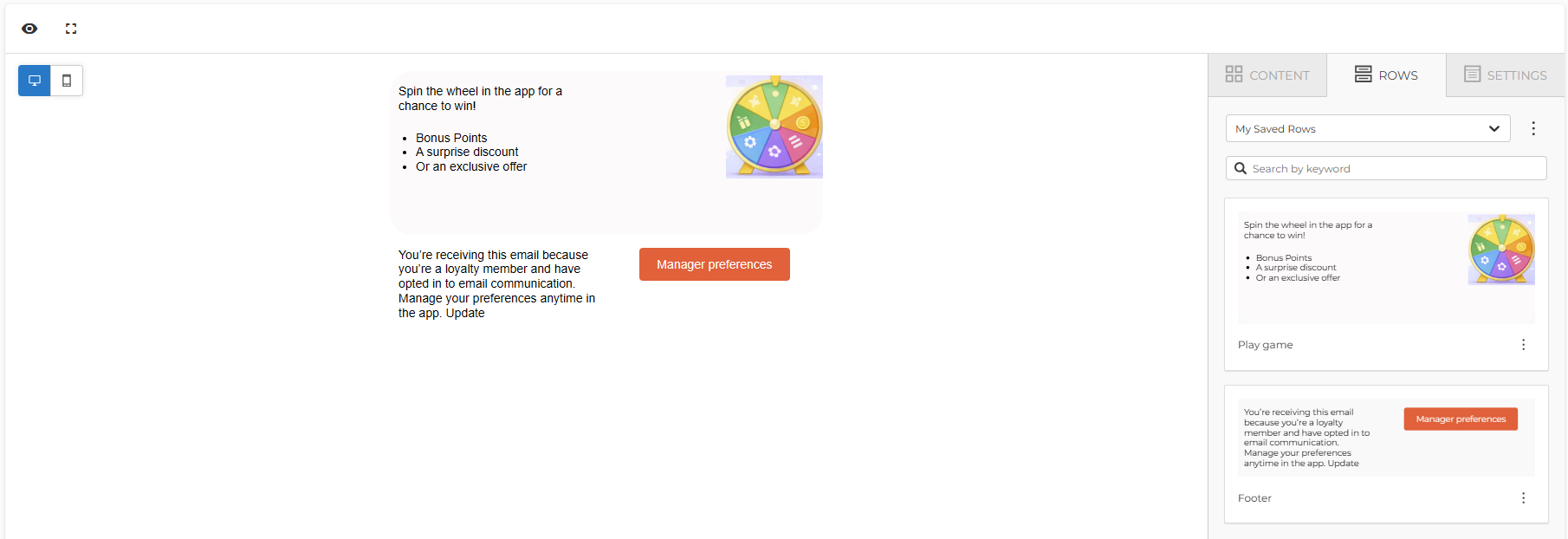
Saved rows are reusable layout sections.
-
Pre-configured combinations of rows and blocks
-
Commonly used for headers, footers, or promotional sections
-
Can be inserted directly into the Canvas
-
Editable after insertion
Saved rows enable consistent layout reuse across emails.
Settings
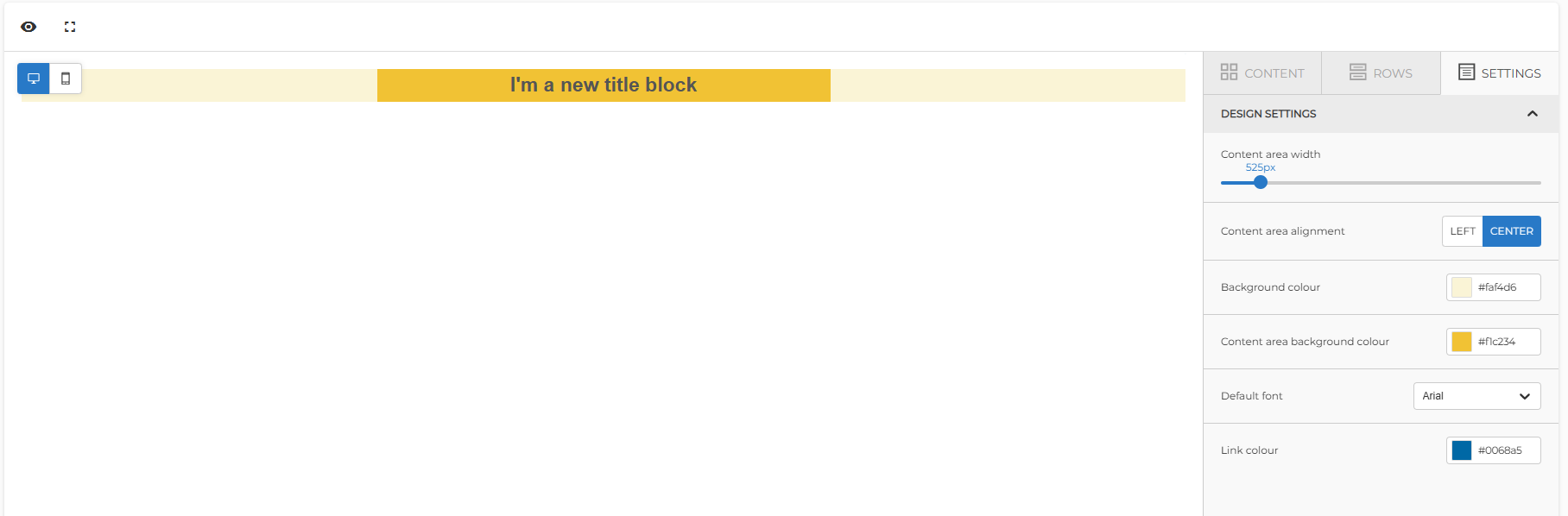
Settings control the global appearance and layout of the email.
Available options:
-
Content area width
-
Content alignment (left or center)
-
Background color
-
Content area background color
-
Default font
-
Global link color
These settings apply to the entire email unless overridden at block level.
Preview Mode
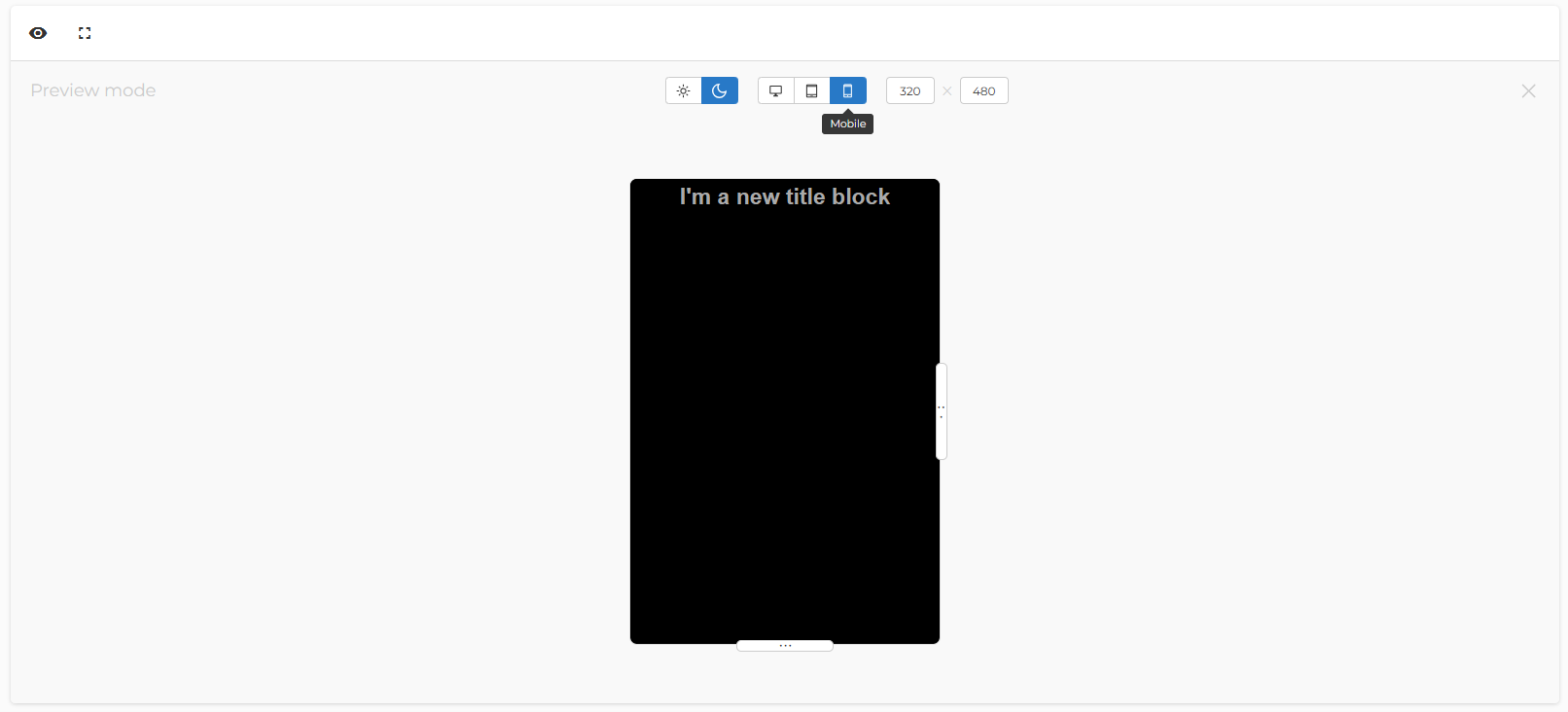
Preview mode displays a read-only rendering of the email as it will appear to recipients. It is used to review layout, styling, and responsiveness without exposing editing controls.
Available Preview Options
- Theme mode : Light and Dark mode
- Device previews : Desktop, Tablet and Mobile
- Custom viewport size: Manual width and height values can be set to simulate specific screen resolutions
History and Undo
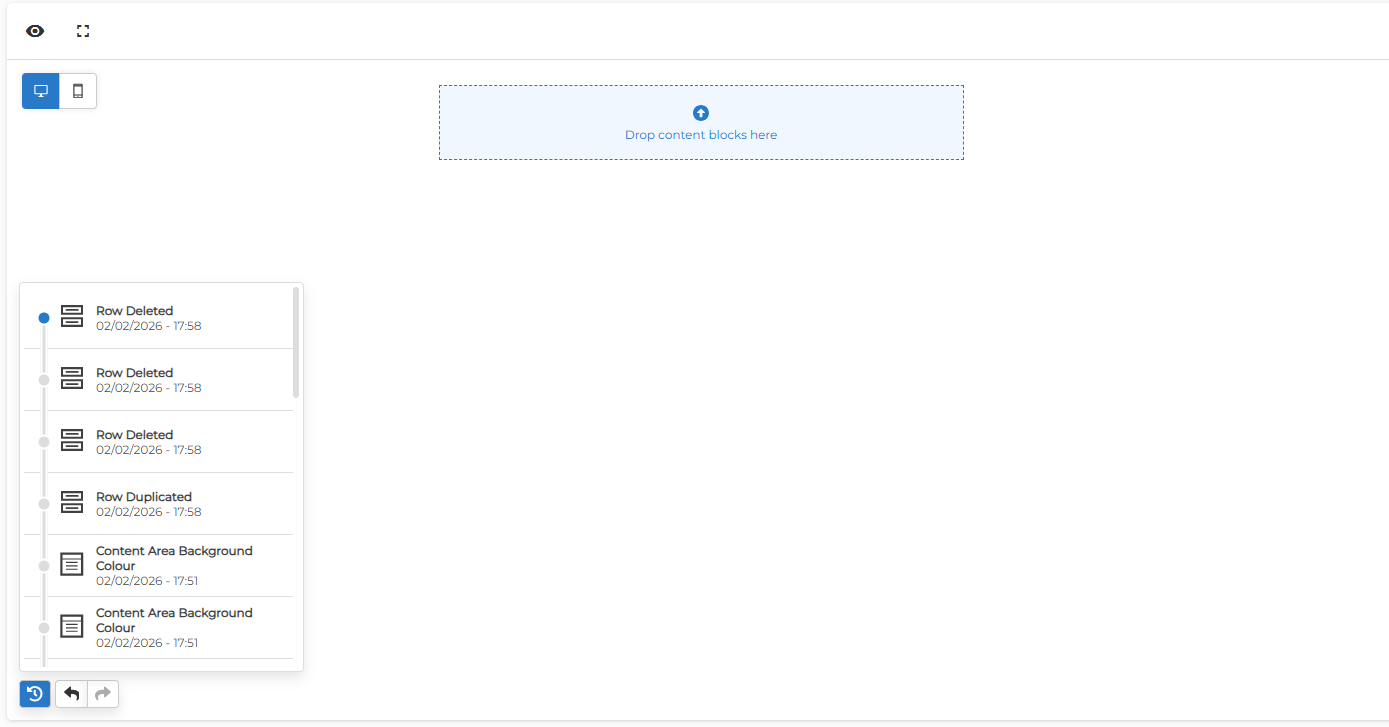
The Email Editor maintains a chronological history of changes made during an editing session. This allows previous actions to be reviewed and reversed when needed.
Additional Resources
More detailed documentation covering editor functionality, content creation, layout configuration, and recommended best practices can be found in the BeeFree Quick Start Guides.