Trigger personalized push
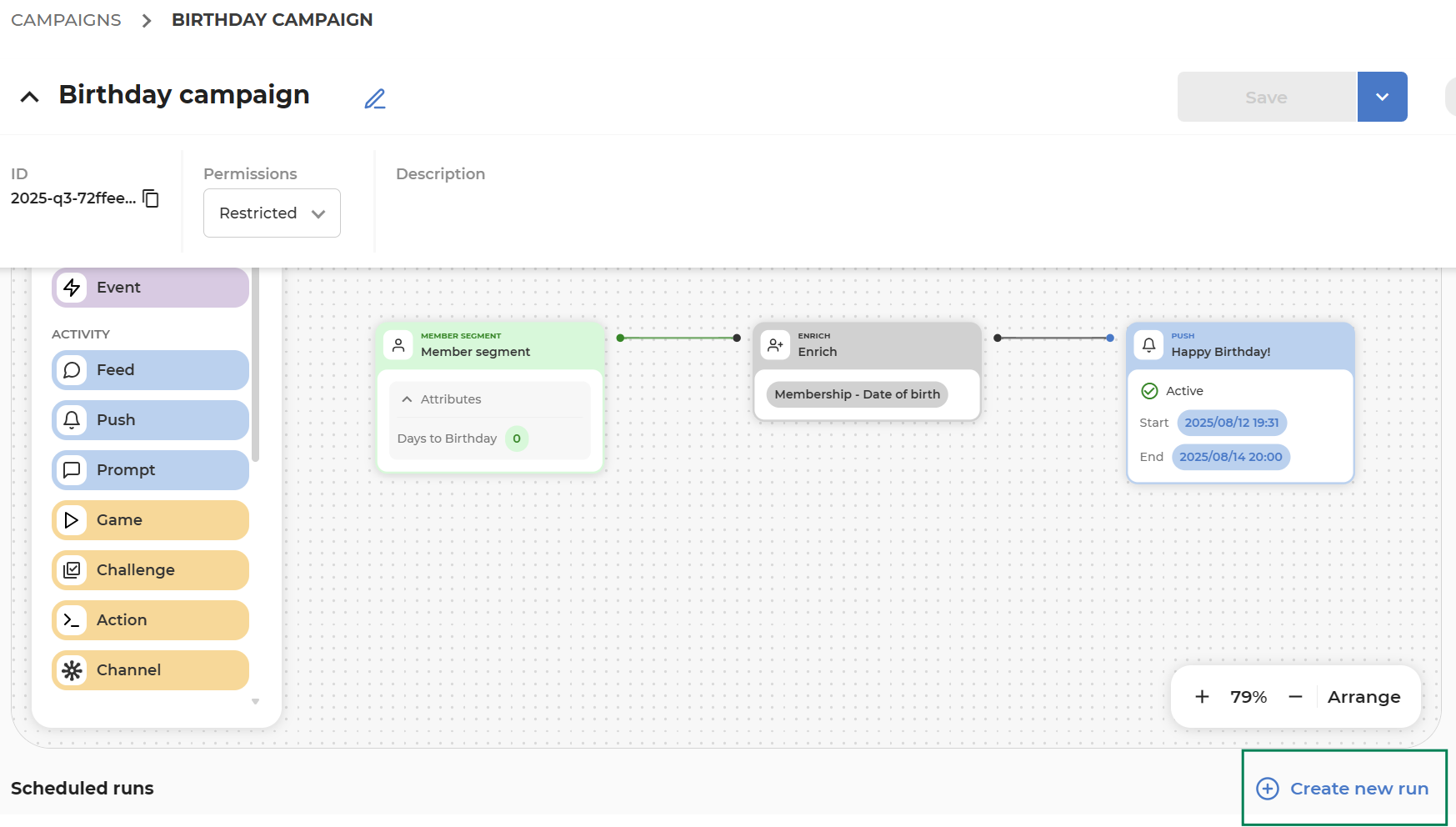
To send personalized push for each customer's birthday set up an Orchestration Campaign that runs daily, segments customers with birthdays today, retrieve additional details about the customers and trigger a personalized push communication for them.
Follow these steps:
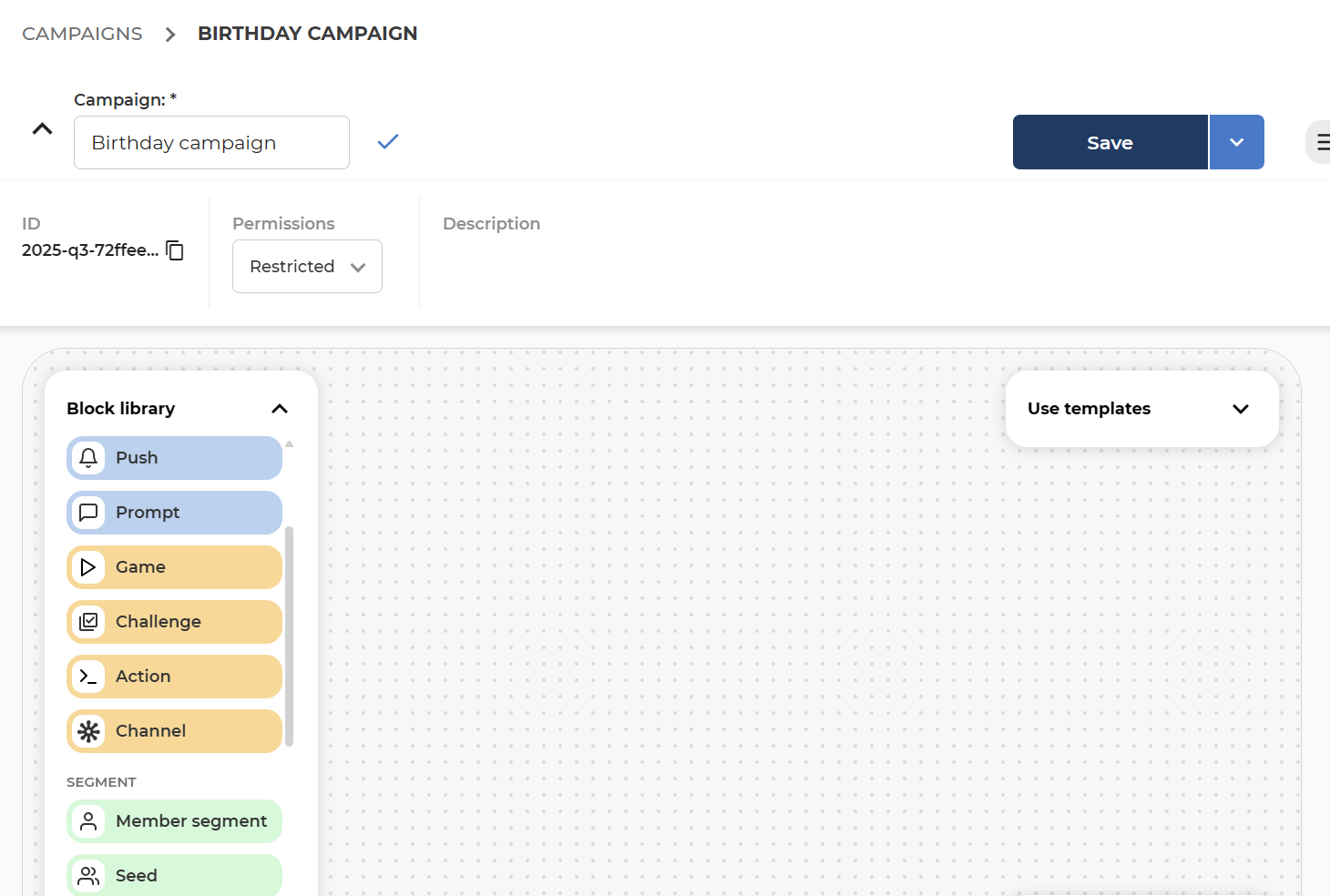
1. Create an Orchestration Campaign
2. Segment: Fetch all Customers whose birthday is today
-
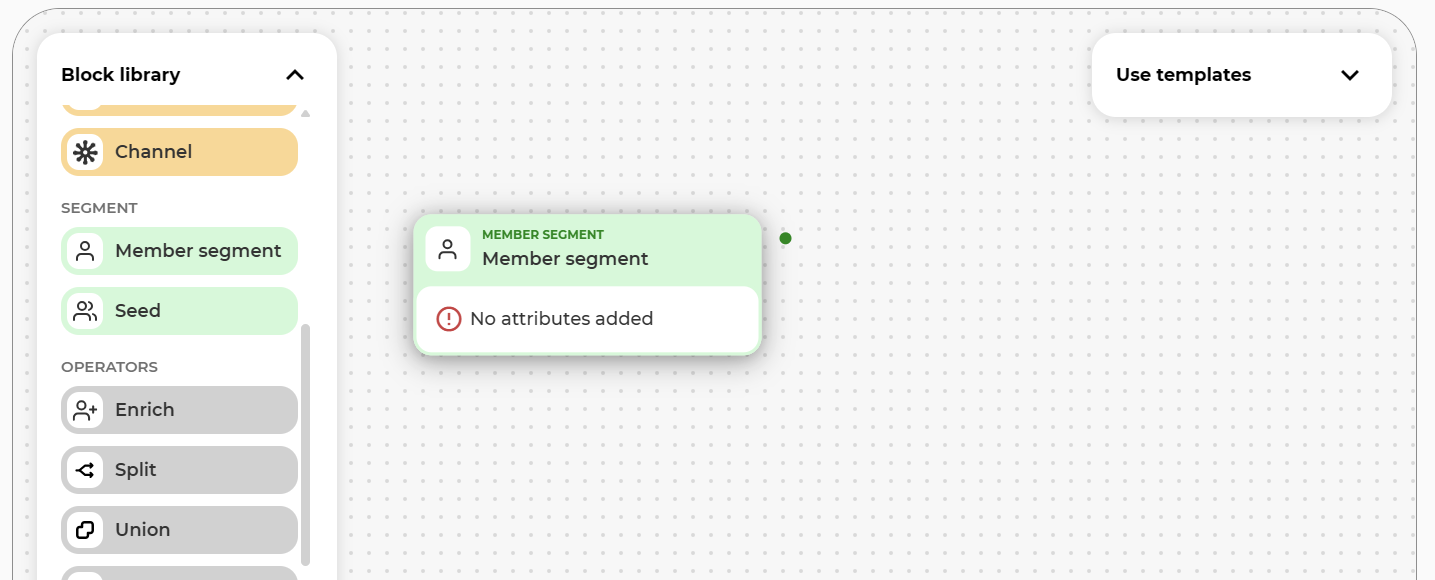
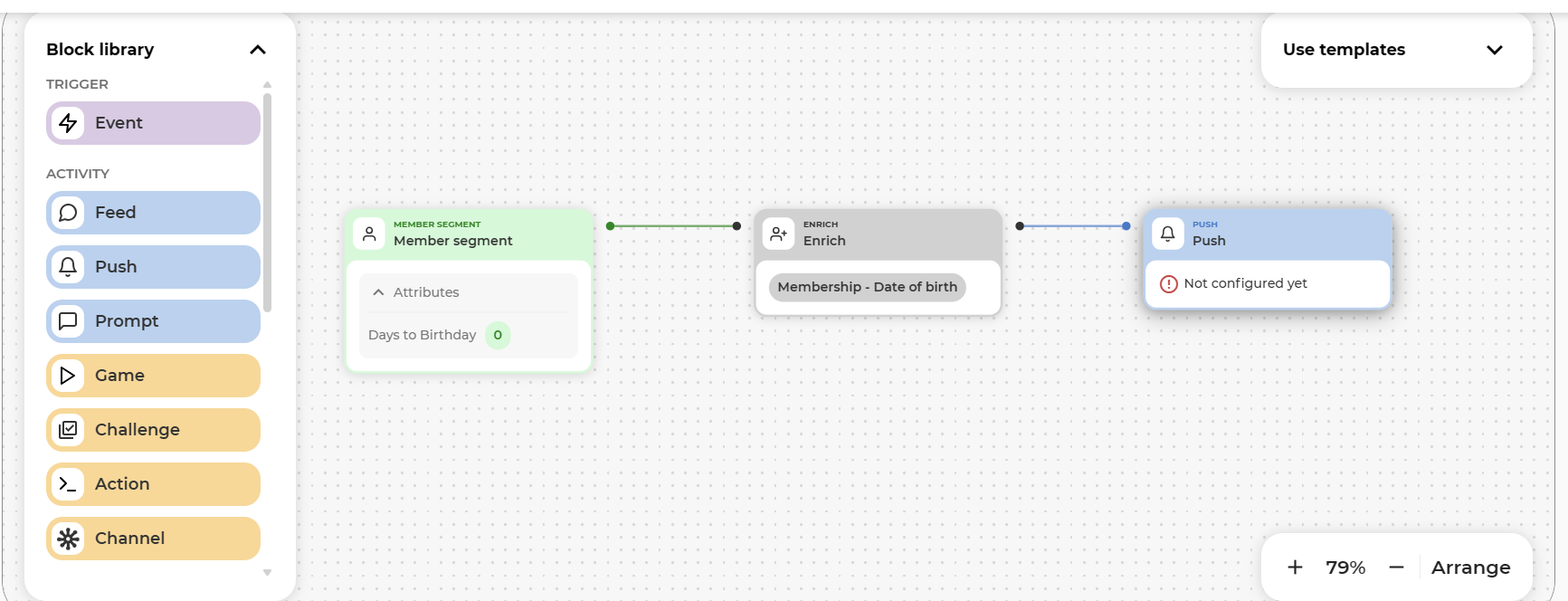
Drag Segment block on the canvas.
-
Enter the segment block (double click) and configure the criteria for segmentation.
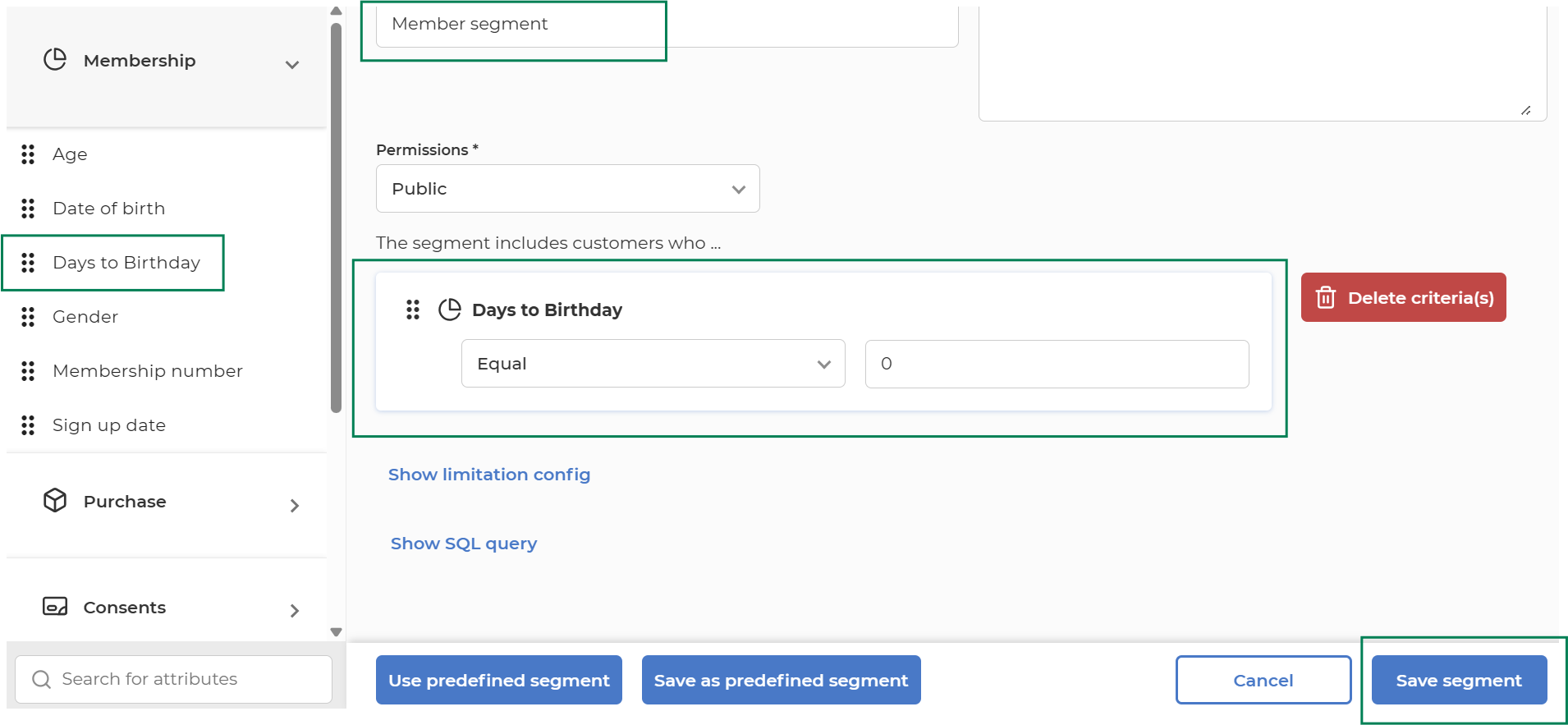
3. Enrich details: Get more details about the customers so we can use them in the personalized communication
-
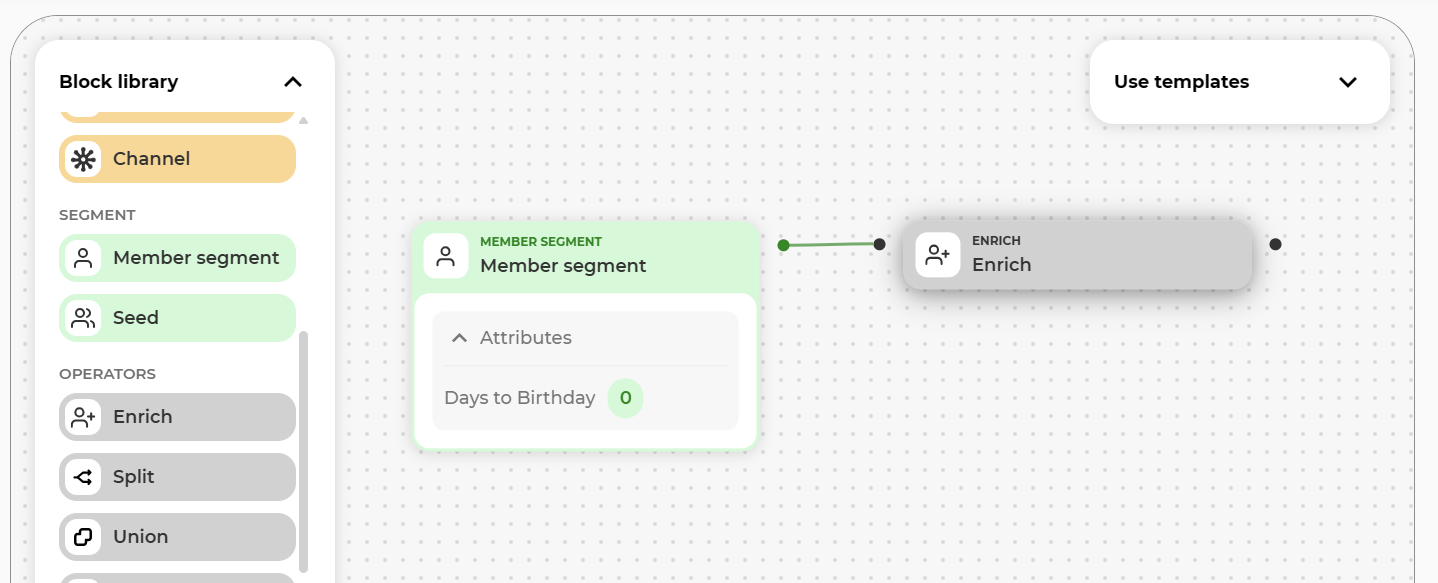
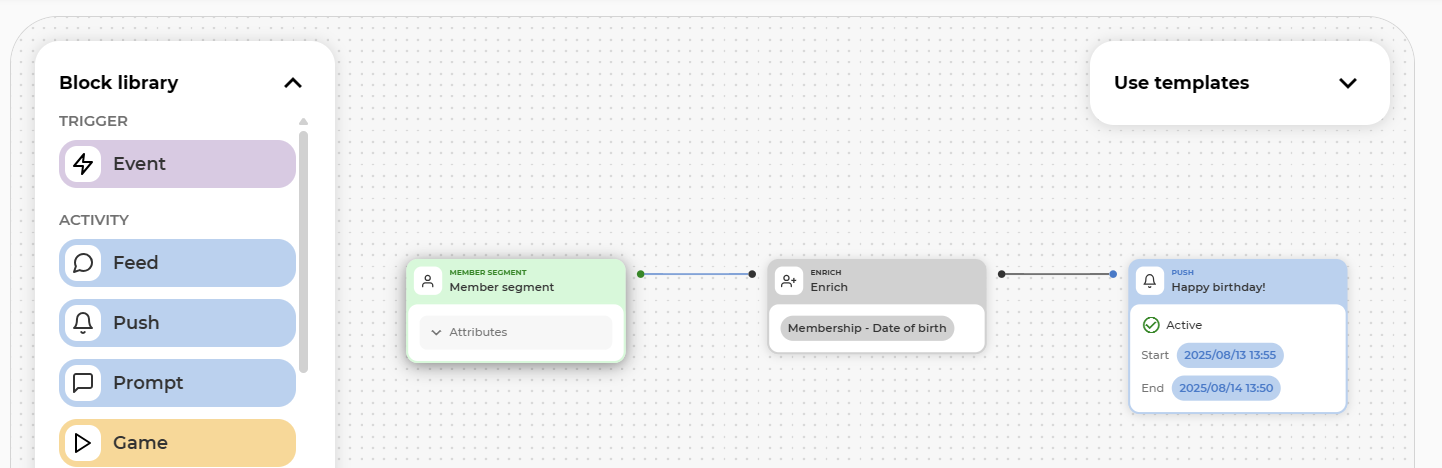
Drag Enrich block on the canvas, and connect it to the Segment block so it enriches that result.
-
Enter the block and configure what other data you want to know about each customer.
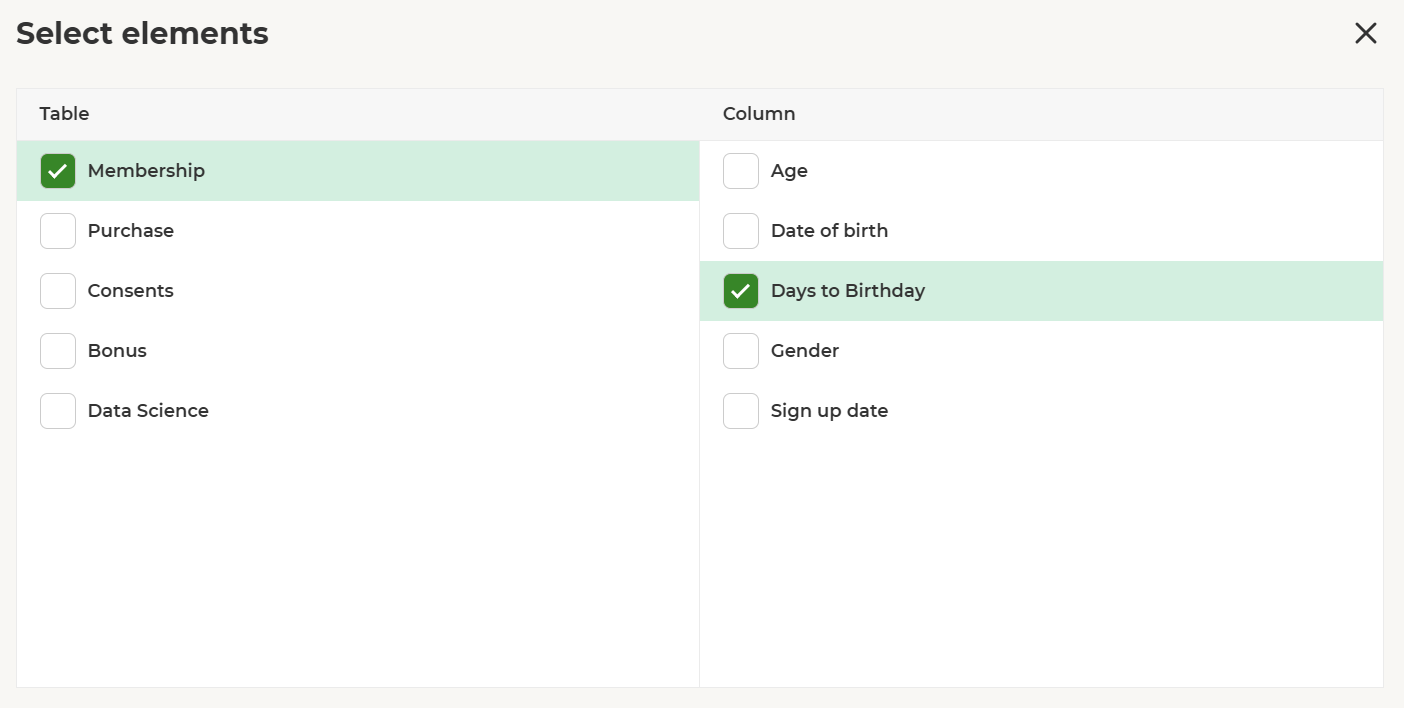
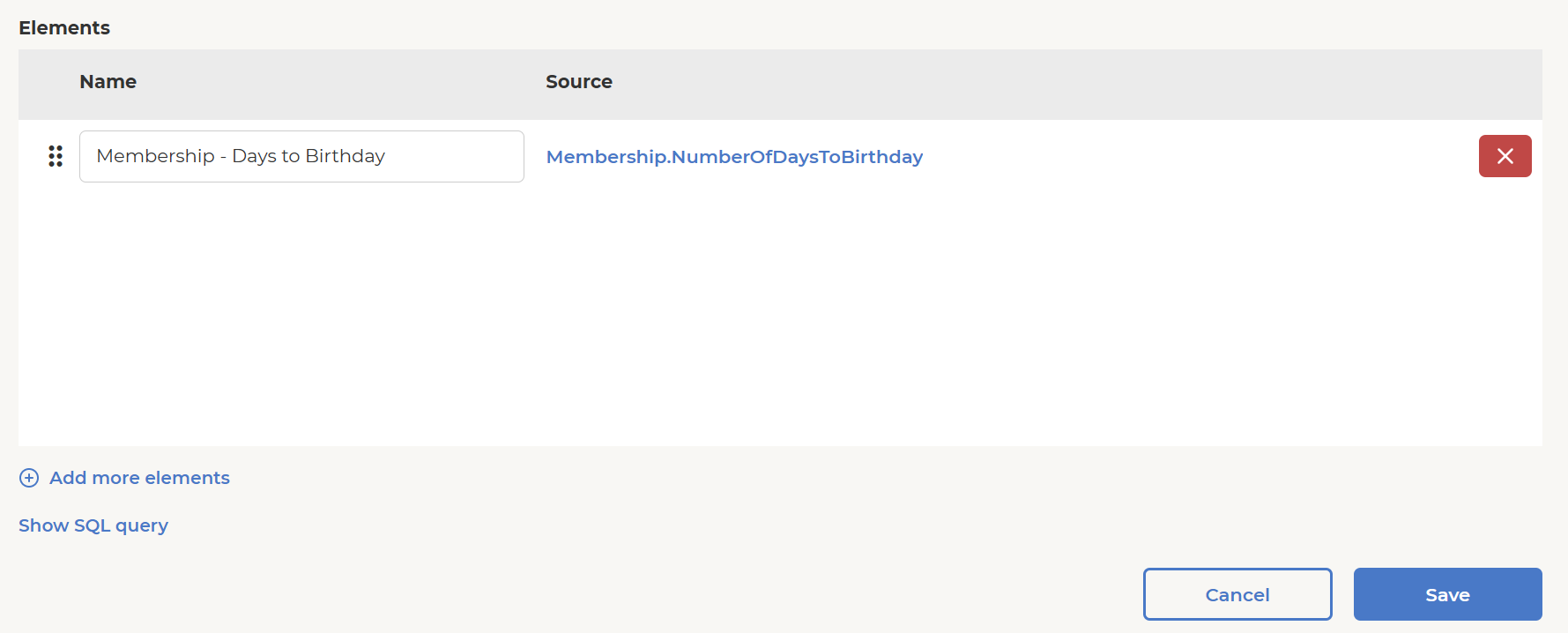
4. Create communication activity: Connect a push activity in the campaign and design its content.
-
Drag the Push block on the canvas, and connect it to the flow so it receives the result of the Enrich block.
-
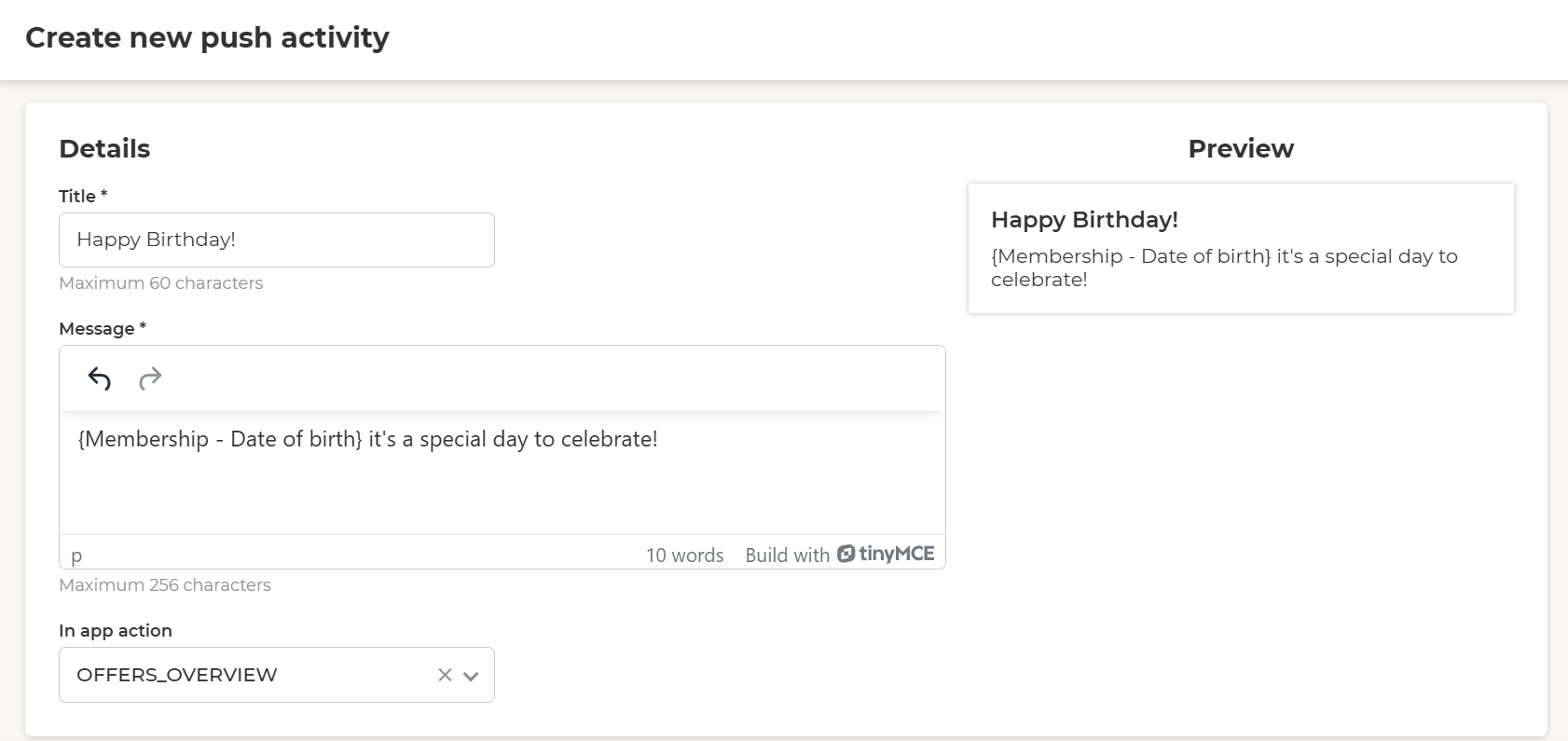
Enter the block, design the Push activity, and save it.
-
Pay special attention to the following details, which differ from 'normal' non-triggered Push communications:
-
Making content personalized with member attributes:
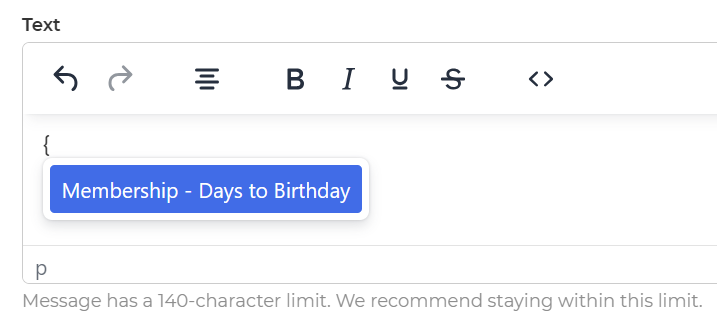
Start typing "{" in the push message to get a list of the member attributes made available via the previous Enrich block in Orchestration. Use these attributes to personalize the message for each member. -
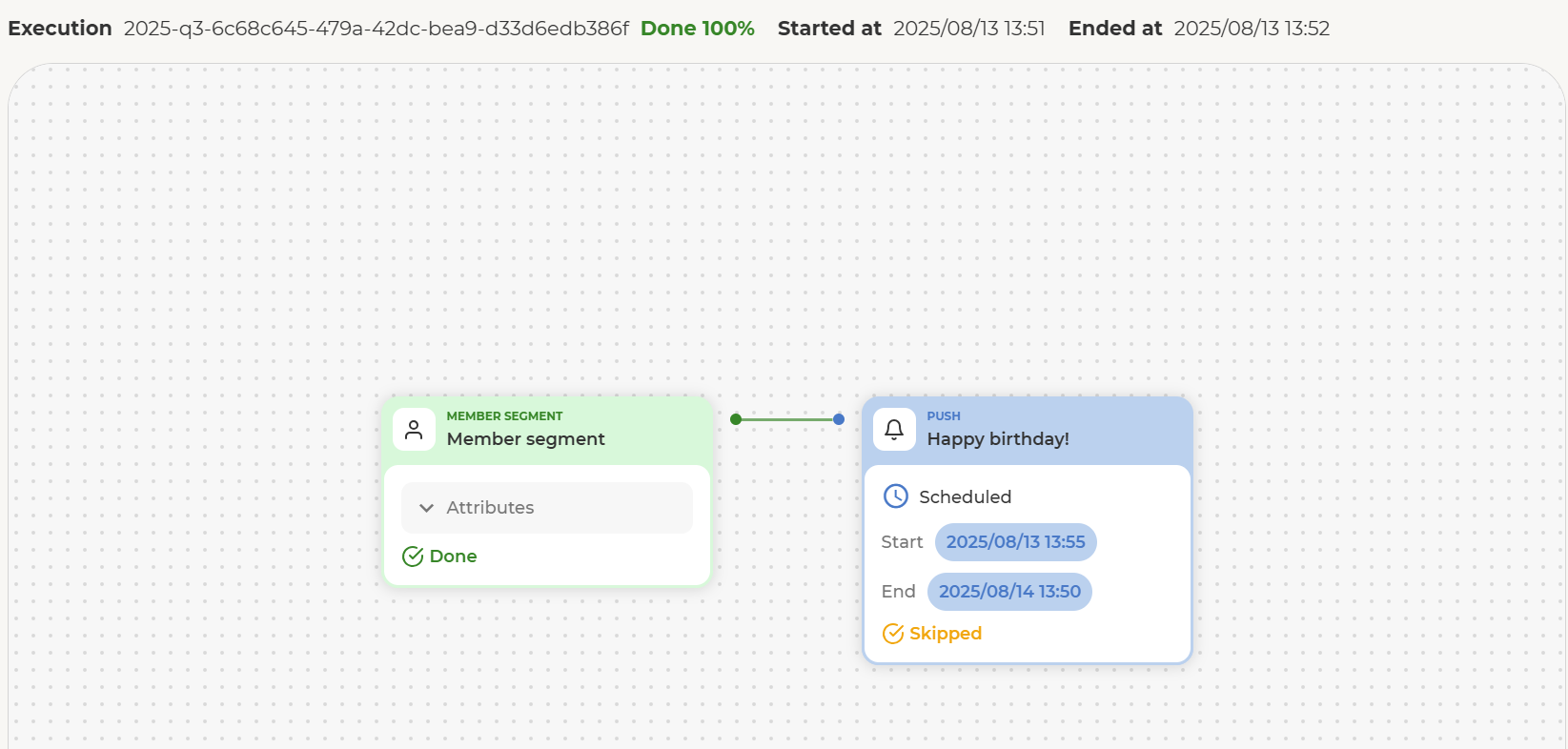
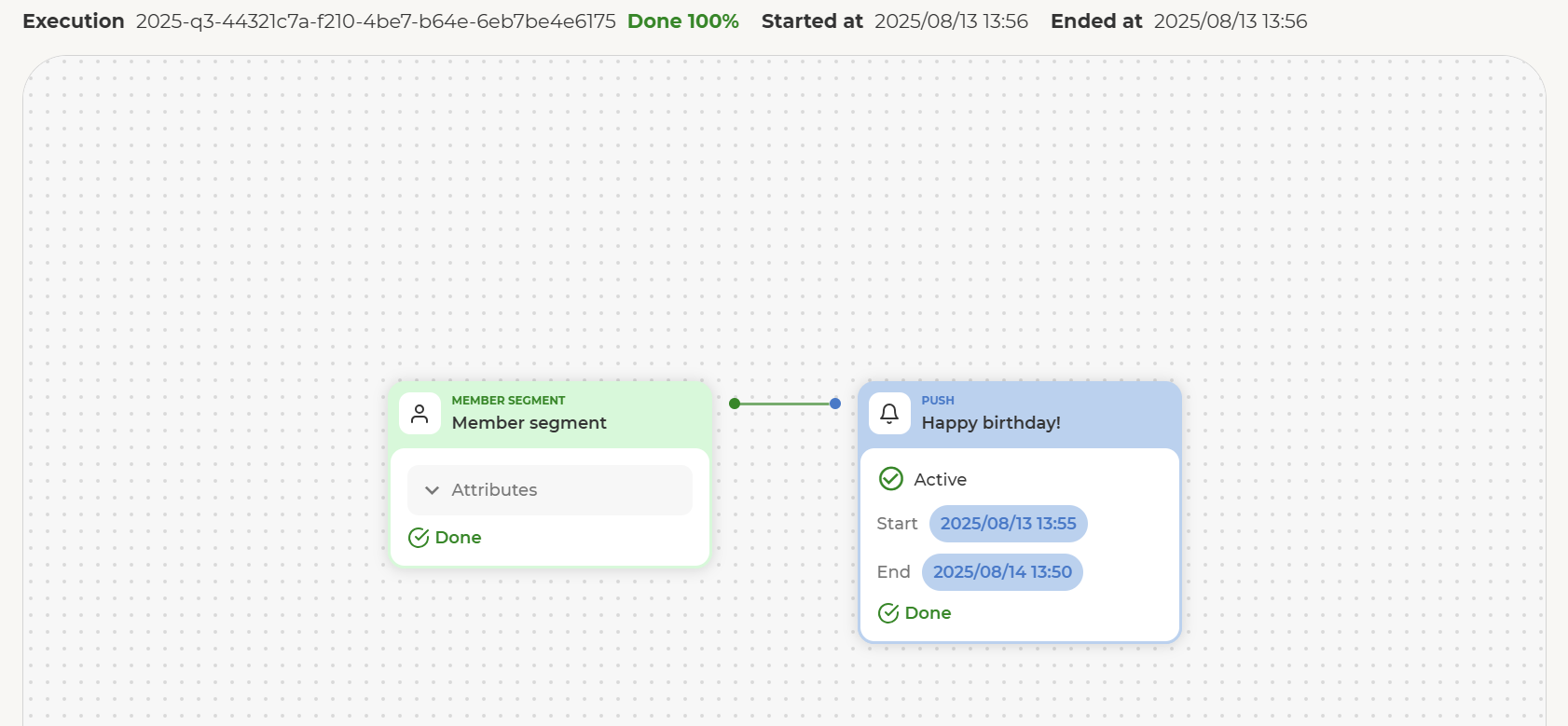
Schedule: When a Push is in scheduled state at execution time it will be skipped. The push notifications will be sent at execution time if the push activity is active

- Scheduled push activity is skipped at execution time.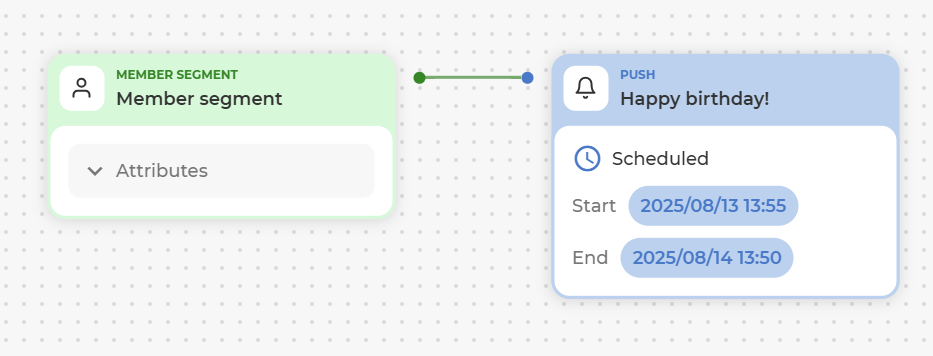
- Active push activity is executed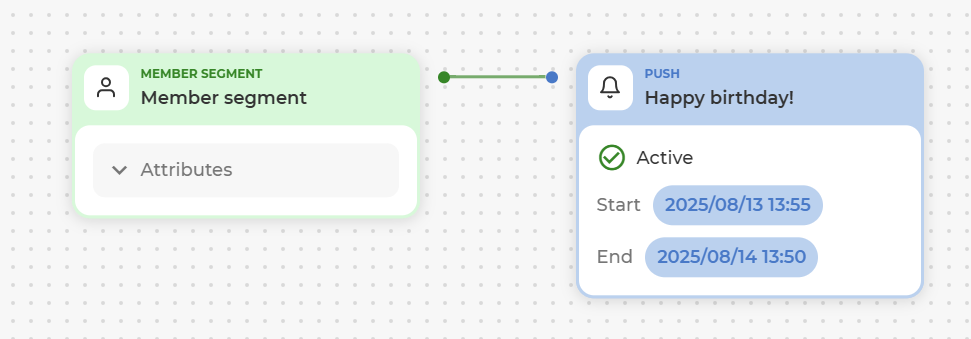
-
5. Test it
Test and iterate until the desired result is achieved.
- Save and execute. Then, check the results in Orchestration: Did it run successfully? Are there members in the segment?
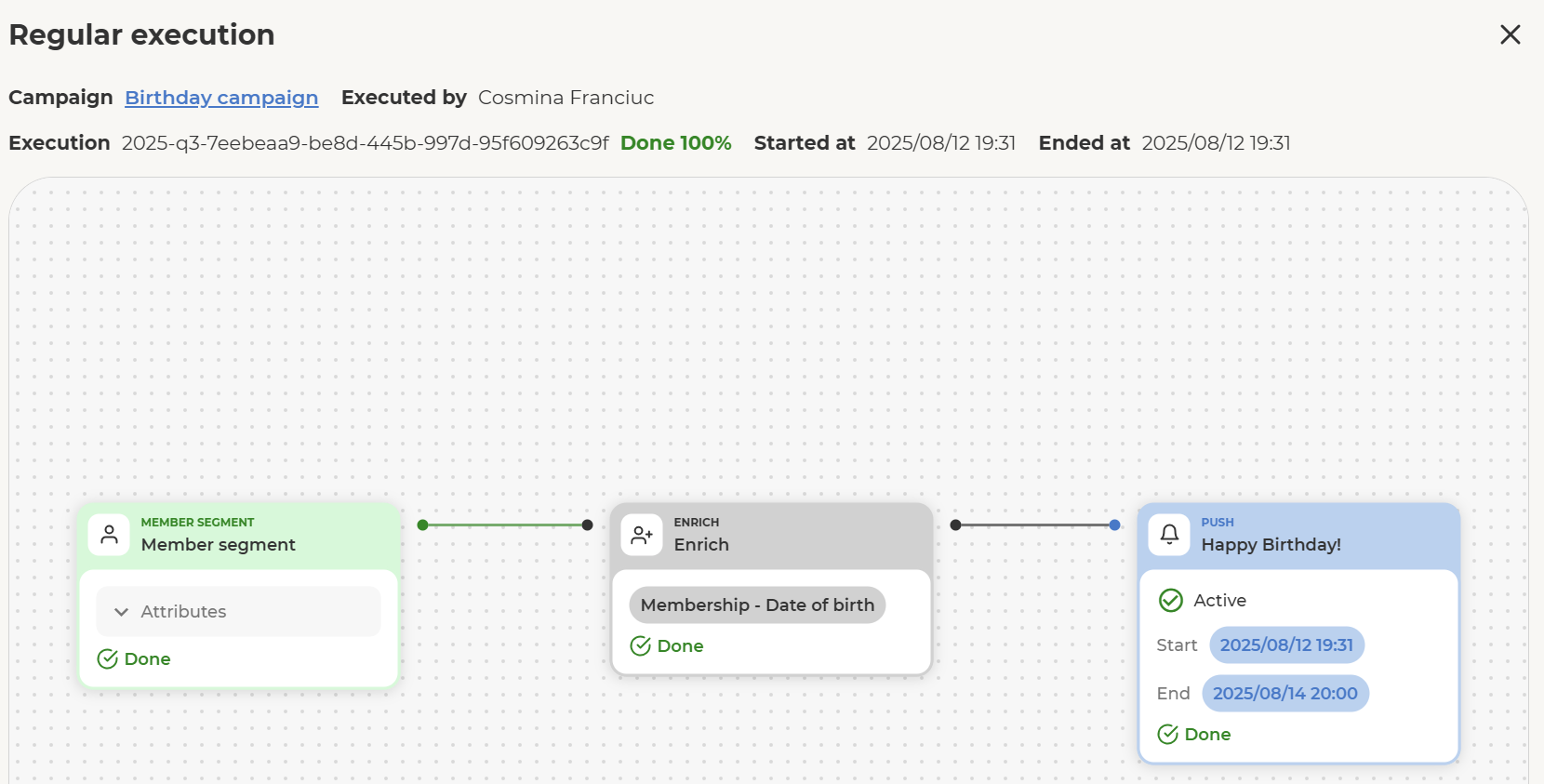
-
Check the result in the Push Admin Tool: Was the Push activity created and shown correctly?

-
Check the app: If the Push notification was delivered, does the Push appear as expected in the mobile phone?
-
Here are two ways to check which customers were segmented and which attributes were loaded for them:
-
From the Push activity in the Admin Tool: Find the newly created Push activity, check the Segmentation section, and download the list of customers and attributes used for this specific Push .
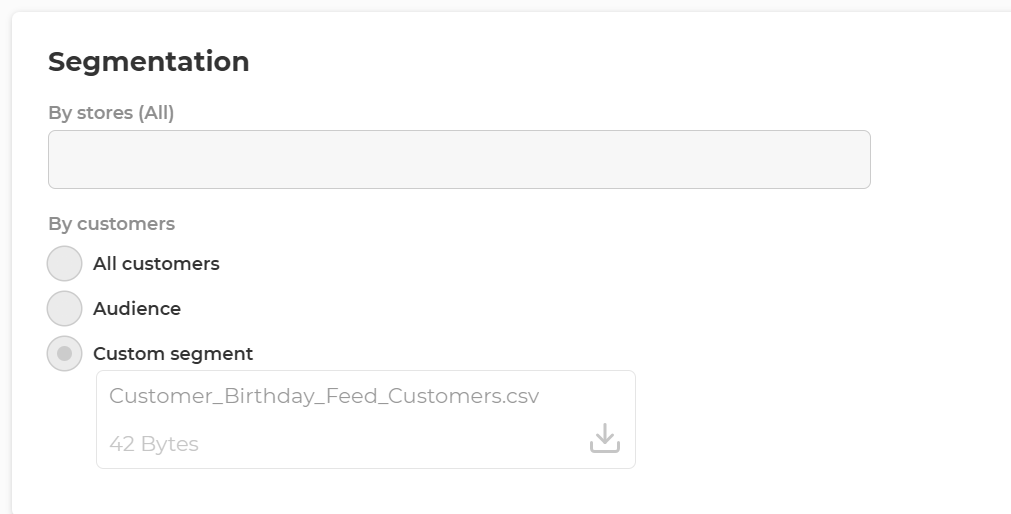
-
From the Orchestration Campaign directly, by attaching another block to export to CSV. Then, on every run, the data will be exported to CSV for a quick check inside the Orchestration Campaign.
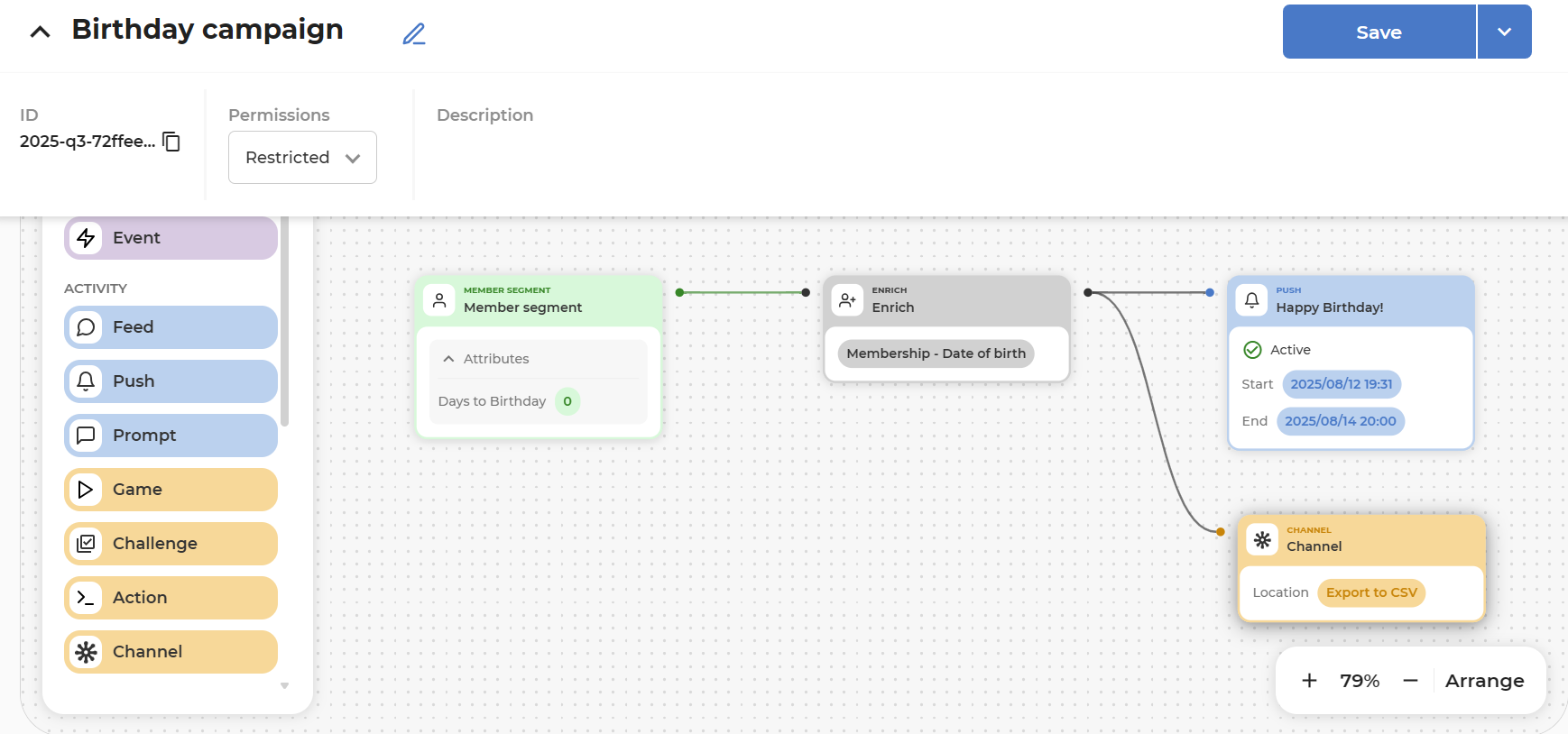
Run the campaign again and check the CSV in the results.
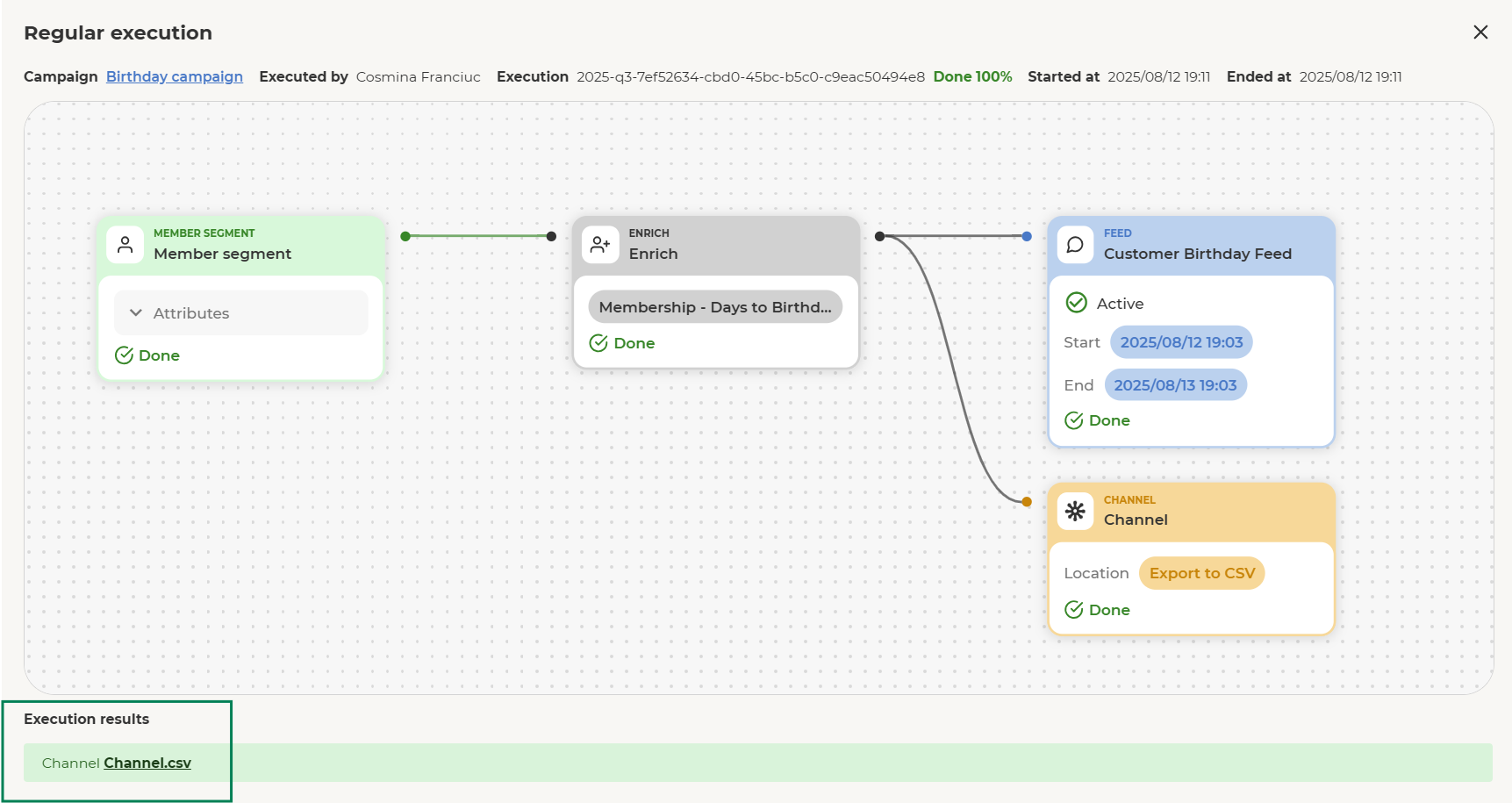
-
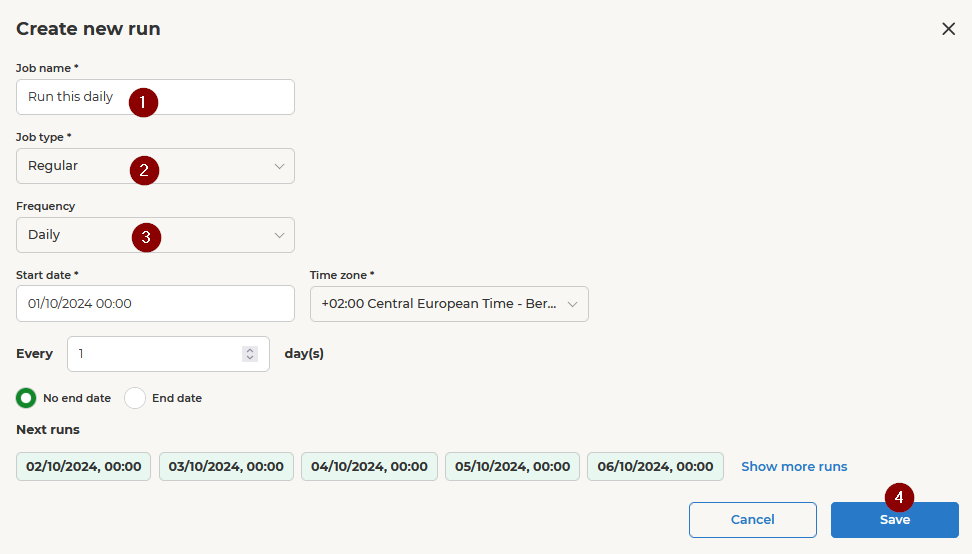
6. Run campaign regularly
Decide how often to run the Orchestration Campaign automatically and configure it accordingly. In this case, for a birthday message, we will run it daily to fetch customers with birthdays today and send them the message.
Remember to save the changes made.