Create lottery game
A game can be configured as a lottery, meaning that the winners will get a chance to win a prize in a lottery. The draw is done in the Lobyco Portal after the game campaign has ended, allowing you to review the list and re-draw any incompatible winners before accepting the final winners, and, optionally allocating the rewards.
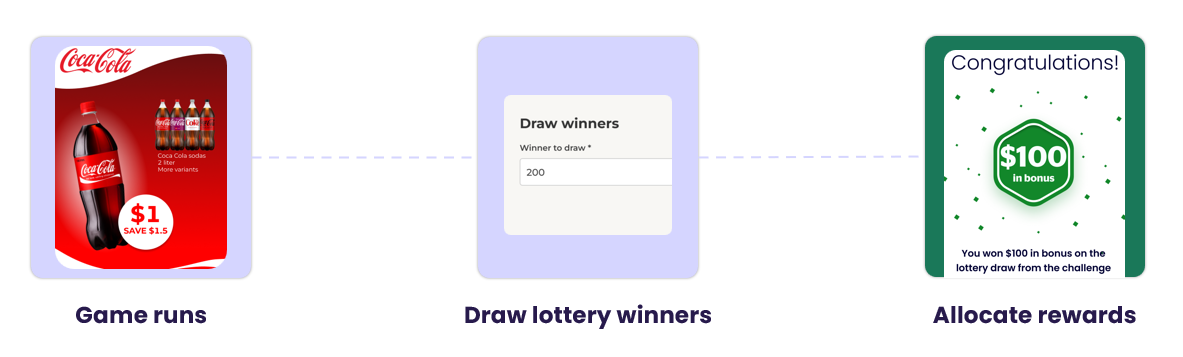
The lottery system opens a new way to run engagement experiences for the users. In this way you can run promotions with fewer prizes while keeping the branding for supplier products in the App universe.
These types of game campaigns should be seen as a way to complement the standard games with instant prizes, rather than replacing them.
⚠️Important
- All games are winners in a lottery, so we do not recommend configuring luck games as a lottery, instead use Skill or Knowledge games.
- It makes sense that users 'win' the chance to get in the lottery by 'beating' the game (e.g., finishing a quiz, recognizing some images, etc.).
Activity behavior
A game can be configured as a lottery in the Activity Behavior tab.
A game cannot be edited and changed to a lottery or reverted from a lottery to an instant prize game once it has started. Both standard games and triggered games can be set up as lottery.
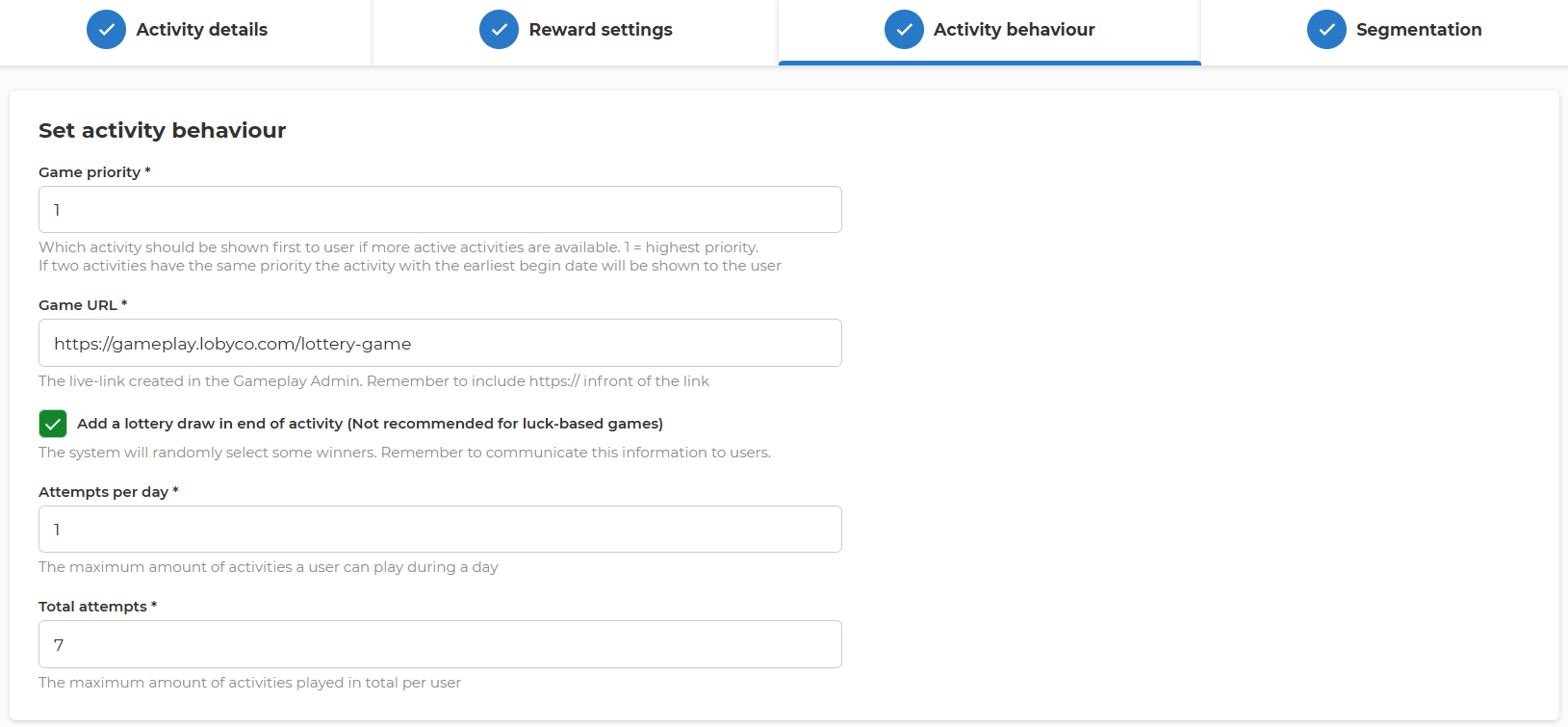
- Check the box Add a lottery draw in the end of activity
- Attempts per day: Sets a daily limit on the number of games a customer can play throughout the activity.
Example: If the campaign runs for 5 days and the customer gets 15 attempts spread evenly over the 5 days, this should be 3. - Total attempts sets a limit on the total number of games a customer can play throughout the entire activity.
Example: If the campaign runs for 5 days and the customer gets 2 games per day, this should be 10.
Lottery reward allocation
All the supported game rewards can be allocated also during a lottery.
The prizes configured in a lottery game are allocated only at the end of the period during the draw. For now, we do not support mixing the allocation: it can be either instant prizes during the game or lottery rewards after the game has been played.
Coupons and bonus rewards * are loaded to users in real-time once the approve winners is done. *The bonus system needs to be the Lobyco one or there needs to be an integration with the Lobyco system to allow direct allocation of bonus.
Reward allocation order
Rewards are allocated in the order of the quantity, ascending. The prize will the lowest quantity is allocated first, then the second lowest quantity, and so on. The logic is that the lower amount of prizes is the most valuable one that should be allocated first, and the highest quantity prize is a mass prize that could be allocated last and even not entirely if there are fewer eligible users than prizes.
For example, if you have a pool of rewards of 1000 Free Sprite bottles, 100 T-shirts, and 5 concert tickets, the allocation order is the following.
- 5 x Concert tickets
- 100 x T-shirts
- 1000 x Free Sprite bottles
Draw winners
The winners can be drawn only after the game ends, so the status of the activity needs to be Expired.
When you enter an expired lottery game, the Lottery tab appears next to the Statistics tab.
To start with, the page shows how many unique users are eligible for the draw in the game. Some of them might have multiple 'lottery tickets', depending on the configuration of the game activity.
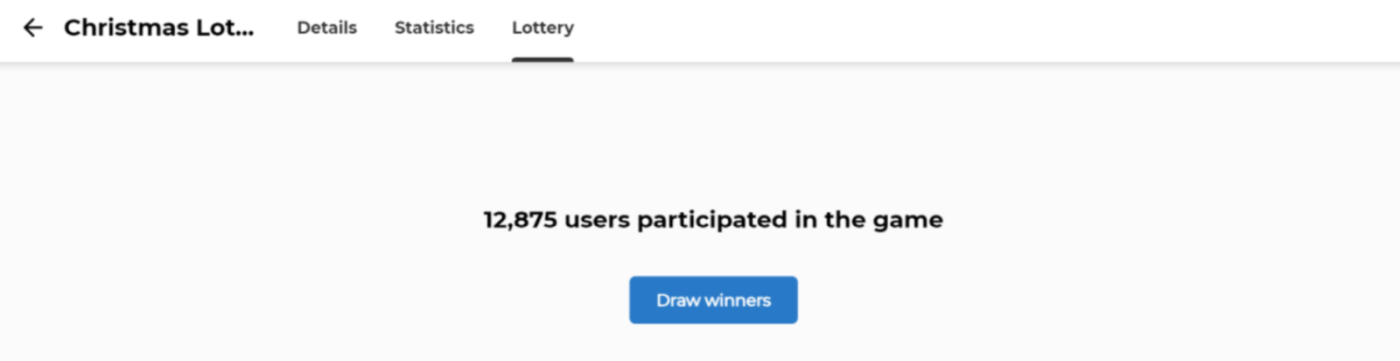
Press Draw Winners button to bring up a pop-up where you can input the number of winners to draw.
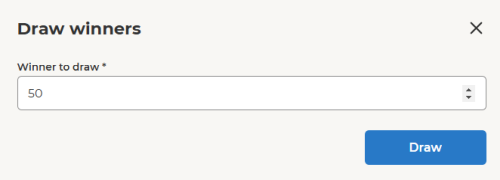
Press Draw to randomly select the inputted number of winners. A user is declared a winner only once, even if he has more than one 'ticket' in the lottery.
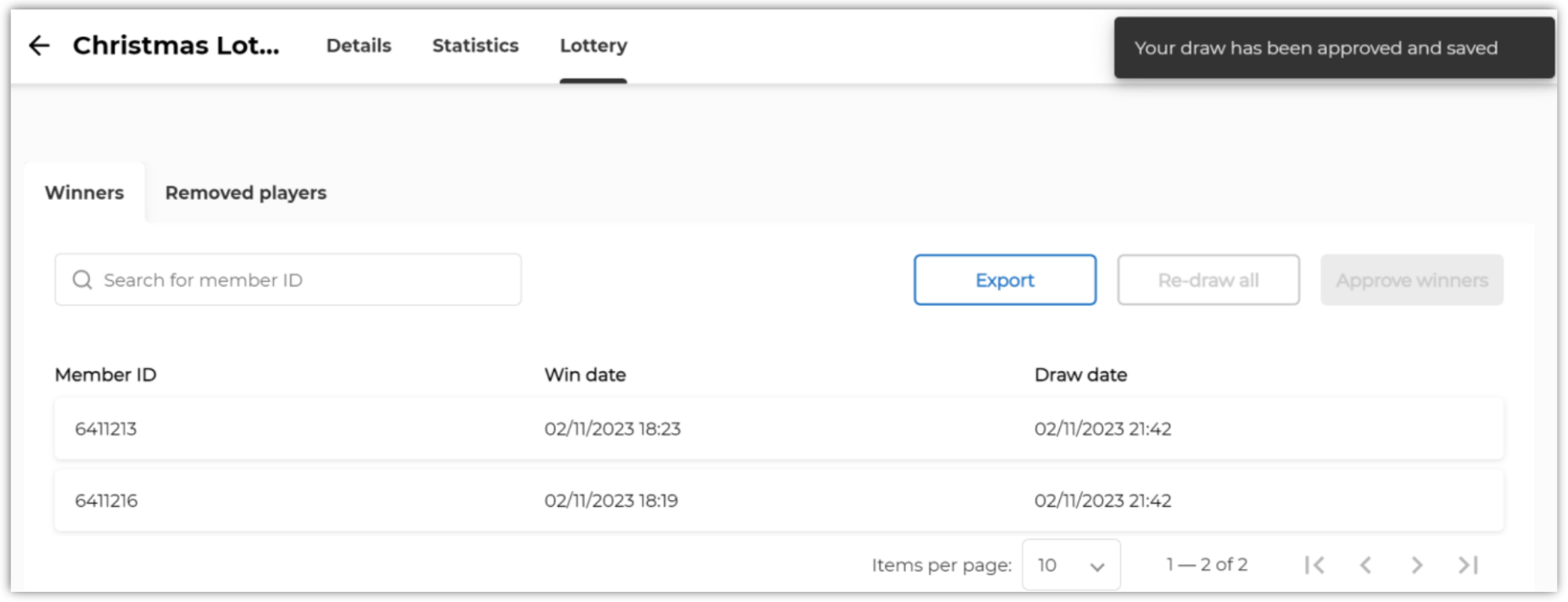
Once the draw is completed, the winners list is shown. Search can be done by member ID.
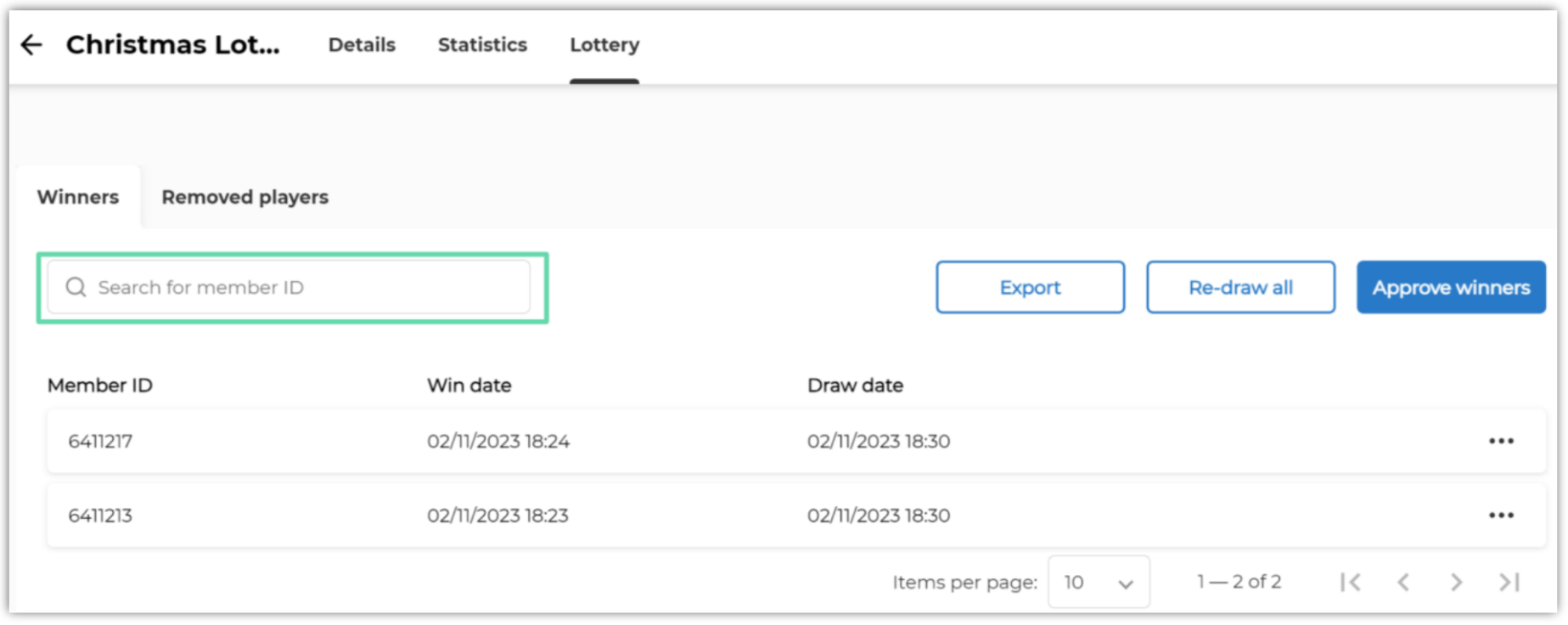
The Winners tab shows the following data.
- Member ID of the user
- Win date - time when the user won the game and became eligible
- Draw date - time of the lottery draw when the user was selected as winner.
- Reward name
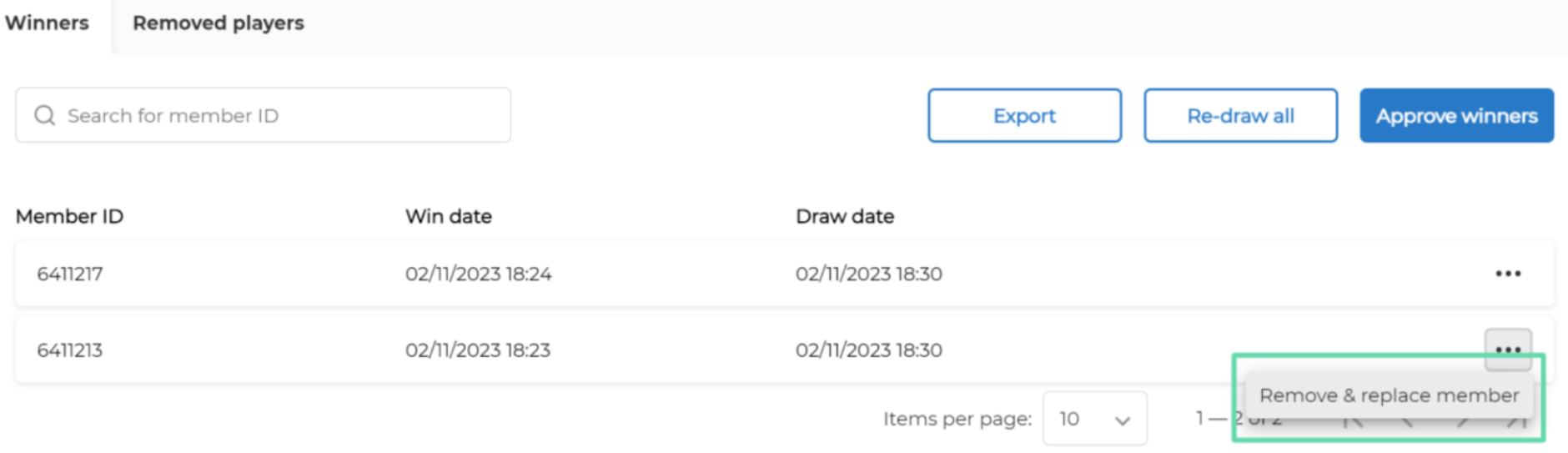
Remove & replace member
There are different situations when a user should be removed from the winner lists. For example, to exclude an employee who is not allowed to participate in the game to comply with any lottery drawing rules.
Each user can be removed and replaced individually from the winner lists by selecting this option from the three dots menu at the end of the row.
This brings up a pop-up to specify the reason why the user is removed. It’s a good idea to fill this field with relevant information, as it will be saved in the system and can later be reviewed for audit and compliance reasons.
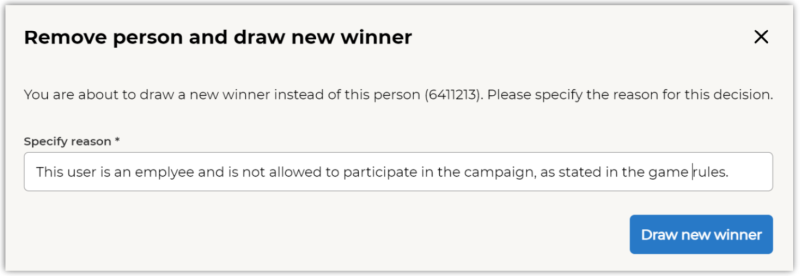
Draw new winner button replaces the user with another one selected randomly from the remaining non-winners users.
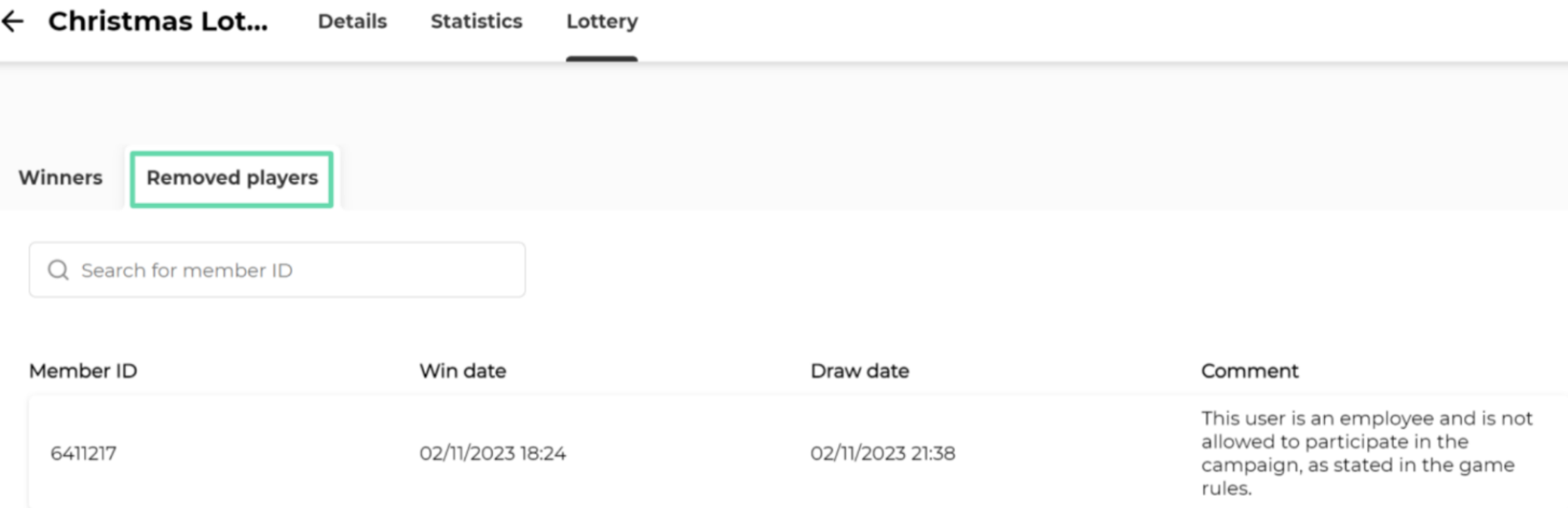
⚠️ Once a user is replaced from a draw, he will not be selected as a winner for this game ever again, even if he has multiple “tickets” in the lottery or Re-draw all is done.
The removed players and the reason for redraw are shown in the Removed players tab.
Re-draw all
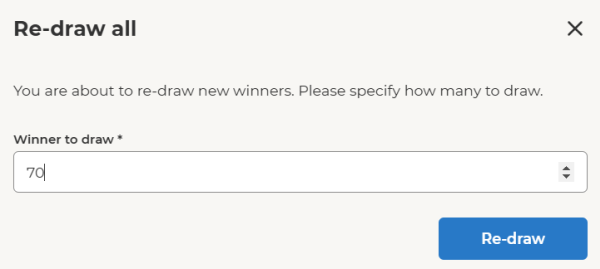
There might be situations when it’s needed to draw more or less winners that were initially selected. In this case, the Re-draw all button allows you to re-draw a new number of winners.
⚠️This does not ignore the previously removed & replaced users. The users that were removed will stay on the list because the reason for initial removal did not change for this game.
Approve winners
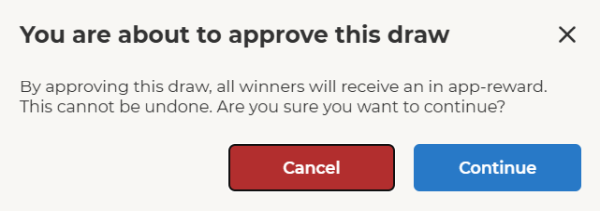
Press the Approve winners button to accept the current list of winners as final and close the lottery.
A pop-up appears to inform you that this action is final and cannot be reverted. In case the game reward is an in-app coupon or bonus, these will be allocated to the winners at this point, in (close to) real-time, depending on the number of rewards.
Once the winners are approved, only the Export button remains active for this game lottery. The Re-draw and Approve winners buttons are deactivated.
Export winners
Click Export button to download the list of winners and allocated prizes in a CSV file.
This can be used for other activities, such as pushing a notification to the winners, delivering custom prizes (e.g., concert tickets), or other reporting needs.