Basket Bonus Activity
The Basket Bonus Activity enables marketers to reward customers based on their total spending within the store. This activity is designed to enhance the shopping experience by providing incentives for every qualifying purchase, encouraging higher basket values and increased customer engagement.
Key Features
- Flexible Reward Structure: Configure rewards as either a percentage of the total basket value or a fixed amount.
- Exclusion of Product Categories: Exclude specific product categories from reward calculations to comply with legal requirements or store policies.
- Threshold-Based Rewards: Set minimum basket value to ensure rewards are only granted for purchases exceeding a specified amount.
- Targeted Applicability: Activities can be universal or limited to specific member segments, stores or chains
- Time-Based Availability: Define activity availability by selecting specific weekdays and time slots.
Use Cases
-
Increasing Average Spend
Objective: Encourage customers to spend more per visit.
Action: Set a minimum basket threshold and configure the reward as a percentage of the total basket value to motivate higher spending. -
Supporting Specific Events
Objective: Boost sales during special events or promotions at selected chains or stores.
Action: Launch a targeted Basket Bonus Activity for the event period, attracting more customers and increasing sales. -
Member Segmentation
Objective: Customize rewards for different customer segments.
Action: Upload a segmentation file to tailor the activity, offering differentiated rewards to specific member groups. -
Promoting Higher Spending Across Chains
Objective: Drive increased spending across all locations.
Action: Implement a universal activity with a fixed reward for every basket exceeding a set value, encouraging customers to spend more in any store or chain.
How to:
1. Bonus Details
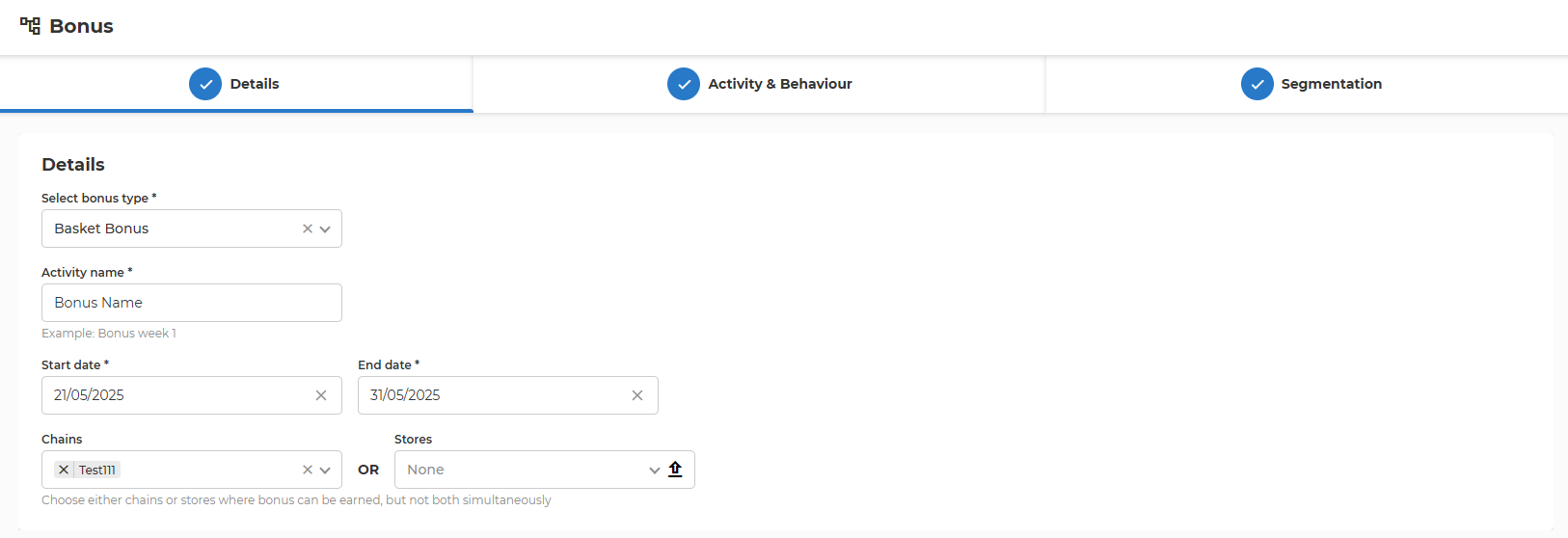
- Select bonus type
- Choose the type of bonus for the activity. In this case, select "Basket Bonus".
- Activity name
- Enter the name of the bonus activity.
- Maximum size: 128 characters
- Start date
- Specify when the bonus activity should begin.
- The activity will begin at 00:00 on the specified date
- End date
- Specify when the bonus activity should end.
- The activity will remain active throughout the selected end date and will end at 23:59:59.999.
- End date cannot be in the past and should be after Start date
- Chain IDs or Store IDs
- Select where the offer is valid, either in chains or stores.
- Chains and stores cannot be selected simultaneously. If you choose one or more chains, the store selector will automatically be disabled, and vice versa.
- Press the up arrow from the store field to upload a store list. The file needs to be in CSV format, with one store ID per line.
- Once one or more stores are selected, press the down arrow to download the list of selected stores in CSV format.
2. Activity & Behaviour
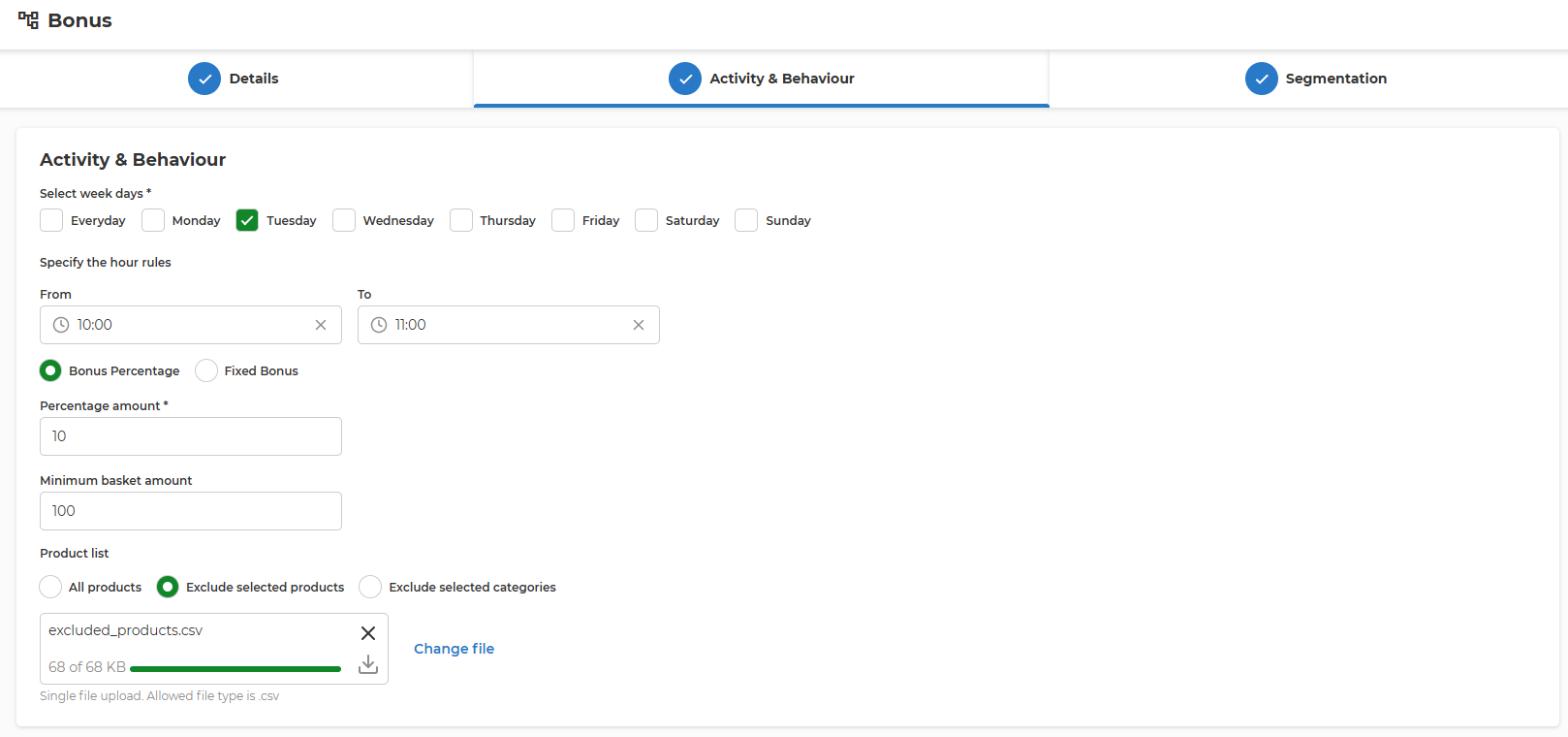
- Select week days
- Choose the days of the week when the bonus activity is active
- Specify the hour rules
- Set the start time for the bonus activity on the selected days.
- Set the end time for the bonus activity on the selected days.
- If both times are set to
00:00, the bonus is valid for the entire day.
-
Bonus redemption start date
- Specify the date when the bonus can start being redeemed.
- Bonus redemption will begin at 00:00 on the specified date
- If left empty, the bonus is available for redemption immediately after it is earned.
-
Bonus redemption end date
- Specify the date after which the bonus can no longer be redeemed.
- Bonus redemption will remain active throughout the selected end date and will end at 23:59:59.999.
- If left empty, the bonus does not expire and can be redeemed indefinitely.
-
Bonus Type
- Choose whether the bonus is calculated as a percentage of the basket value or as a fixed amount. In this example, "Bonus Percentage" is selected.
-
Percentage amount
- Enter the percentage value to be used for the bonus calculation. For example, entering "10" means the customer will receive a bonus equal to 10% of their qualifying basket value.
- This field supports numbers with 2 digits after the decimal point.
- Note: The percentage field accepts values greater than 100. However, it is recommended to use values less than or equal to 100 in most cases, as higher percentages may result in unusually large bonuses. Use values above 100 only for special scenarios where such behavior is intended.
-
Minimum basket amount
- Specify the minimum total value that a customer's basket must reach to qualify for the bonus. In this example, the basket must be at least 100.
- This field supports numbers with 2 digits after the decimal point.
-
Product list
Define which products are included or excluded from the bonus calculation:- All products: The bonus applies to all products.
- Exclude selected products: The bonus will not apply to the products listed in the uploaded file. The product ids are separated by ;
- Exclude selected categories: The bonus will not apply to products in the specified categories. The product categories ids are separated by ;
- File upload
- Upload a CSV file containing the list of products or categories to be excluded from the bonus calculation.
- Only one file can be uploaded, and it must be in CSV format.
- File size: recommended maximum size is up to 60 k products. If the number of products is much higher, multiple activity should be created for each batch of 60k products
3. Segmentation
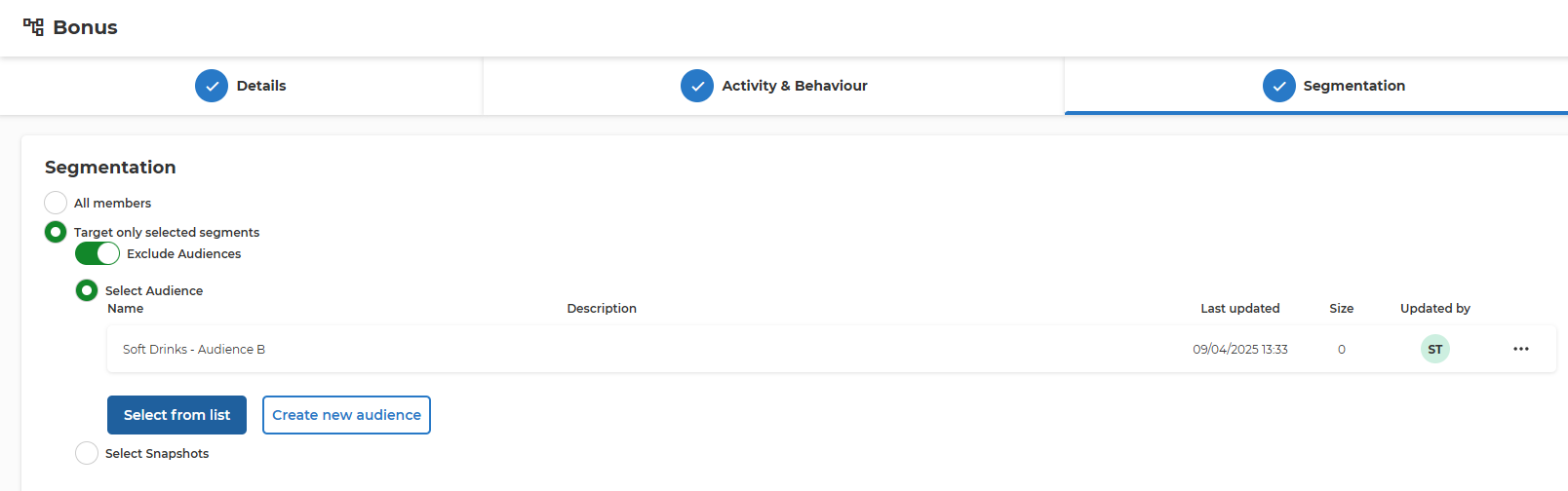
- All members
- Apply the bonus activity to all members.
- Target only selected segments
- Apply the bonus activity to specific audience segments.
- When this option is chosen, additional settings appear to define the targeted audience.
- Exclude Audiences
- Choose whether to exclude or include the selected audiences in the activity.
- If enabled, excluded audiences will not be eligible for the bonus.
- Select Audience Name
- Some customers have integration with Audience Service that allows the management of Member Segments in one centralized place and reuse throughout the other promotion and communication sections.
- Specify the audience segment to target.
- Select from list
- Select from list of predefined segments brings up a pop-up where all predefined audiences are listed. Based on the name and description the needed Audience can be selected as a target for this bonus activity.
- Create new audience
- Create a new audience segment if the desired segment does not already exist.
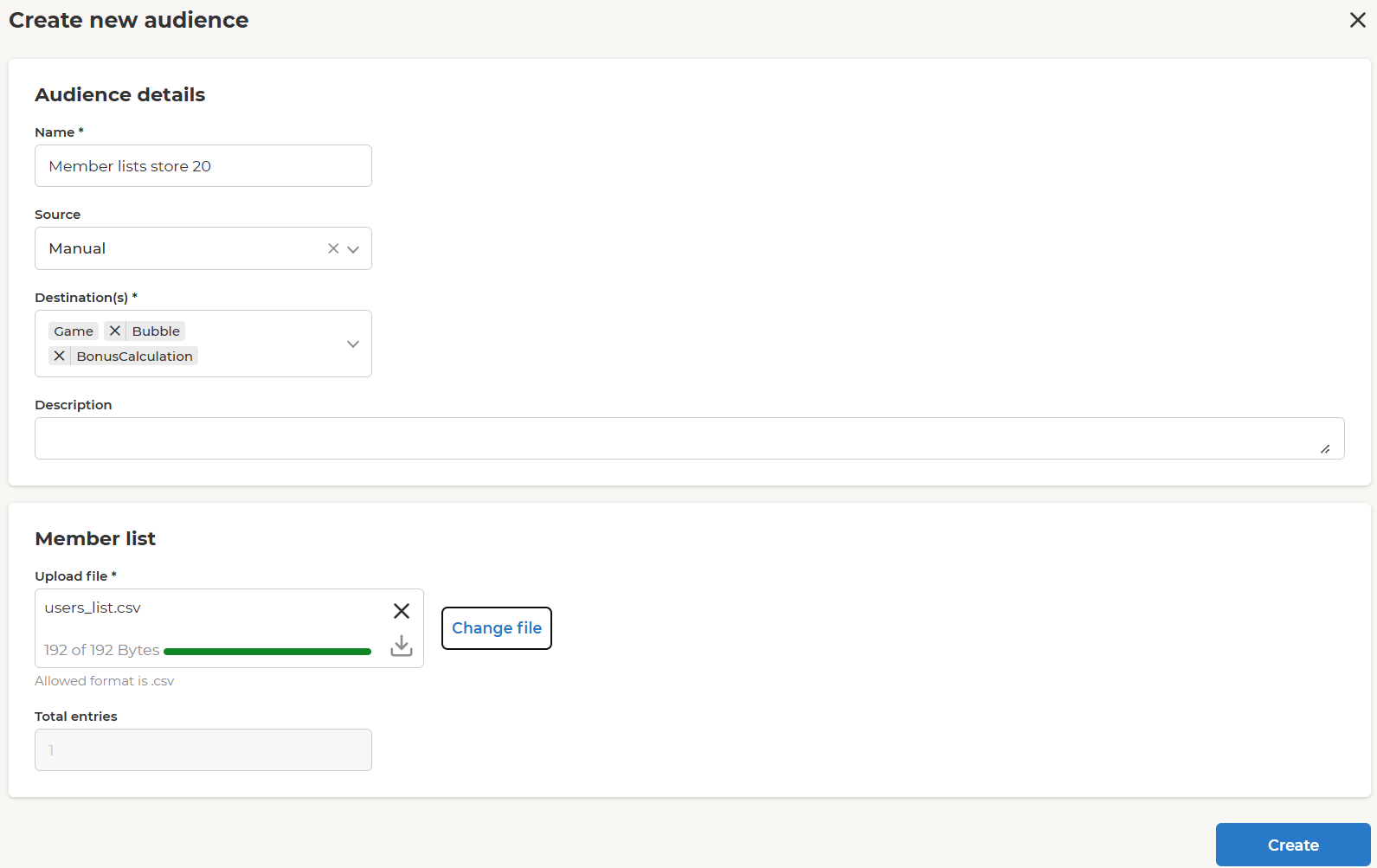
- Name – use a representative name.
- Destination(s) – select where this list of members will be available for selection. Can be only Bonus activities or throughout other activities (e.g. Challenge, Feed, Notifications, etc.).
- Description – longer text field that allows detailed description.
-
Upload file - the list of member IDs should be uploaded in a CSV with one member ID per line.
-
Select Snapshots
- Target specific snapshots of audience data.
Prioritization and Overlap Rules
- Multiple activities are applied on top of each other. No prioritization is applied