Product Bonus Activity
The Product Bonus Activity allows marketers to assign additional bonuses to specific products, complementing existing bonus initiatives. This activity is highly flexible, enabling tailored bonus structures for individual products to best suit their unique characteristics and market position.
Key Features
- Flexible Reward Structure: Assign either a percentage of the product price or a fixed bonus amount to each product.
- File-Based Setup: Upload a list of product IDs with their corresponding bonuses or percentage values to initiate the activity .
- Targeted Applicability: Activities can be universal or limited to specific member segments, stores or chains
- Time-Based Availability: Define activity availability by selecting specific weekdays and time slots.
Use Cases
- Launching a New Product
- Objective: Incentivize early adopters.
- Action: Upload the product ID and set a percentage-based bonus to attract customers.
- Boosting Sales of Underperforming Products
- Objective: Increase sales of low-performing products.
- Action: Assign tailored bonuses (fixed or percentage-based) to specific products.
- Segment-Specific Activities
- Objective: Target specific member groups.
- Action: Upload a segmented member list to limit activity applicability.
- Store-Specific Activities
- Objective: Cater to different store chains.
- Action: Create separate activities with unique product assortments for each chain.
How to:
1. Bonus Details
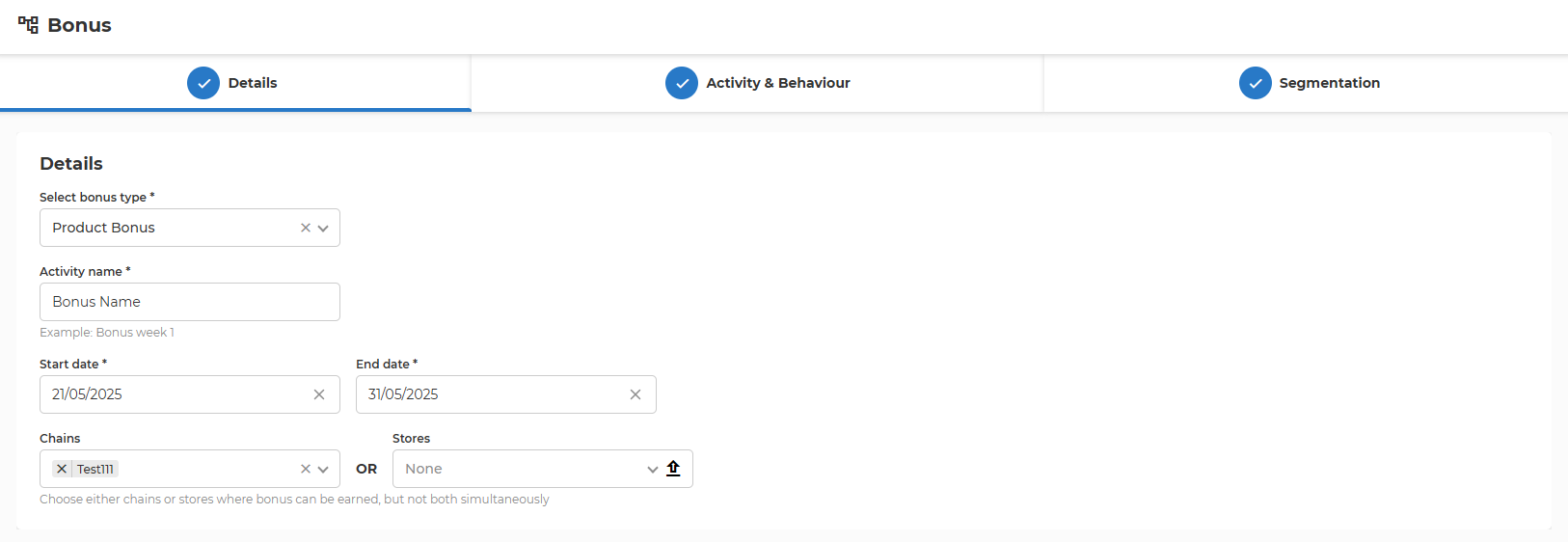
- Select bonus type
- Choose the type of bonus for the activity. In this case, select "Product Bonus".
- Activity name
- Enter the name of the bonus activity.
- Maximum size: 128 characters
- Start date
- Specify when the bonus activity should begin.
- The activity will begin at 00:00 on the specified date
- End date
- Specify when the bonus activity should end.
- The activity will remain active throughout the selected end date and will end at 23:59:59.999.
- End date cannot be in the past and should be after Start date
- Chain IDs or Store IDs
- Select where the offer is valid, either in chains or stores.
- Chains and stores cannot be selected simultaneously. If you choose one or more chains, the store selector will automatically be disabled, and vice versa.
- Press the up arrow from the store field to upload a store list. The file needs to be in CSV format, with one store ID per line.
- Once one or more stores are selected, press the down arrow to download the list of selected stores in CSV format.
2. Activity & Behaviour
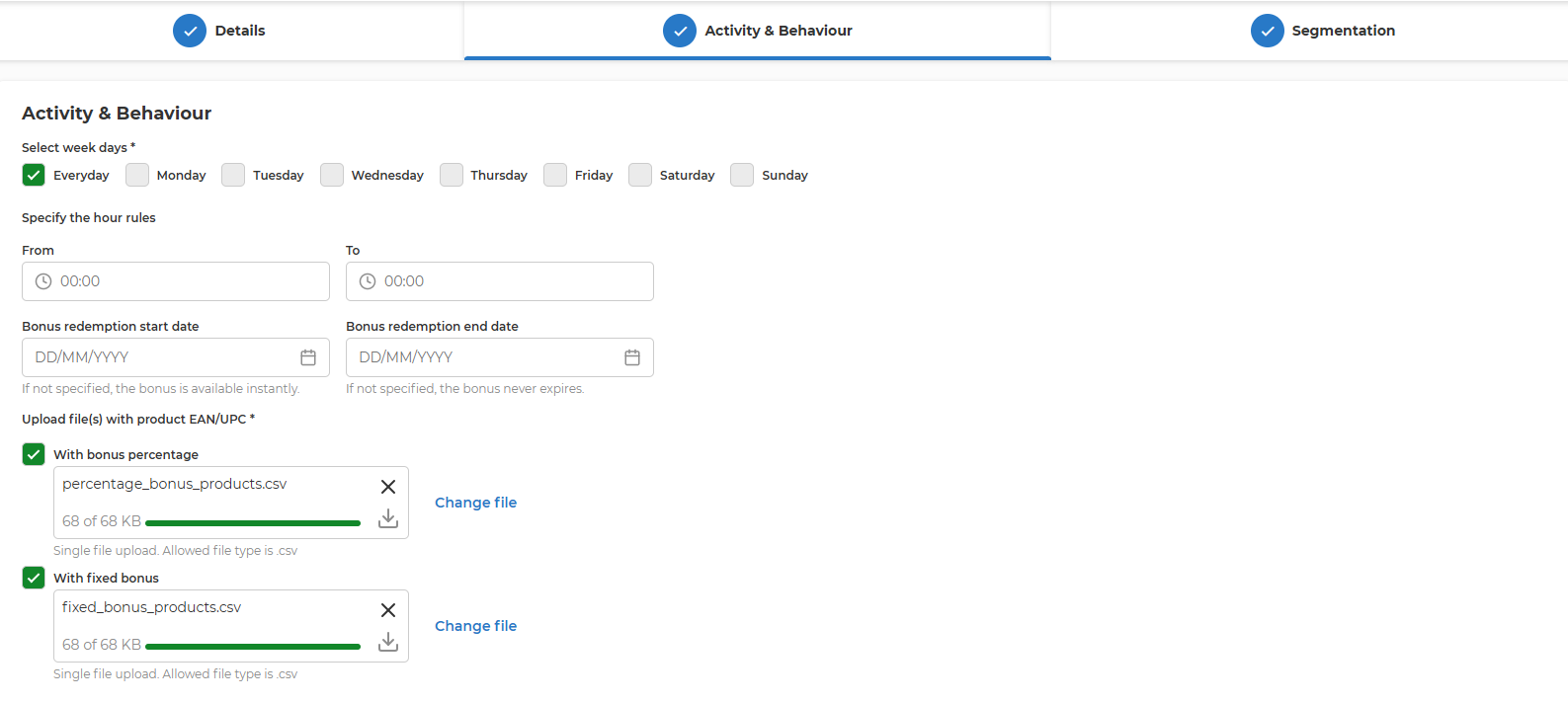
- Select week days
- Choose the days of the week when the bonus activity is active
- Specify the hour rules
- Set the start time for the bonus activity on the selected days.
- Set the end time for the bonus activity on the selected days.
- If both times are set to
00:00, the bonus is valid for the entire day.
- Bonus redemption start date
- Specify the date when the bonus can start being redeemed.
- Bonus redemption will begin at 00:00 on the specified date
- If left empty, the bonus is available for redemption immediately after it is earned.
- Bonus redemption end date
- Specify the date after which the bonus can no longer be redeemed.
- Bonus redemption will remain active throughout the selected end date and will end at 23:59:59.999.
- If left empty, the bonus does not expire and can be redeemed indefinitely.
- With bonus percentage
- Indicate that the bonus is calculated as a percentage.
- The uploaded file must include percentage values for each product.
- File format: productId;percentageAmount; new line productId;percentageAmount;
- percentageAmount : numbers with up to 3 total digits, of which 2 are after the decimal point (e.g. 5.50)
- File size: recommended maximum size is up to 60 k products. If the number of products is much higher, multiple activities should be created for each batch of 60k products.
- With fixed bonus
- Indicate that the bonus is a fixed amount.
- If selected, additional options may appear to specify the fixed bonus value.
- File format: productId;amount; new line productId;amount;
- amount: numbers with up to 5 total digits, including 2 digits after the decimal point. (e.g. 100.50)
- File size: recommended maximum size is up to 60 k products. If the number of products is much higher, multiple activities should be created for each batch of 60k products
3. Segmentation
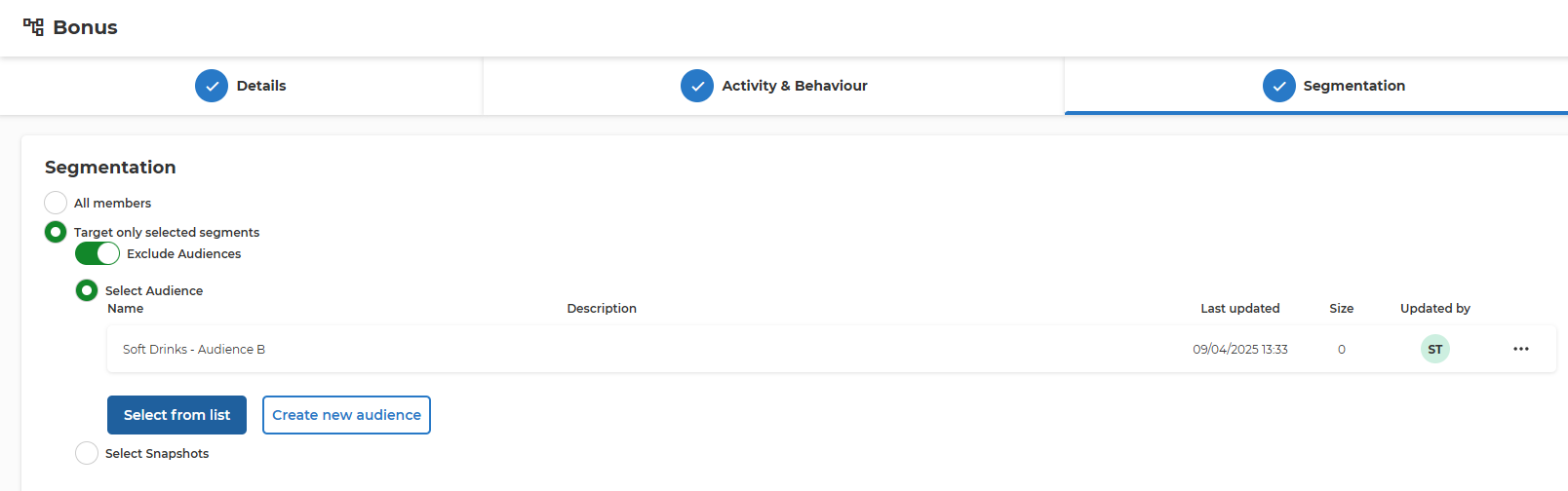
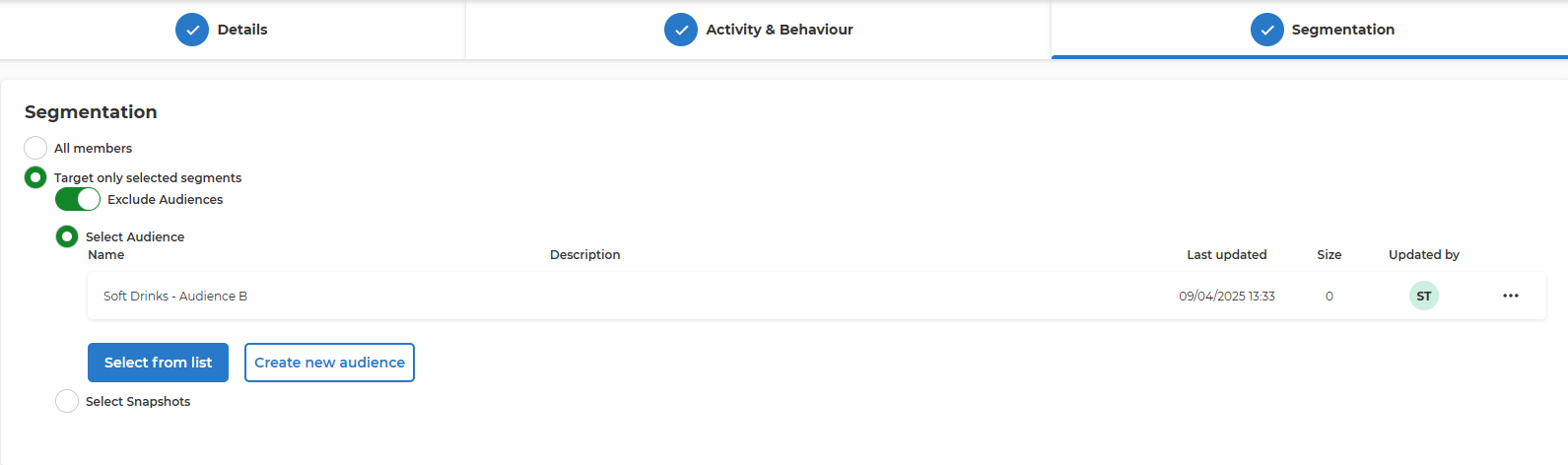
- All members
- Apply the bonus activity to all members.
- Target only selected segments
- Apply the bonus activity to specific audience segments.
- When this option is chosen, additional settings appear to define the targeted audience.
- Exclude Audiences
- Choose whether to exclude or include the selected audiences in the activity.
- If enabled, excluded audiences will not be eligible for the bonus.
- Select Audience Name
- Some customers have integration with Audience Service that allows the management of Member Segments in one centralized place and reuse throughout the other promotion and communication sections.
- Specify the audience segment to target.
- Select from list
- Select from list of predefined segments brings up a pop-up where all predefined audiences are listed. Based on the name and description the needed Audience can be selected as a target for this bonus activity.
- Create new audience
- Create a new audience segment if the desired segment does not already exist.
- Name – use a representative name.
- Destination(s) – select where this list of members will be available for selection. Can be only Bonus activities or throughout other activities (e.g. Challenge, Feed, Notifications, etc.).
- Description – longer text field that allows detailed description.
-
Upload file - the list of member IDs should be uploaded in a CSV with one member ID per line.
-
Select Snapshots
- Target specific snapshots of audience data.
Prioritization and Overlap Rules
1. Campaign Prioritization
- Priority Levels:
- Segment prioritization: for example campaign with employee segment can have priority over a campaign with custom segment
- Campaign type priority : store campaign has priority over chain campaign
- Conflict Resolution:
- If two campaigns target the same product, the bonus for that specific product will be calculated based only on the campaign with the higher priority
2. Overlapping Campaigns
-
Two campaigns are considered to overlap if all the following conditions are met::
-
Their date-time intervals intersect (i.e., they run during overlapping time periods).
-
They are associated with the same store ID, the same chain ID, or one campaign’s store belongs to the chain of the other campaign.
-
They target the same customer segments.
-
They share at least one common product.
- Prevention of Overlaps:
- Overlapping campaign cannot be created
-