Trigger prompt by event
To display a prompt in the mobile app in real time when a customer performs an event (e.g. on challenge completed event), set up an Orchestration Campaign that listens for the event and immediately triggers a prompt for the customer.
⚠️ Note: Event-triggered prompt is real time. Unlike segment-triggered prompt, it is not possible to enrich the data with additional member attributes for personalization. Only the data carried by the event itself is available in the prompt content.
To trigger real time prompts triggered by events follow these steps:
1. Create an Orchestration Campaign
Create a new Orchestration Campaign as usual.
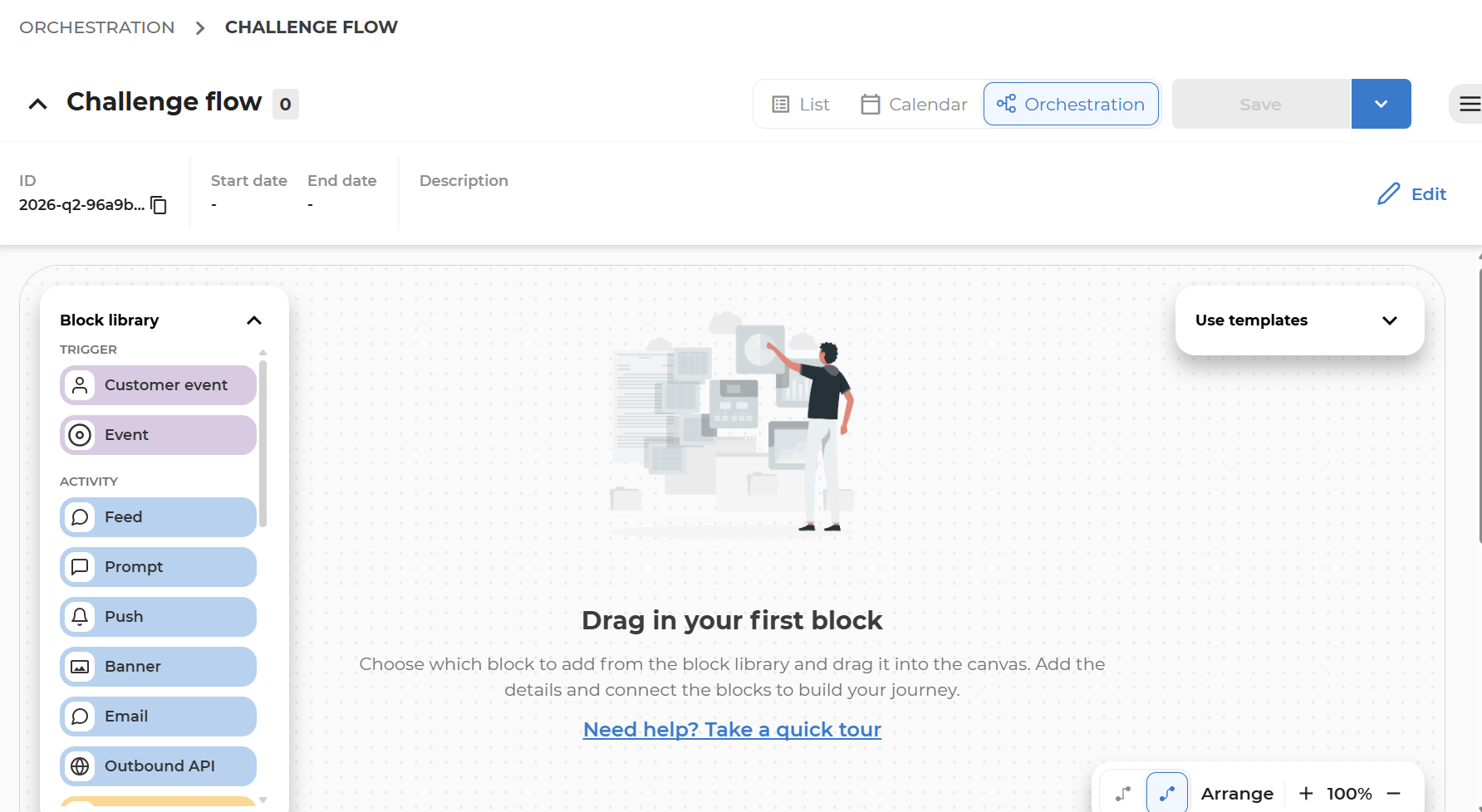
2. Event trigger: Configure the event that will trigger the prompt
-
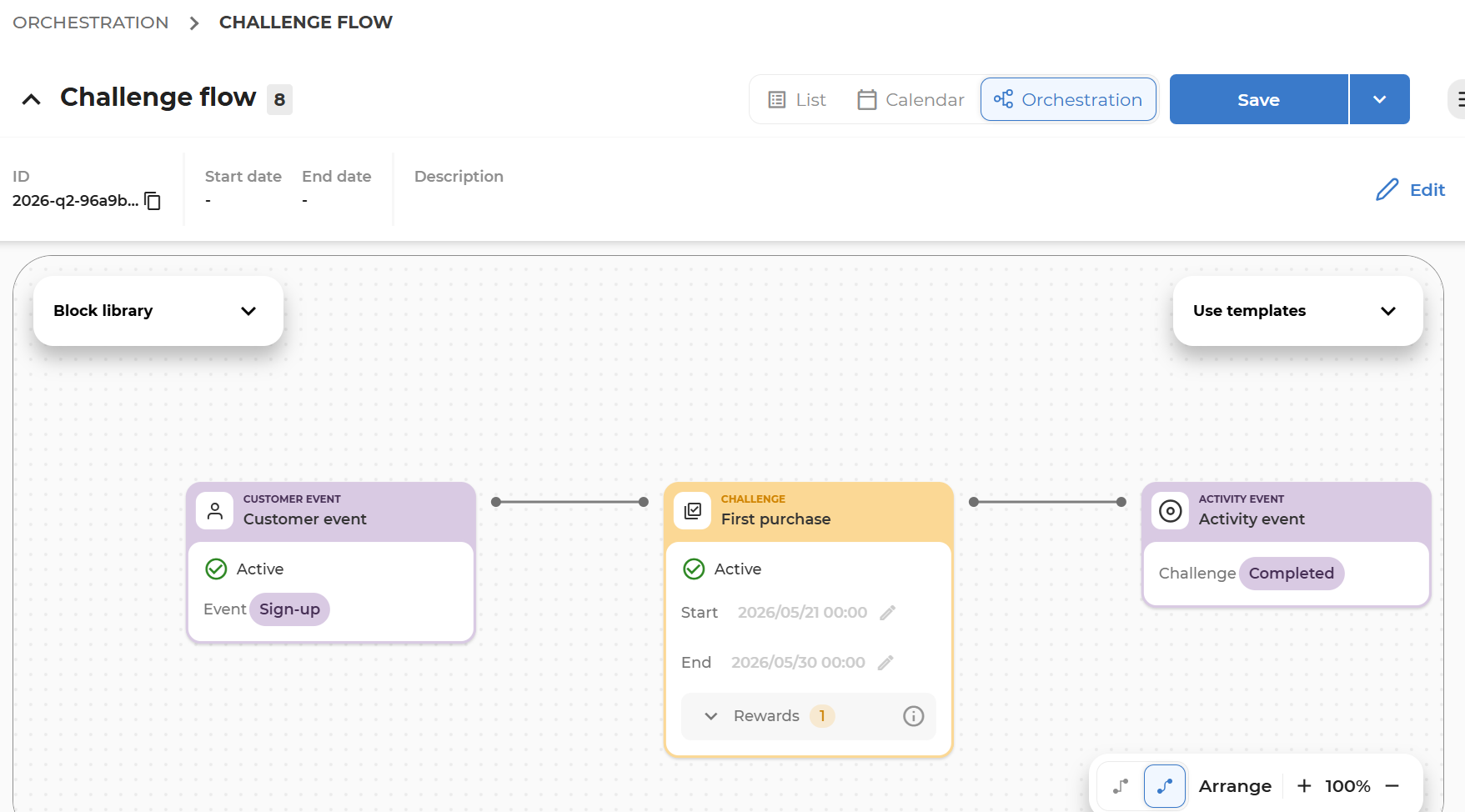
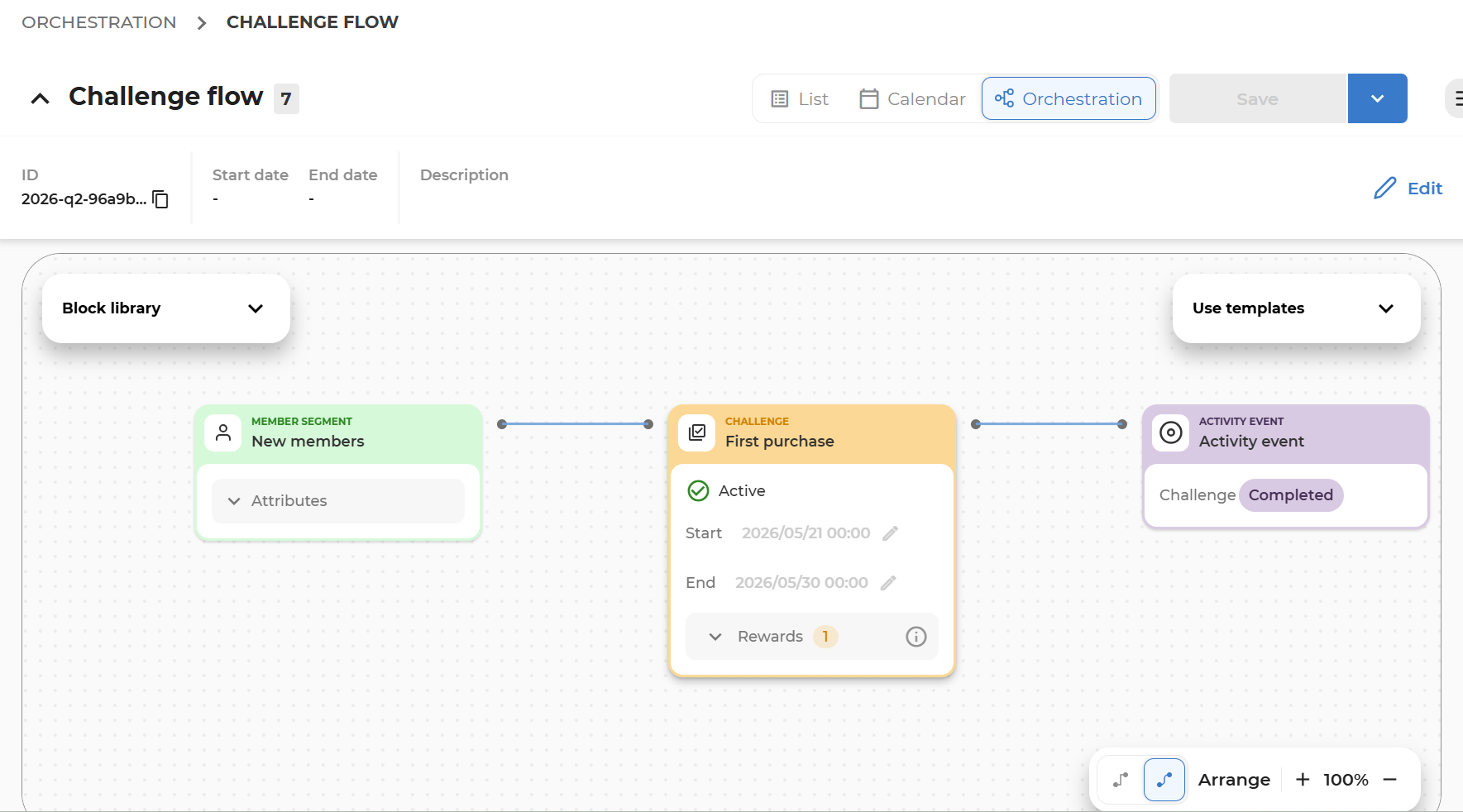
Drag the starting blocks on canvas (Member segment or Event block)
-
Drag activity blocks and event blocks for events generated by the activity (e.g. Challenge Completed event)
-
Connect the blocks
3. Create communication activity: Connect a prompt activity and design its content
-
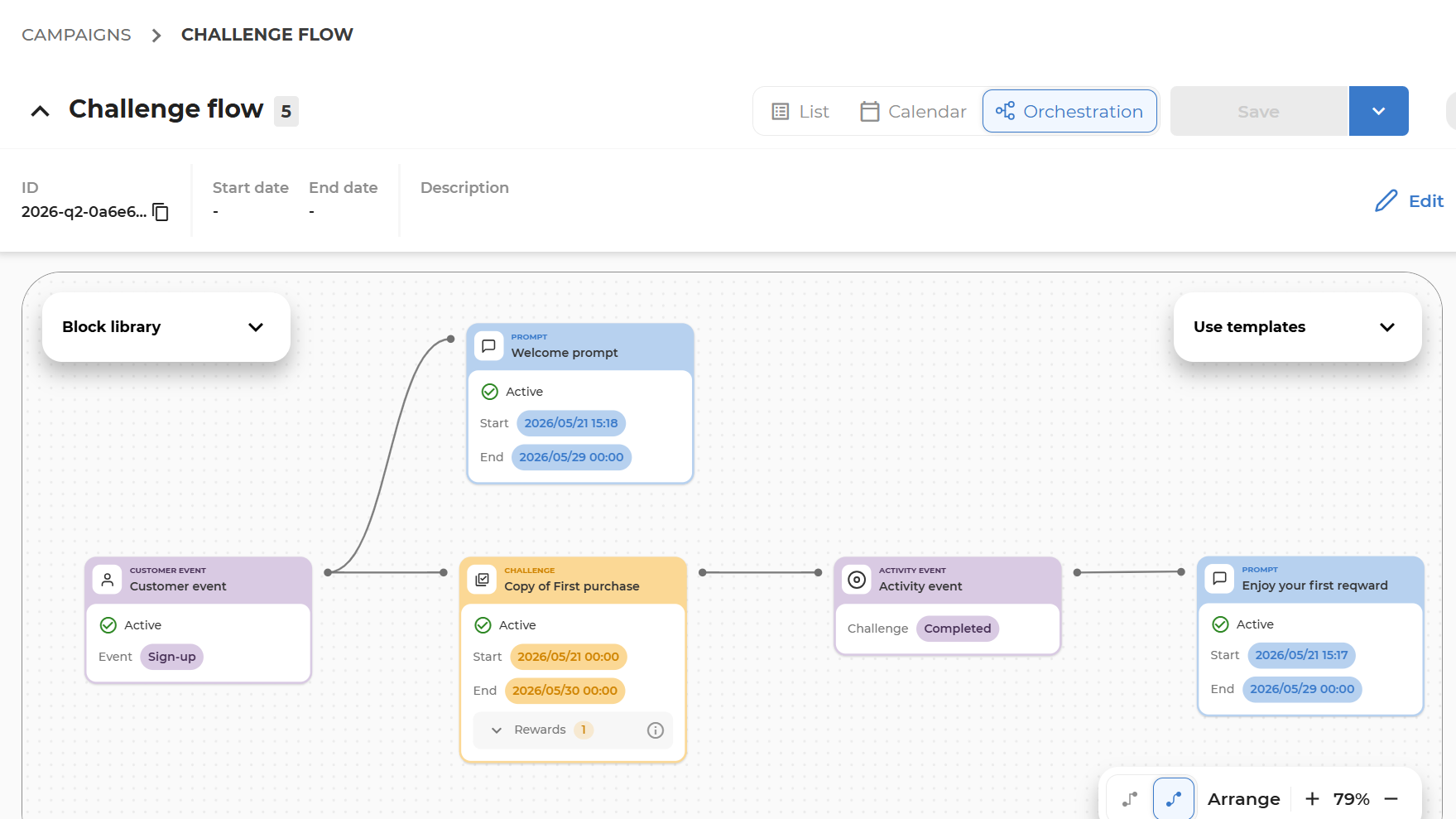
Drag the Prompt block on the canvas and connect it directly to the Event block.
-
Enter the block, design the Prompt activity, and save it.
-
Pay special attention to the following details, which differ from non-triggered Prompt communications:
- Making content personalized with event attributes: Start typing
{in the prompt body text to get a list of the attributes available from the event payload. Only event-carried attributes are available here.
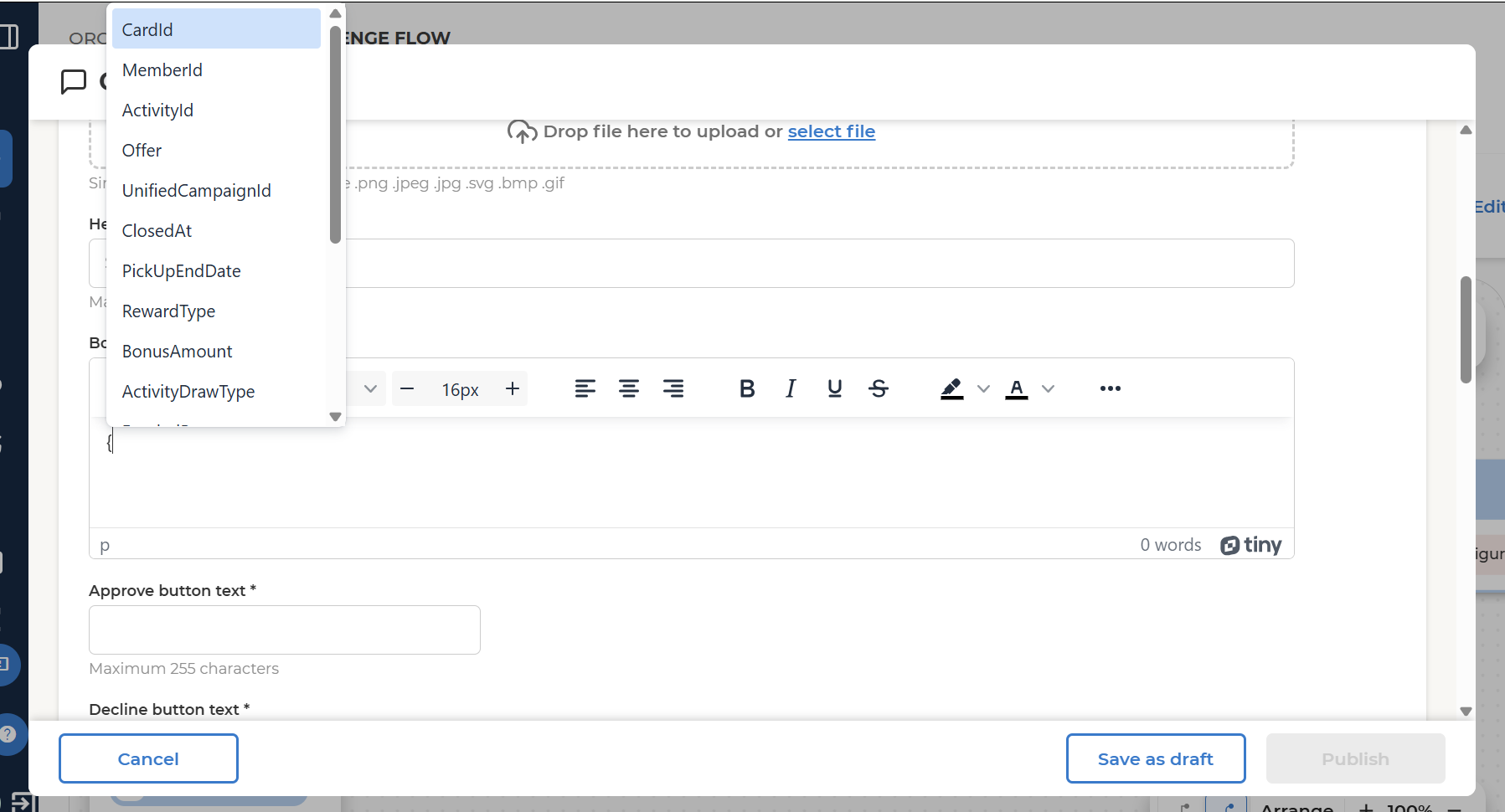
- Schedule: When a Prompt is in scheduled state at execution time it will be skipped. The prompt will be available in the mobile application if at execution time the prompt activity is active.
- Scheduled prompt activity is skipped at execution time.
- Active prompt activity is executed.
- Making content personalized with event attributes: Start typing