Gameplay editor
Overview
Opening the Gameplay Editor opens the first page of the game in preview mode.
Press Edit content tab on the right of the screen to bring up the Game Menu on the right side and the Game Navigator on the left side.
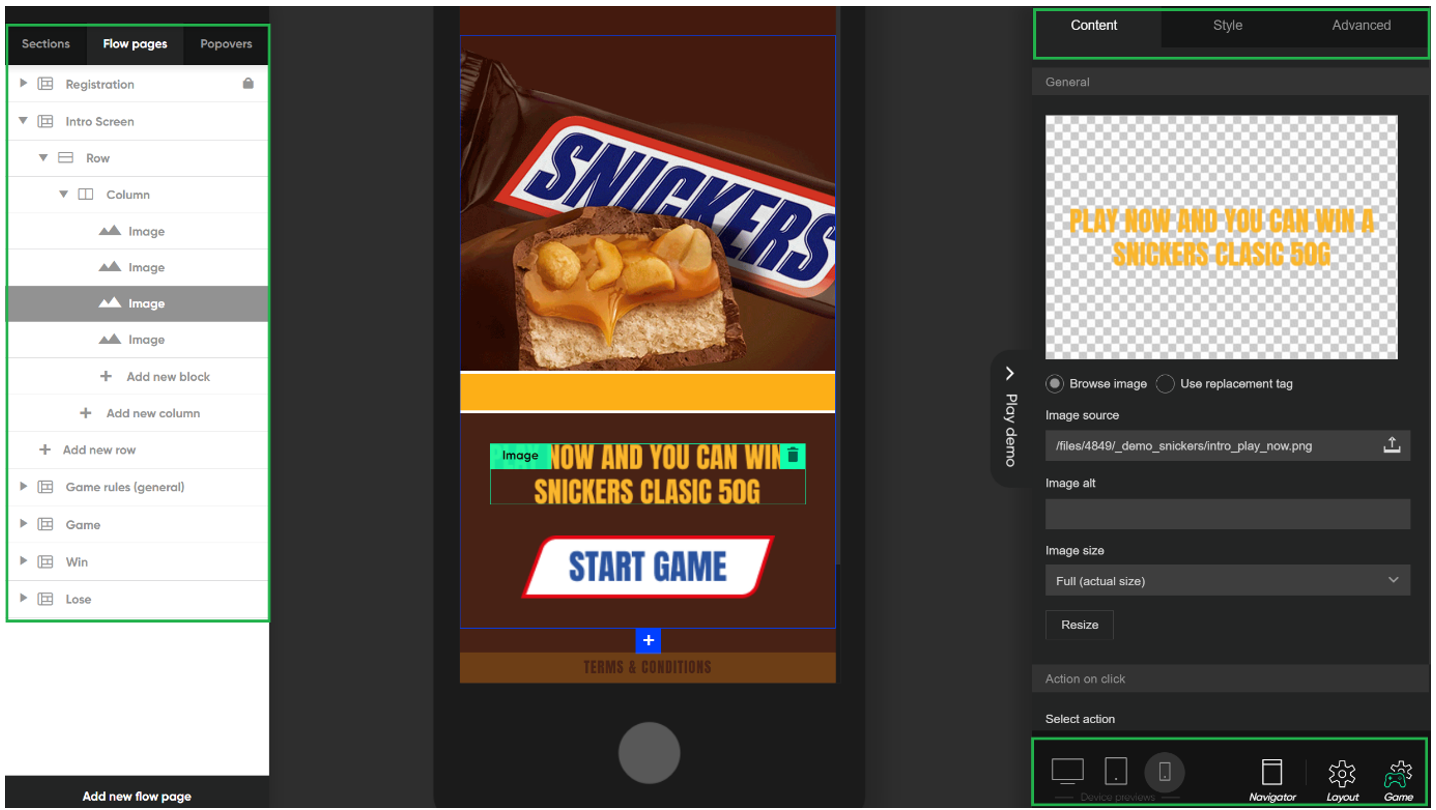
You will always start from an older game or template, so you need to first review the game pages from the left Game Navigator and decide if you keep the same pages and structure of the game.
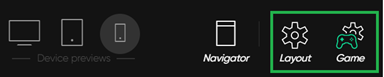
The Layout settings and Game settings should be reviewed for each gameplay.
Game settings are specific to each type of game (scratch, wheel of fortune, etc.) and are detailed in the respective Game types section.
Game Navigator
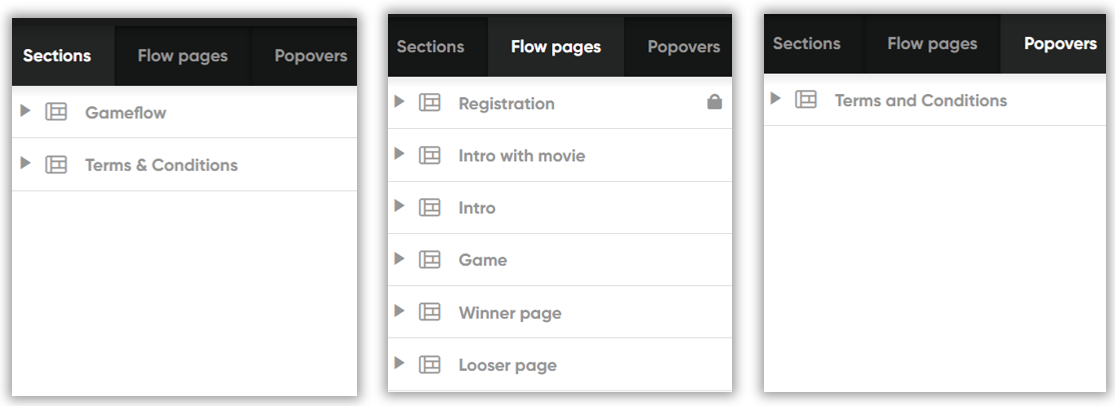
The Game Navigator shows the main areas of the game which are grouped in 3 horizontal tabs.
Sections
- Gameflow – should not be changed
- Terms and Conditions – edit the design of the Terms & Conditions bottom button
Flow Pages – configure the main game screens (intro, win, lose)
- Registration – should not be changed
- Intro
- Others (optional)
- Game
- Winner page
- Loser page
Popovers
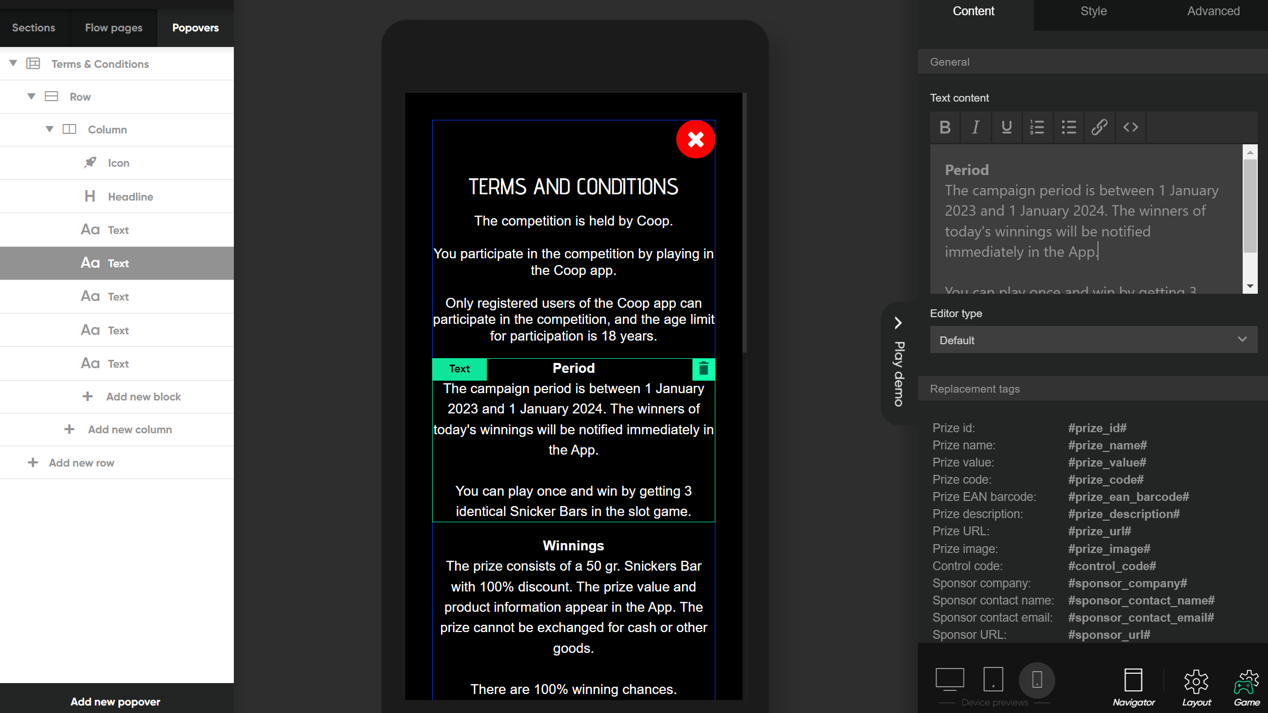
- Terms and Conditions – edit the terms text for the game that is shown in the popover (period, prize, winning chances, etc.)
You can always add a new section, flow page, or popover from the bottom of the menu.
Since we’re building games for mobile, it’s suggested to mainly use the first grid that has one Row and inside it a Column. This will mean that all elements are aligned vertically, one under the other. This is one of the simple ways to manage content for mobile platforms.
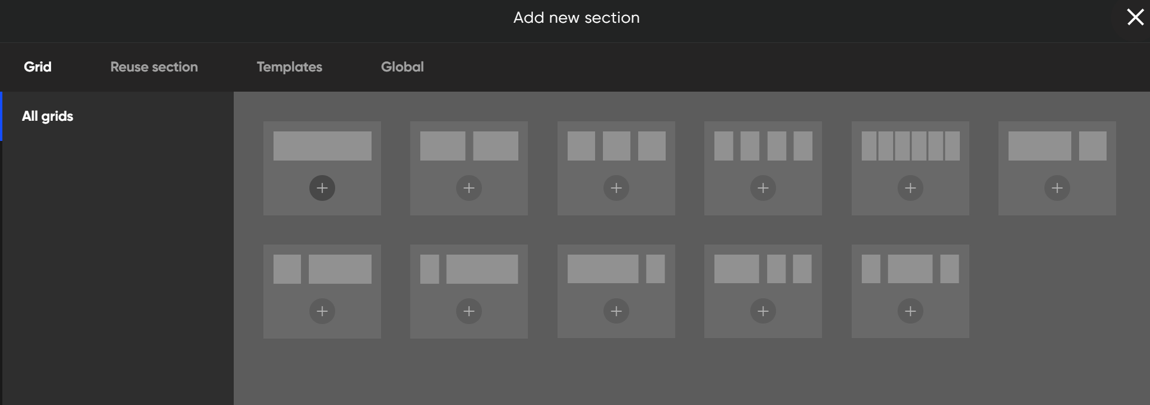
⚠️Note: You can rearrange the flow pages as you want, but it’s recommend to keep the existing structure and order. By deleting the Winner or/and Loser pages, it does not mean that the game will always be Won or Lost. The win is decided outside the actual game flow, the game will just have a broken design if Win and Lose pages are not present.
Game menu
When you press on one of the elements (image, text, etc.) that specific element is loaded and highlighted. The Game Menu on the right shows the settings of that element.
On the right Game Menu the settings of the element are grouped into 3 tabs.
- Content – define the actual content of that element; that means text, image or video links, etc.
- Style – configure alignment, opacity and filters, borders and shadows
- Advanced – configure margins, paddings, Z-index, transition of the elements (effects to display elements), and custom CSS*.
- Revisions – on the main sections (e.g., Intro, Win, Lose, etc.) there is a revisions tab that allows you to preview and roll back to previous versions of that section.
⚠️We do not recommend editing existing CSS (where applicable) or defining your own if you do not absolutely need it.
Layout settings
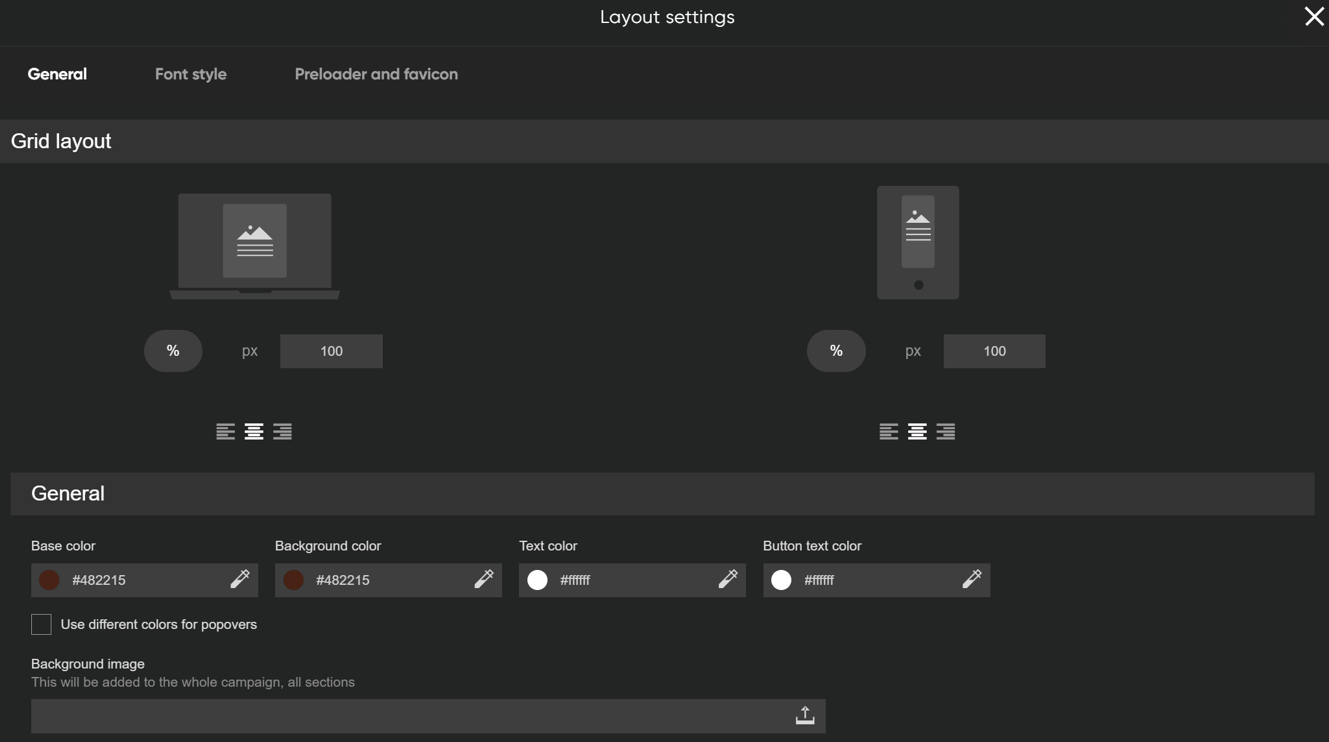
Accessible from the right bottom link or by pressing CTRL + L, this allows to configure the general look and feel of the game.
⚠️ Do not forget to press Save button on each tab to save changes. Since these changes are the only ones that apply by pressing Save, it’s often disregarded.
General tab configures the colors or background image that will be applied on all pages of the game.
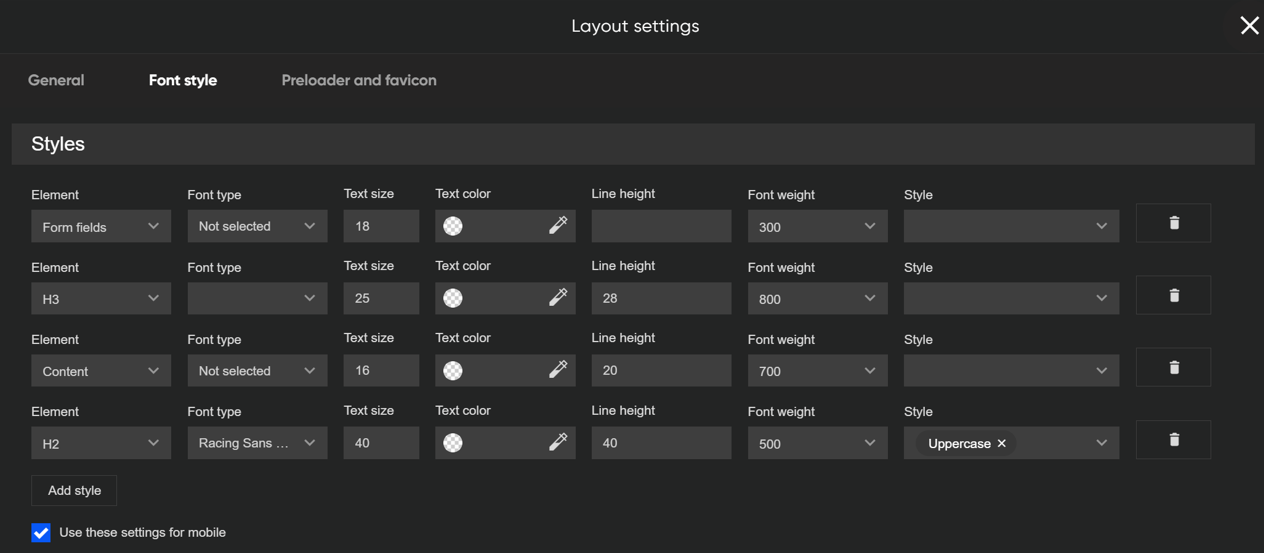
Font style tab allows you to define the fonts for different types of text elements that are used throughout the game. It’s not mandatory to define here all the fonts, you can override them in each section as needed.
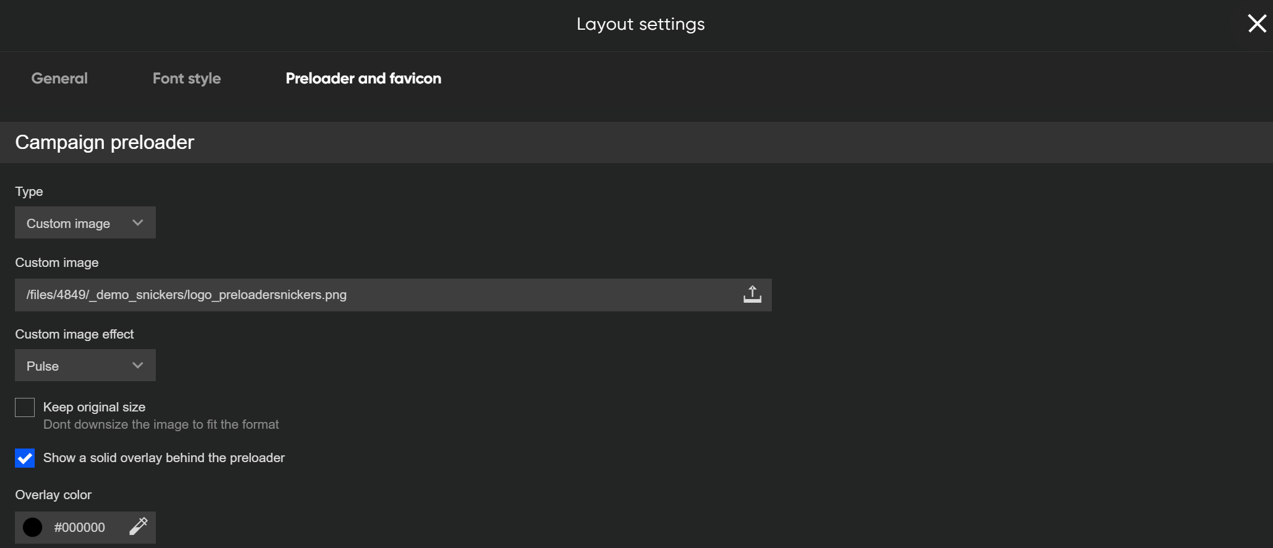
Preloader and favicon tab allows you to define the preloader to be used while the game loads (can be several seconds). It can be a custom image for which effects can be applied (like pulse or bounce), or standard dotted or spinning preloaders.
Sections – Terms and Conditions
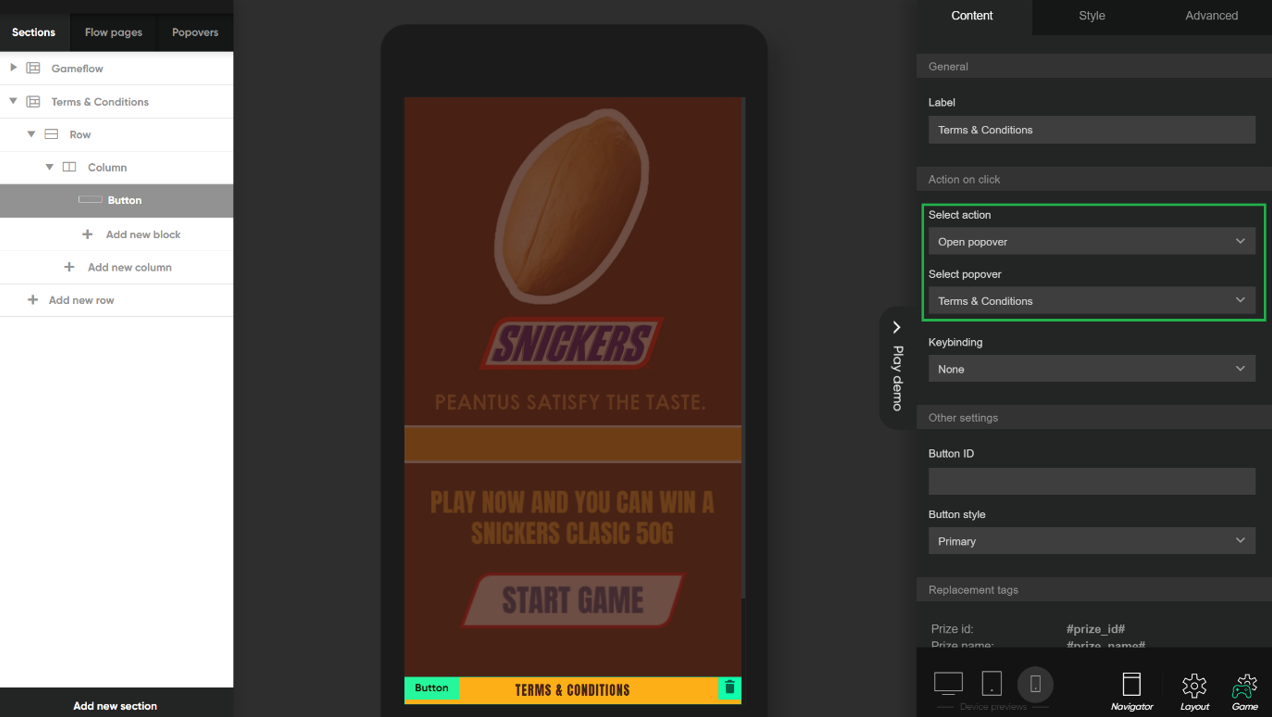
Here the style should be defined for the bottom button that opens the Terms and Conditions of the Game. This is visible on all screens throughout the game.
- Select action – Open popover
- Select popover – Terms & Conditions (here is the name of the Pop-over that is configured in the Popover tab)
Popover – Terms and Conditions
The looks and content of the screen that is opened by the button configured previously can be configured here.
Besides the font style and color of the X button, you should edit the content of the Terms and Conditions so that they match the new game. Check if you specify the game period, prize and win chances.