Split
Orchestration provides a possibility to split member segment into groups by member attributes. This allows the user to see how the profiles in the segment are divided based on different attributes or behavior.
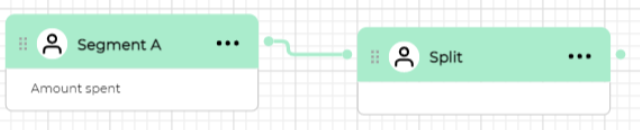
Add attribute split from a segment block
If you want to split one segment into more parts then you can do the split within a segment.
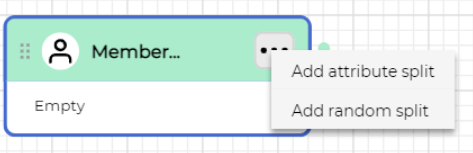
- To add attribute split right click on the three dots near the segment block name.
-
Click on the "Add attribute split". In opened wizard you choose the attribute group in the left section and click on it.
-
Find the needed attribute (in this case it is "Age") and click on it. Select needed attribute split group from previously saved list or add a new group.
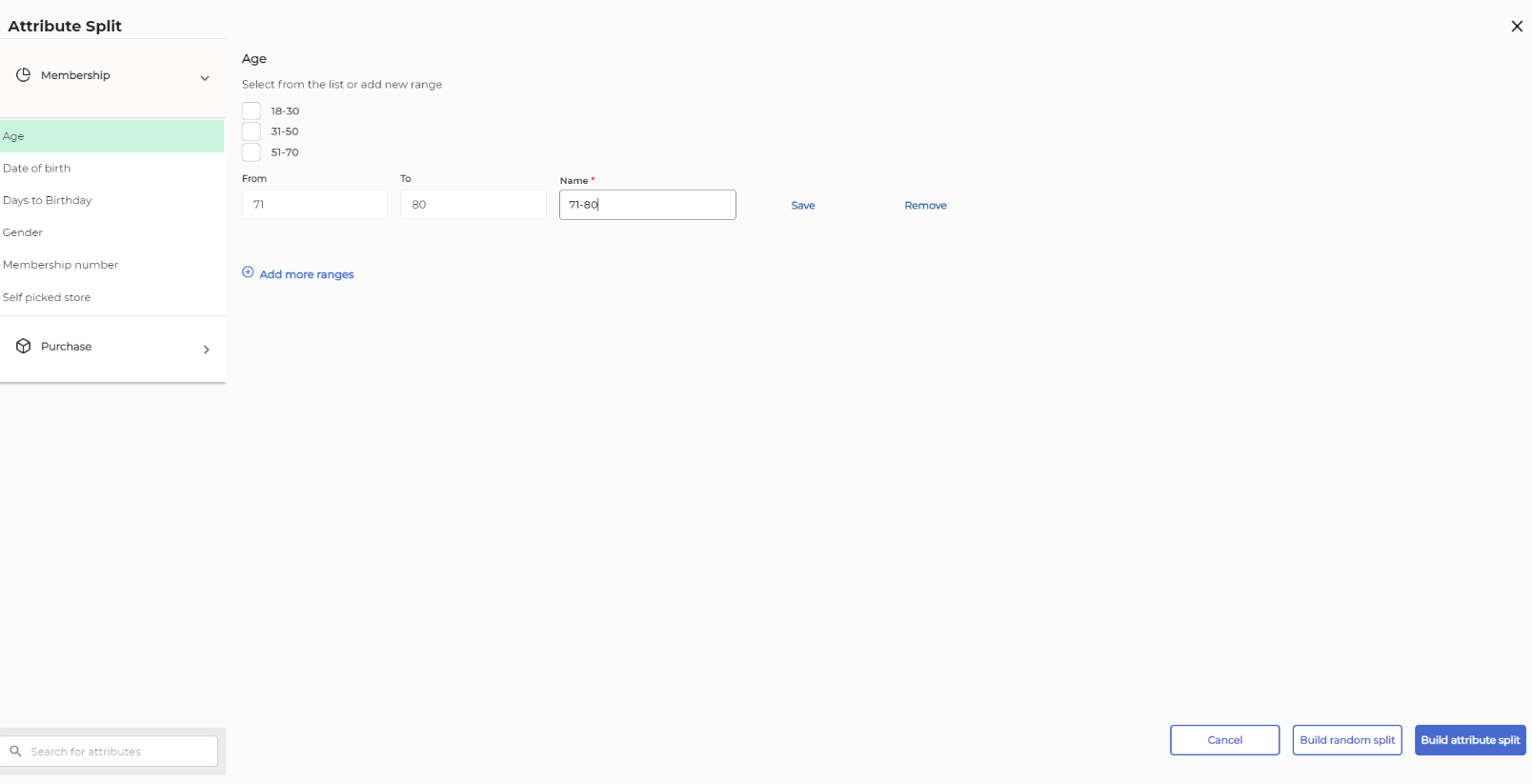
- Press button "Build attribute split". A new wizard is opened where it’s possible to configure limitation for attributes split groups. By default it is configured without any limitation. Note! Attribute Split "Others" group will automatically be added as an additional group. "Others" contains profiles, which are not included in any of the user defined attribute split groups. It is not possible to configure any limitation for group "Others".
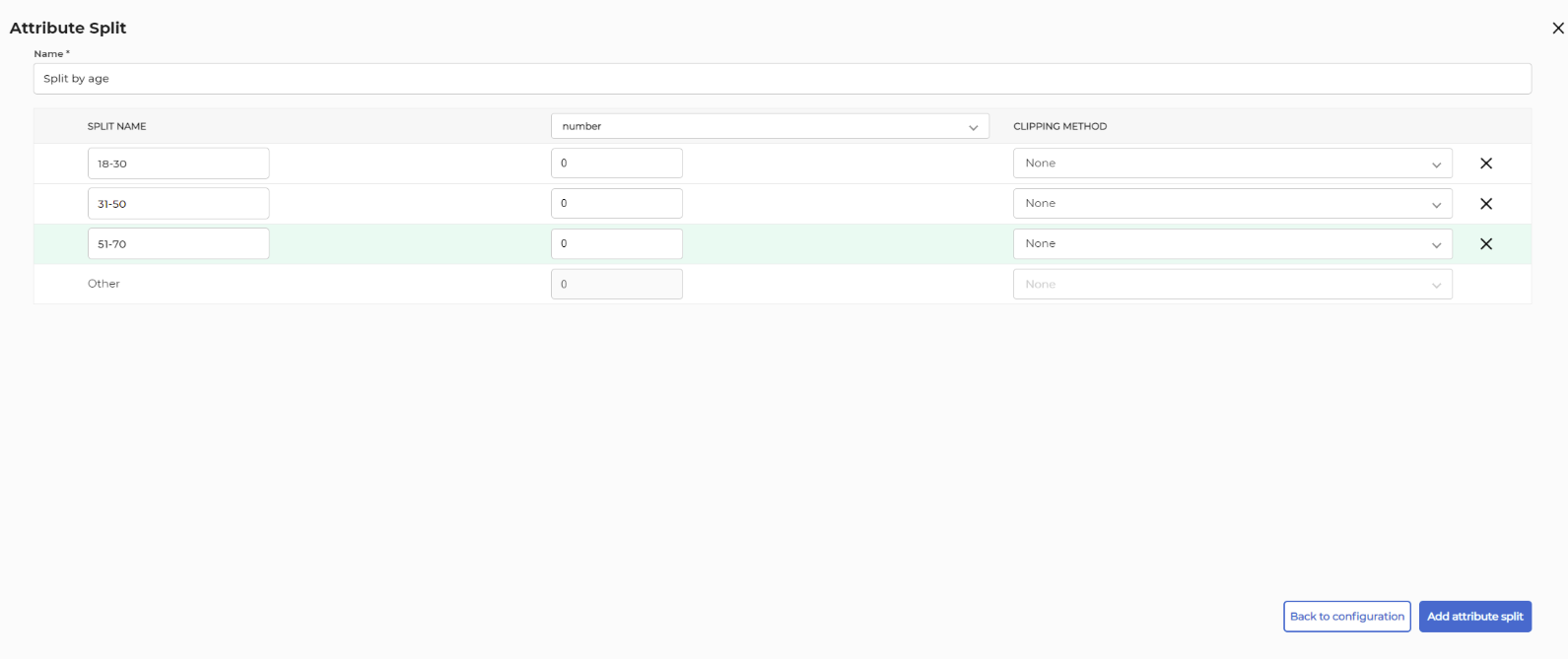
- Press button "Add attribute split". Now attribute split is configured. You can edit or remove attribute split configuration. Just right click on three dots near a segment block name.
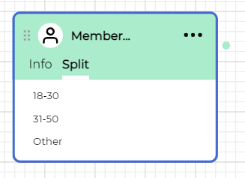
Depending on the type of the attribute:
- You can select one or more items from a pre-defined list (checkboxes), mostly in the Membership category,
- Or you need to pick one exact item from a pre-defined list (dropdown),
- Or you need to specify the value range on your own, picking the From and To values (in case of numeric attributes),
- You can add more ranges or remove existing ones
Add separate Split block
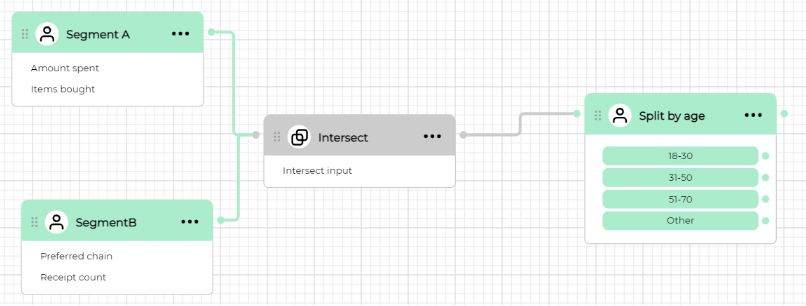
You can also add a split using a separate block on the canvas. It makes sense to do it when you have a more complex segment definition with combine, exclude and/or limit blocks.
Build random split
There is a possibility to create a random split based on different conditions.
- Number: Selecting absolute number of items for a group.
- Percentage: Selecting a percentage value for a group.
Clipping method:
- Random: The items are picked randomly.
- Top: The top items from the list are used.
- Last: The bottom items from the list are used.
You can add a split group by clicking the "Add split group" button.
You can delete a group by clicking the X on the right.
You can reorder the groups by dragging the row icon on the left.