Trigger banner by member segment
Orchestration-Based Banner Flow
A typical banner flow includes:
-
Member Segment – Defines which members should see the banner
-
Banner Activity – Banner image to be displayed in the mobile app
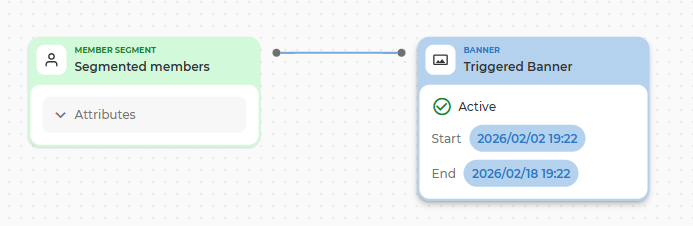
Step 1: Define the Member Segment
-
Drag a Member Segment block onto the canvas
-
Choose attributes and conditions to target members who should receive the banner in the mobile app
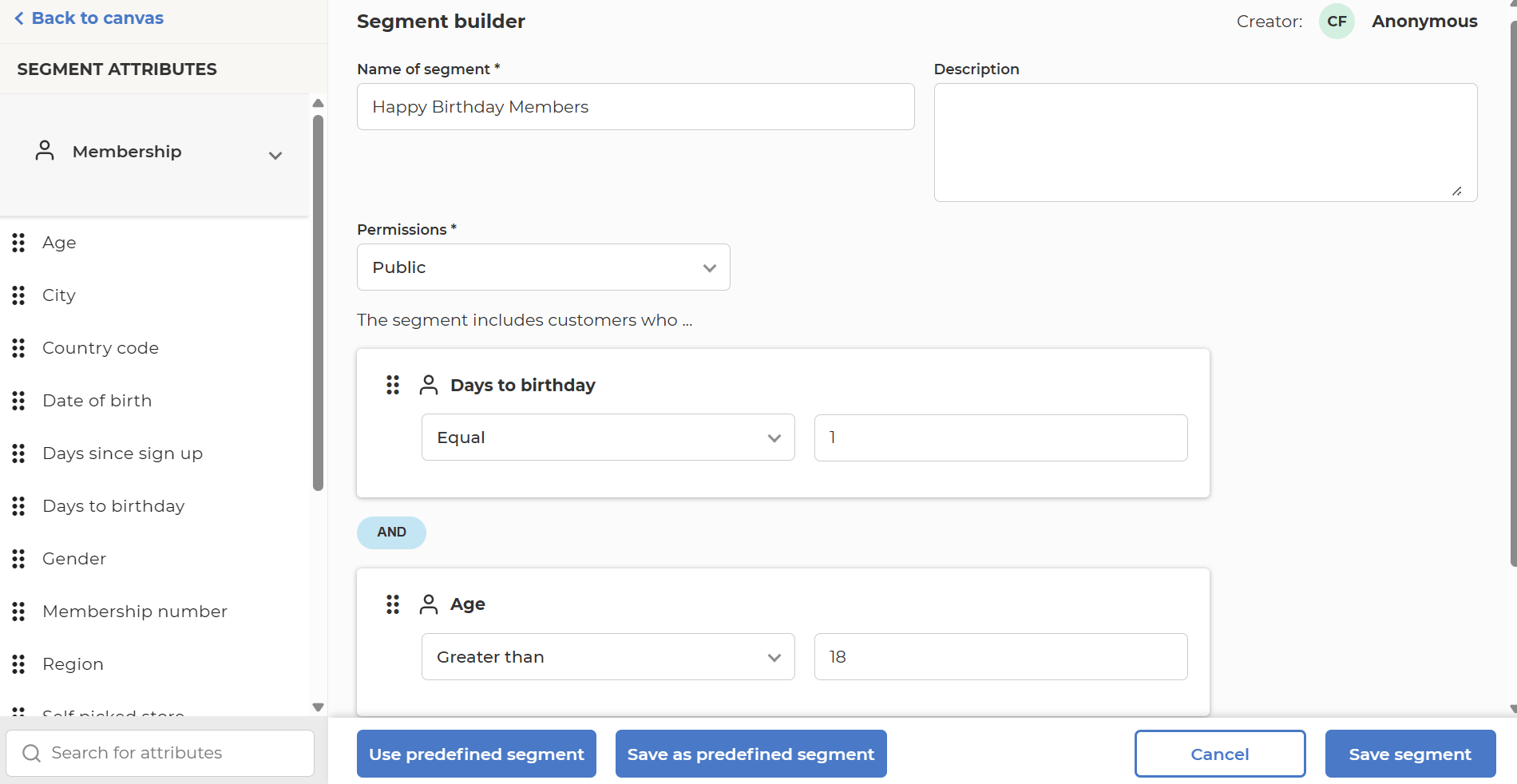
Step 2: Add Banner Activity
-
Connect a Banner block directly to the Member Segment
-
Double-click the Banner activity block to start configuration
-
Upload or select the banner image that should be shown in the mobile app
Banner Validity Days
-
The Banner Validity setting defines how long a banner remains visible after the execution time of the flow
-
The value is specified in days (e.g.
10days) -
Validity is calculated starting from the moment the Banner activity is executed for a member. If no value is provided for Validity Days, the banner will be valid until End Date of Banner Activity.
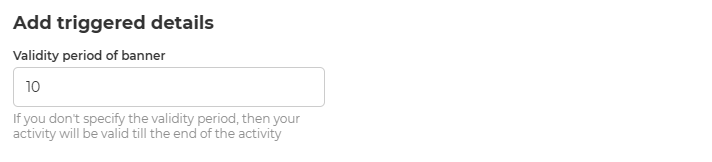
Configure Banner Activity Details
The execution of a Banner activity depends on three conditions:
-
The configured Start and End dates
-
The execution time of the orchestration flow
-
The publication status of the Banner activity
Execution rules
-
Execution occurs only if all of the following are true:
-
The Banner activity is published (not saved as draft)
-
The execution time falls within the configured Start–End date interval
-
Behavior by Scenario
-
Start and End dates are in the future
-
The Banner activity will be skipped until the execution time reaches the configured Start date
-
Once the execution time enters the Start–End interval, the Banner activity becomes eligible for execution
-
-
Start and End dates are in the past
- The Banner activity will be skipped, as the execution time is already outside the allowed date range
-
Execution time is within the Start–End date interval
-
If the Banner activity is published, the banner will be displayed to qualifying members
-
If the Banner activity is saved as draft, the step will be skipped
-
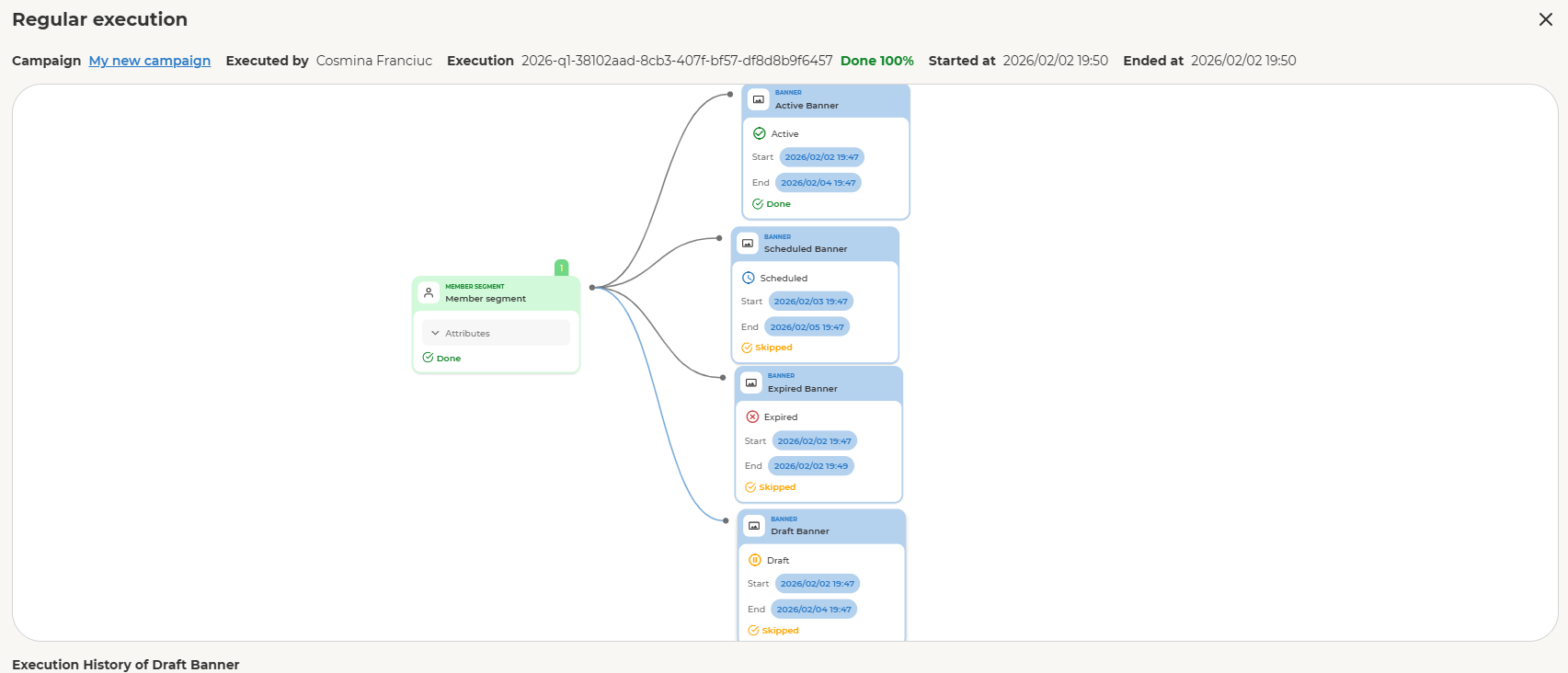
Important Notes
-
Start and End dates act as a hard visibility window for the banner
-
Publishing the Banner activity is mandatory — draft activities are always skipped
Banner Re-allocation Behavior
-
A member can only have one active instance of the same banner in the mobile app at a time.
-
If a member has already been allocated the banner during a previous execution, the system will not allocate the same banner again while the original allocation is still valid. Instead, the system will extend the banner’s validity period to match the latest allocation execution time.
-
If the Banner Validity period expires, the banner will no longer be visible to the member in the mobile app. If the orchestration flow executes again after the validity period has expired, and the member still qualifies for the segment, the banner will be allocated again.
-
This prevents duplicate banners from appearing in the mobile app.